Provision Mapping - Trust level
 Updated
It is possible to add Provision Types (interventions) at Trust level and view a Provision Map so you can get a Trust oversight of provisions used across all schools in the trust.
This help guide details both of these features.
Managing Provision Types at Trust level
If schools in the Trust are making use of Provision mapping in Insight it can be useful to manage the available provision types at Trust level.
This has two clear benefits.
Firstly, the types of provision, or intervention, are consistent across all schools. This doesn't just apply to the name but also the other variables such as costs associated with each provision type.
Secondly, significant time is saved as the provision types only need to be added once rather than at each school in the trust separately, with the associated risk of error this brings.
To begin ensure you're on the Trust home page then click the Provisions button on the main menu bar.
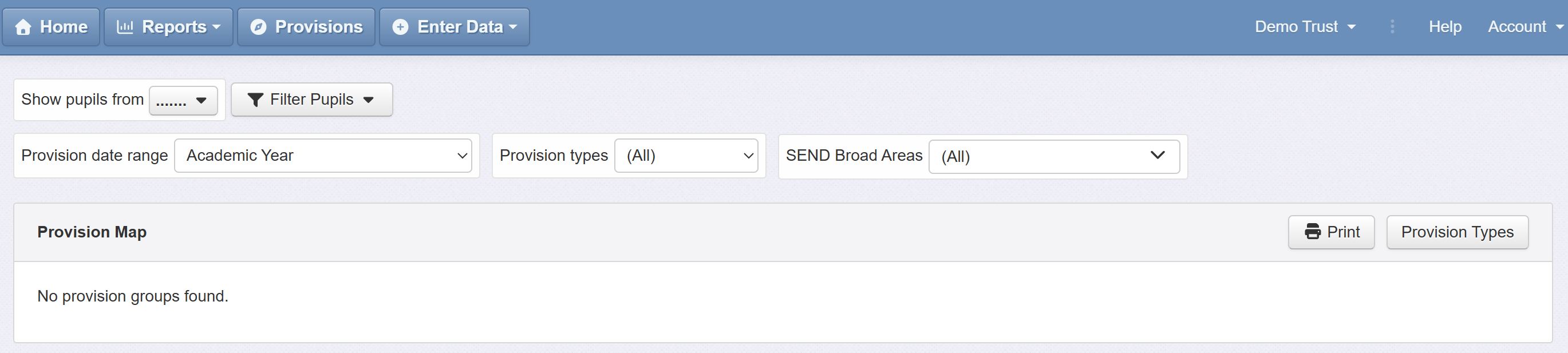
If schools in the Trust are already making use of Provisions, you'll see a Provision Map showing that usage. If not, you'll see a message saying No provision groups found.
Click the Provision Types button to continue.

Click the green Add Provision Type button to add a new provision type.
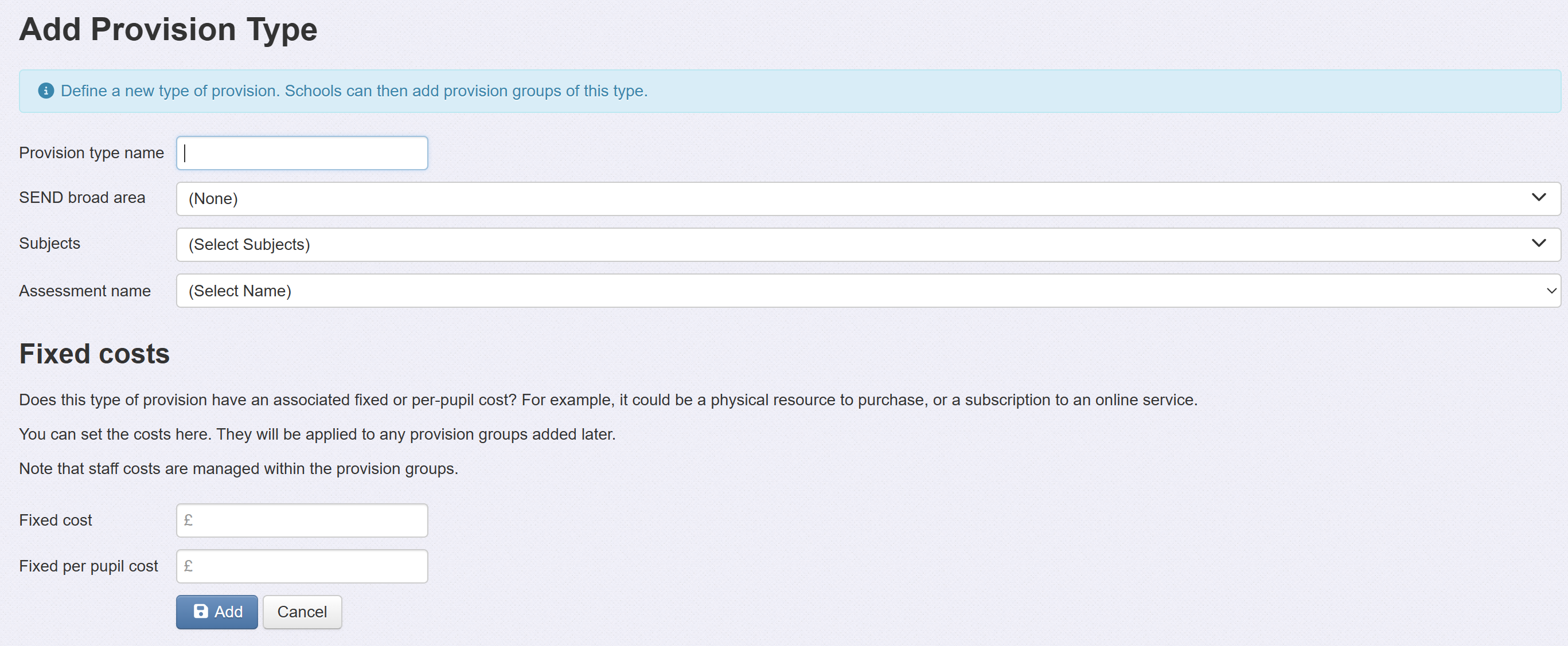
See the school level help guide for detail on each option here.
Once added, you'll see the different provision types listed.
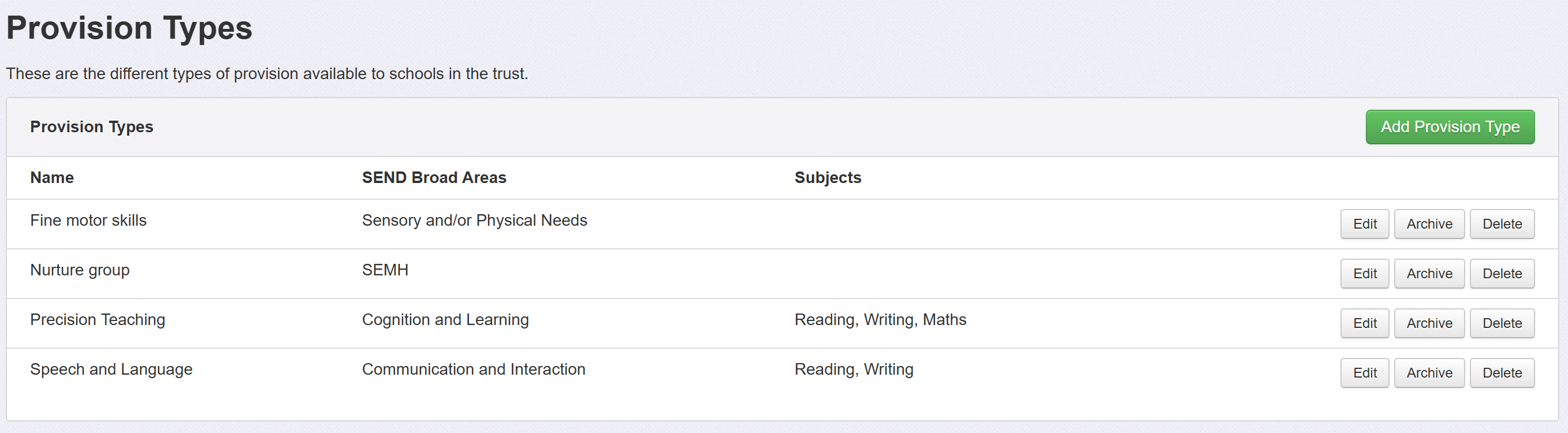
Next to each type are three buttons:
Edit - Edit the type. All details may be changed, including the name
Archive - This will remove the provision type from the available list, so it will not be possible to create new groups based on it. Any existing groups will be retained, however. This is useful if you want to keep a historical record against a provision that you are no longer using.
Delete - This will delete the provision type and any provision groups that use it. This is useful if you no longer require a historical record for a particular type.
Using Trust provision types at school level
All schools in the Trust will have the Trust provision types available to create groups against.
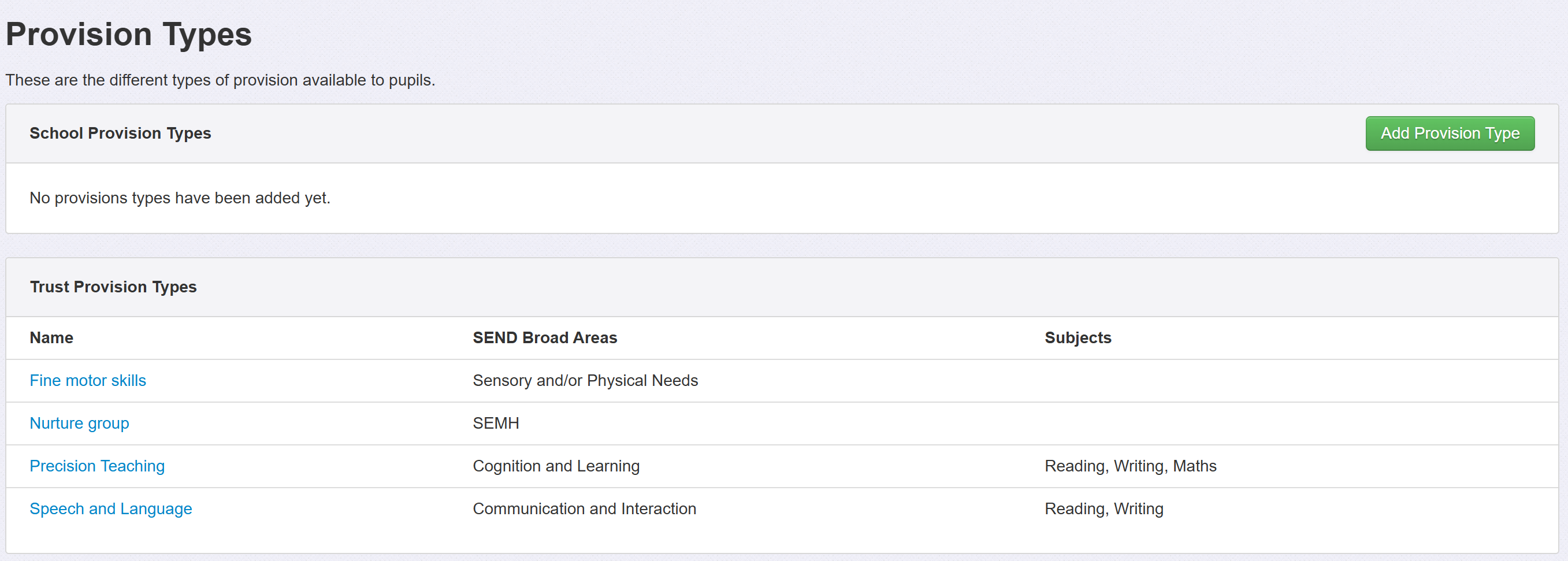
Trust provision types may only be modified at Trust level.
Schools are able to add and manage their own provision types. This can be useful if there's a particular need in a school that does not apply to all schools. Or if you want to try a new provision in a school with a view to rolling it out over the whole trust at a later date, if successful.
Using the Trust Provision Map
Ensure you are on the Trust home page then click the Provisions button on the main menu bar.
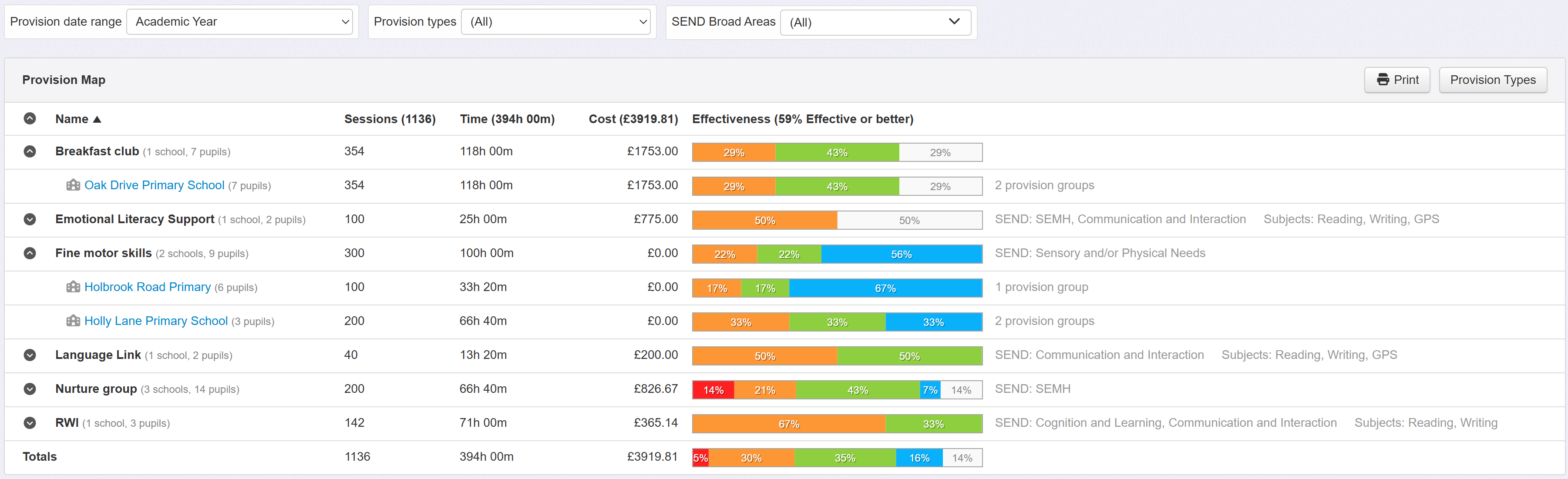
Any current provision group usage, over all schools in the Trust, will be displayed.
You can click any provision type name to expand it and see individual school usage, including effectiveness measures and costs for each school.
It is not possible to see individual provision groups in the Trust provision map.
To do so, and access other Group By views, click the name of the school to open their school provision map page. See this help guide for more details on using provision maps at school level.
Moving School Provision Types up to Trust level
If you have provision types at school level that you want to move up to Trust level, including merging types that may be duplicated over multiple schools please contact support with the specific details, and we will be able to do this for you.
