Objectives Attainment report
 Updated
The Objectives Attainment is designed to make analysis efficient in order to identify where there may be gaps in curricular understanding for individual pupils or groups, in the selected Objective collections, subjects and year ranges.
Each band and objective also shows the percentage of pupils assessed as secure or above, giving another simple indicator of attainment.
This guide details how to use and get the most out of this report.
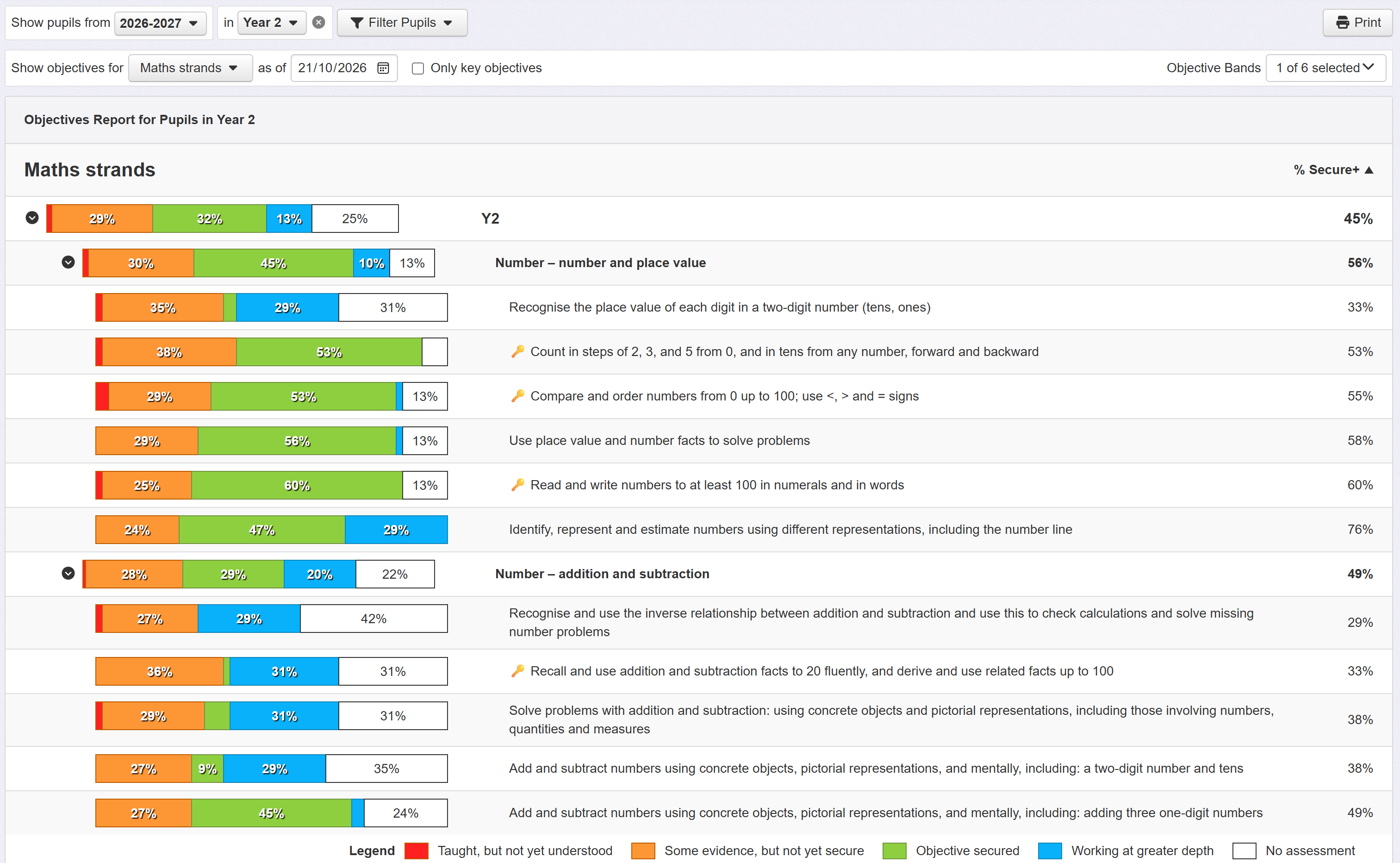
Where the Objectives entry grid is focussed on individual pupil assessments, the Objectives Attainment report is focussed on the objectives themselves, supporting easier aggregate analysis.
Running the report
When you open the report you'll need to select the objective collection to display from the Show objectives for menu.

If you'd like to compare assessments from multiple collections (Reading, Writing and Maths for example), choose Multiple selections at the bottom of the menu and make your choices.
The report is designed to show you the data you're interested in. To that end, if you have a particular year group filtered when you run the report it will automatically filter to just show any band associated with that year group, where applicable.
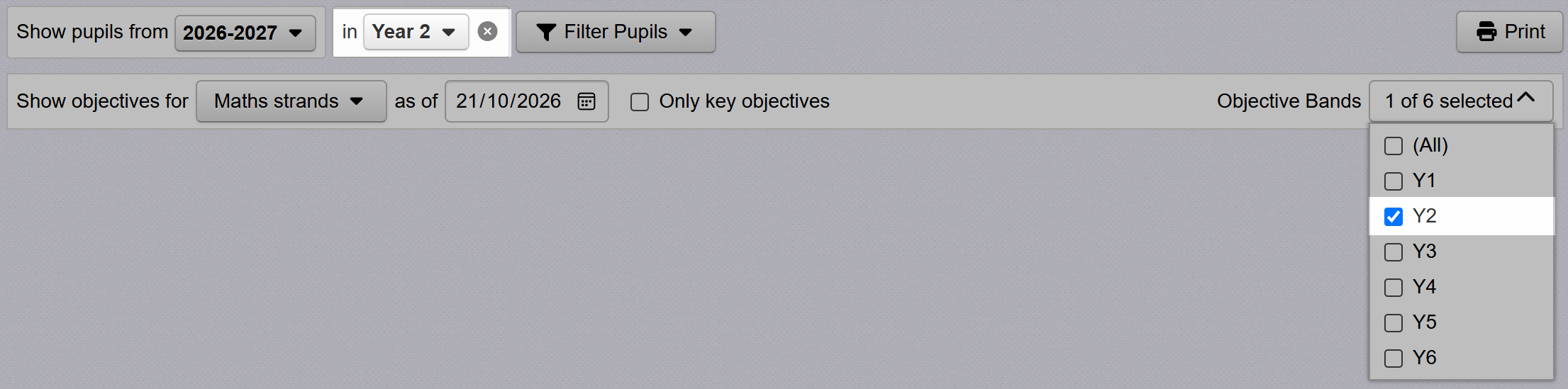
You can adjust the displayed bands using the Objective Bands menu. These could be year groups, EYFS bands, Key Stage objectives or however your objective collections are organised.
The date selection will default to today, but you can change this to view assessments as they were on that date. Unlike summative assessments, objective (formative) assessments are date-specific.
If your selected collection has them, you can tick Only key objectives to limit the report display to those objectives only.
Understanding the report
Objective band analysis
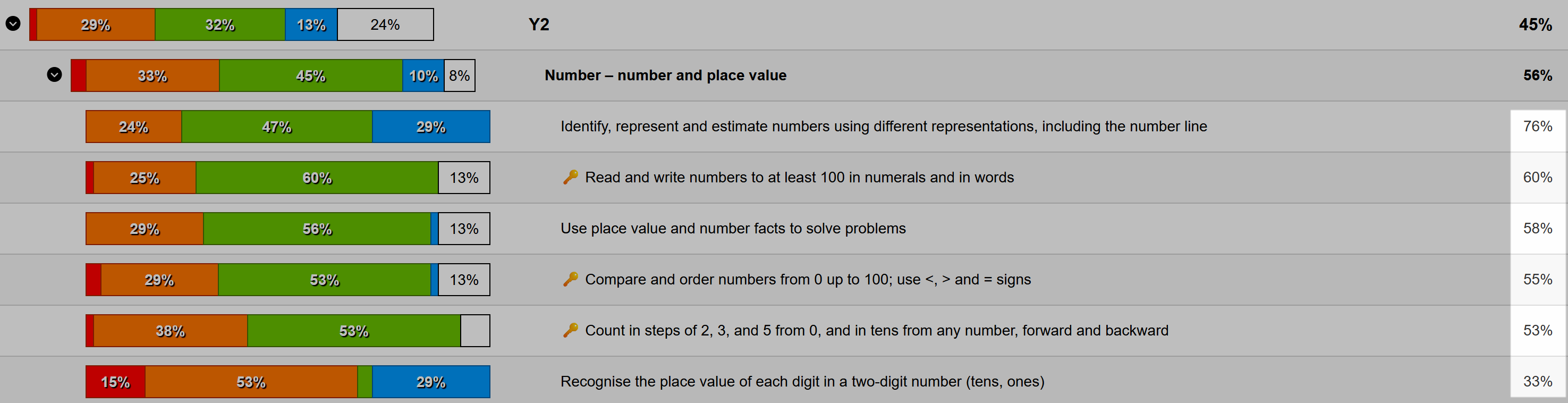
The report will display shaded bars for each band you've chosen to display. These are at the top level and describe the percentage of all objectives in that band assessed at each grade.
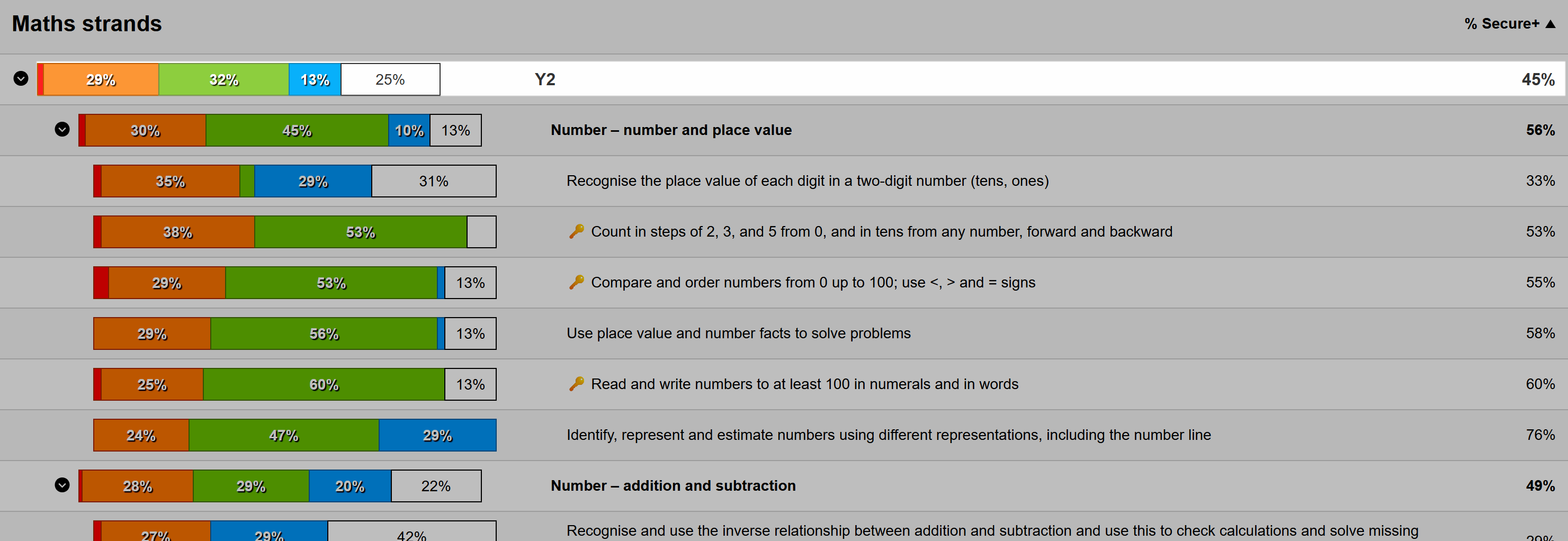
For example, in the screen capture above, we can see that 32% of all objectives in the Y2 band have been assessed as Secure. 25% have not yet been assessed.
Objectives assessed as secure or above
It might be useful to know the percentage of objectives that have been assessed as secure or above, including any that have been assessed as Greater Depth. The column on the right, called % Secure+, gives you this figure.
Objective strand analysis
If your collection has strands, the next shaded bar will show the percentage assessments for that strand only.

This can be particularly useful with objective collections for subjects, like Maths, where there are clear defined strand areas. It enables you to focus on curriculum areas of strength and weakness to inform planning.
Again, we can also see that 56% of all objectives in this strand have been assessed as secure or higher.
Individual objective analysis
Beneath the bar for the strand are bars for each objective in that band and strand.
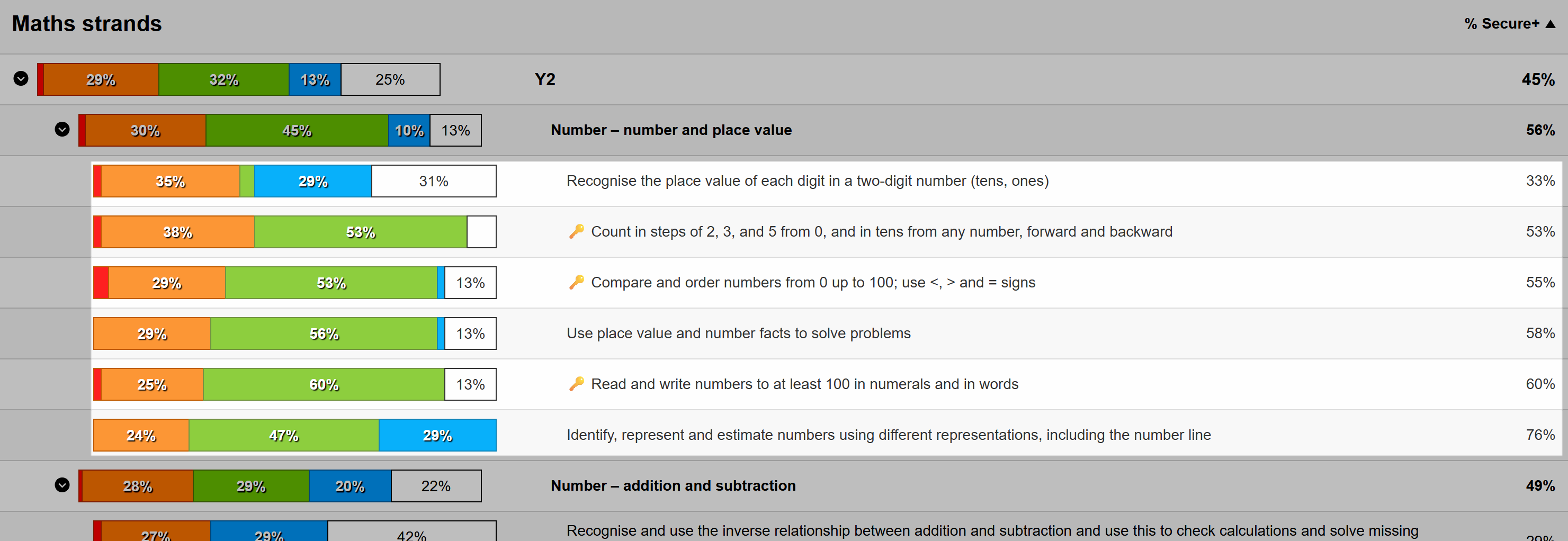
Any key objectives will be marked with the key icon.
For each objective, we can now see the spread of assessments for the currently filtered pupils, giving us a clear indication of where attainment is strong or where pupils may benefit from additional focus.
To assist with this, it may be useful to click the % Secure+ column header. This will put all the objectives in order of % attainment. Clicking the column multiple times will switch between ascending, descending or standard order.
Pupil attainment analysis
Given we've now identified objectives we may want to explore further, we can click the shaded bar for an objective to see which pupils have been assessed at which grade.
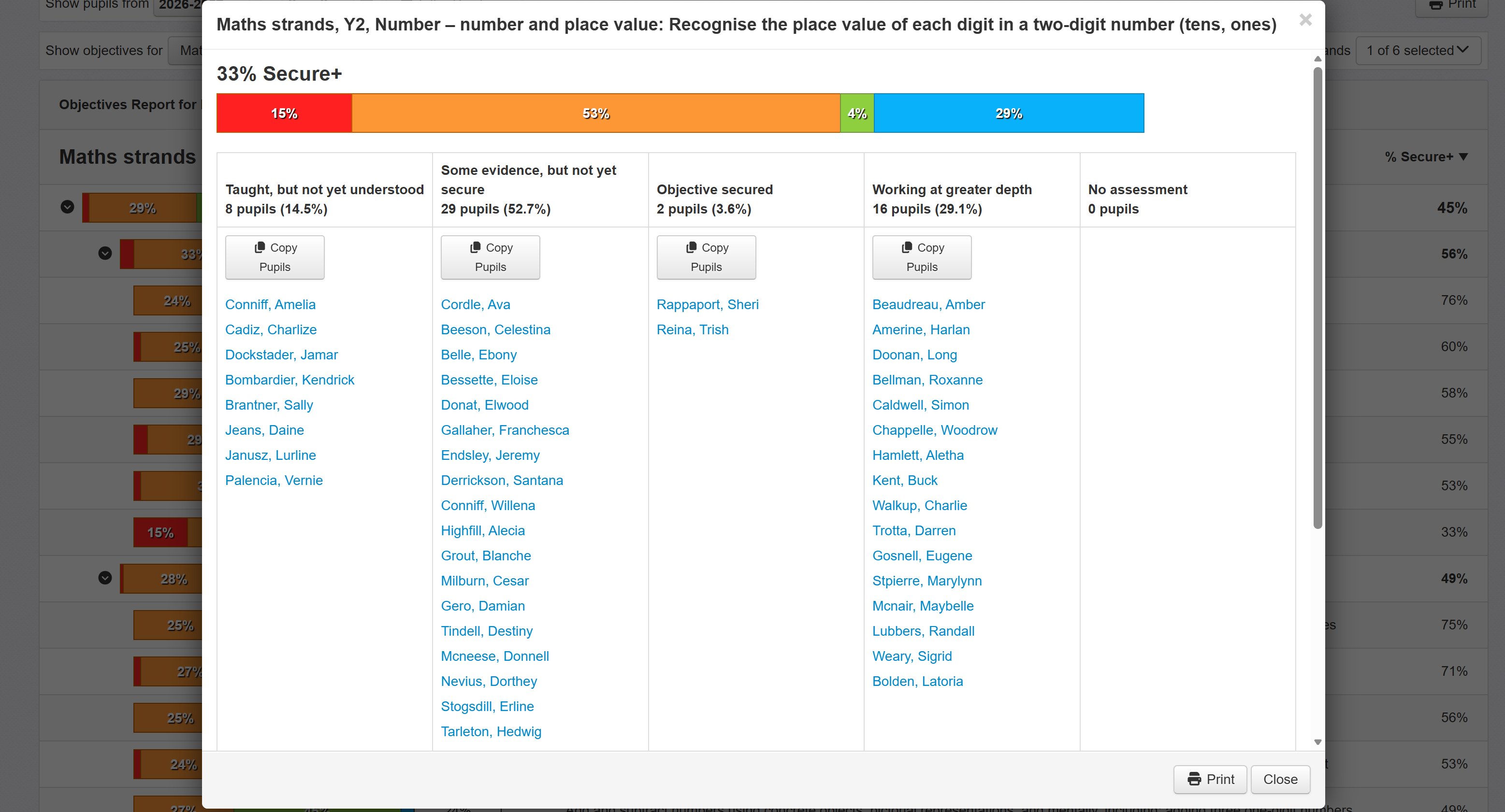
The objective text is included at the top and, beneath that, the percentage of pupils assessed as secure or above in this objective.
The shaded bar is then repeated and, below this, each assessment grade has a column in which all the currently filtered pupils assessed at that grade are listed.
As with other areas of Insight, clicking a pupil name will take you to their profile page.
At the top of each column a Copy Pupils button copies the pupil list to the clipboard. On occasion, it may be useful to copy a list as a focus group, for example to ensure they're given more focused support. The list could be copied out of Insight, into a Word document for example, or even used to paste a list of names to create a saved pupil group in Insight.
Finally, it may be useful to print just this view. The Print button at the bottom allows this.
Comparing multiple subjects or collections
You can use the Objectives Attainment report to compare attainment over multiple subjects. This can range from a top-level aggregate overview to the essential ability to drill down to individual objective level where required.
For example, here we're comparing Writing, Maths and Reading.
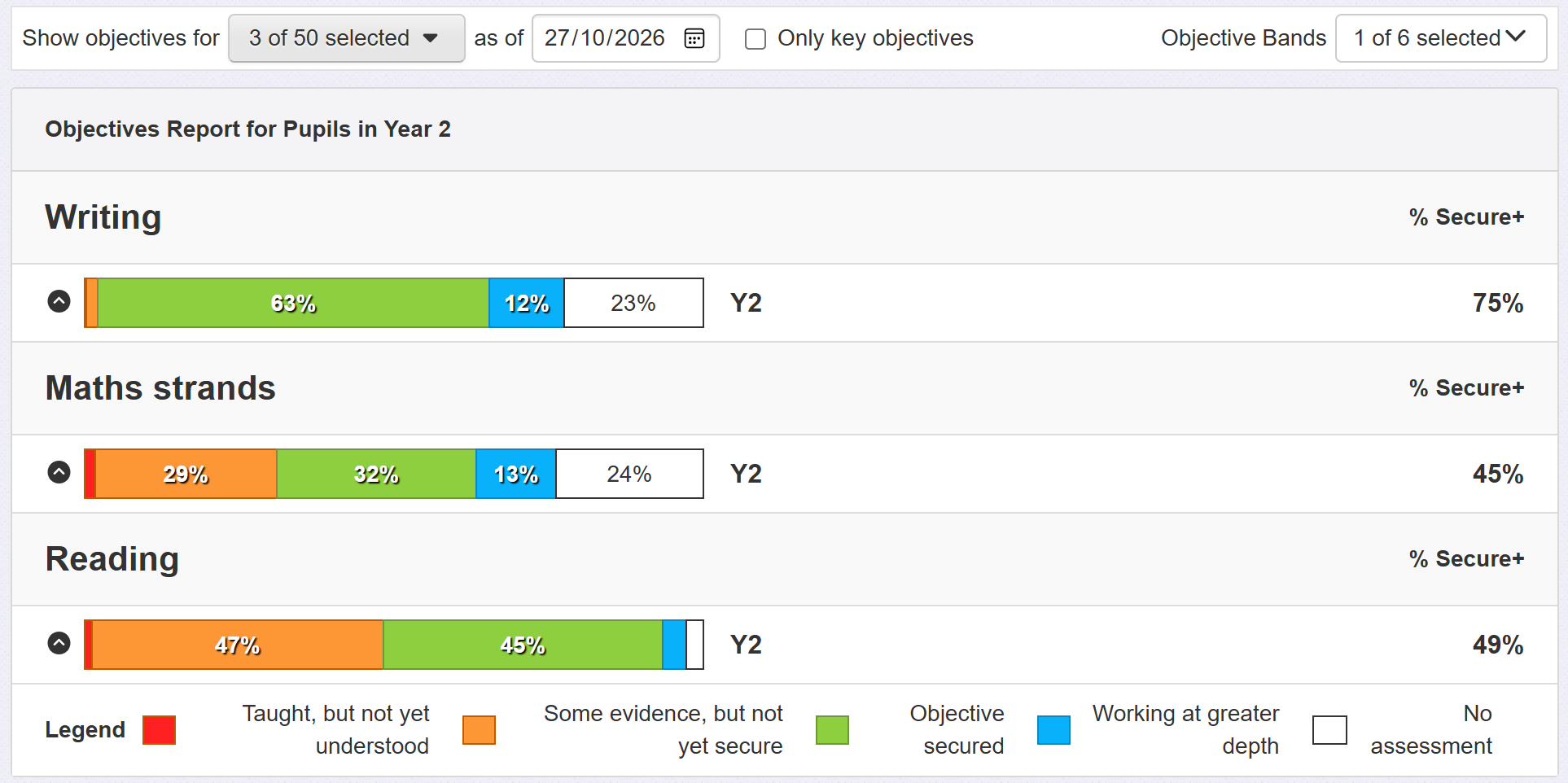
To choose which collections to compare, click Multiple selections in the Show objectives for menu and choose the ones you want. Click Apply Filter at the bottom of the menu once you've chosen.
Initially, each collection will display with the full range of objectives displayed. If you'd like a summary display, with a single bar for each collection like the example above, just click the small chevron icons beneath each subject/collection heading to compress the display.
