Send and receive pupil data from Insight schools
 Updated
You can use Insight to hold a wealth of wide-ranging data about your pupils. Much of this could be useful to other schools when pupils move, but it can be time-consuming to collate data for sending and for receiving schools to include it within existing systems.
The Send and Receive Pupil Data tool provides a secure solution allowing certain Insight data to be sent to any other school using Insight when any of your pupils change school.
This help guide walks through what can be sent, how to send it and how to accept any data that is sent to you by another Insight subscribing school.
What can be sent or received?
It is possible to send or receive the following types of pupil data:
- Assessments
- This is any summative assessment entered in Insight, including statutory assessments
- Learning Plans
- This is all learning plans for a pupil, including any archived ones
- Objectives
- If both schools have the same objective collection in place this will include any assessments entered for them
- Pupil Notes
- This is any pupil notes added for a pupil, including any files uploaded with them
How to send pupil data to another school using Insight
To send pupil data to another school using Insight open the Admin page via the Account menu, in the top right of the screen.
Click Send and receive pupil data in the Pupils section.

You'll see the options to Send, View sent or Receive data. Click Send data to another school to continue.
Choose pupils

You need to select at least one pupil to send data for.
Use the standard filters to make your selection.
The best filter to use will depend on your requirement.
For example, If it's only a few pupils the Specific Pupils filter will let you pick them.
You may even have saved pupil groups which could also be selected via the Filter Pupils menu.
Once you have at least one pupil filter, they will be shown, along with their UPN (if one is recorded).
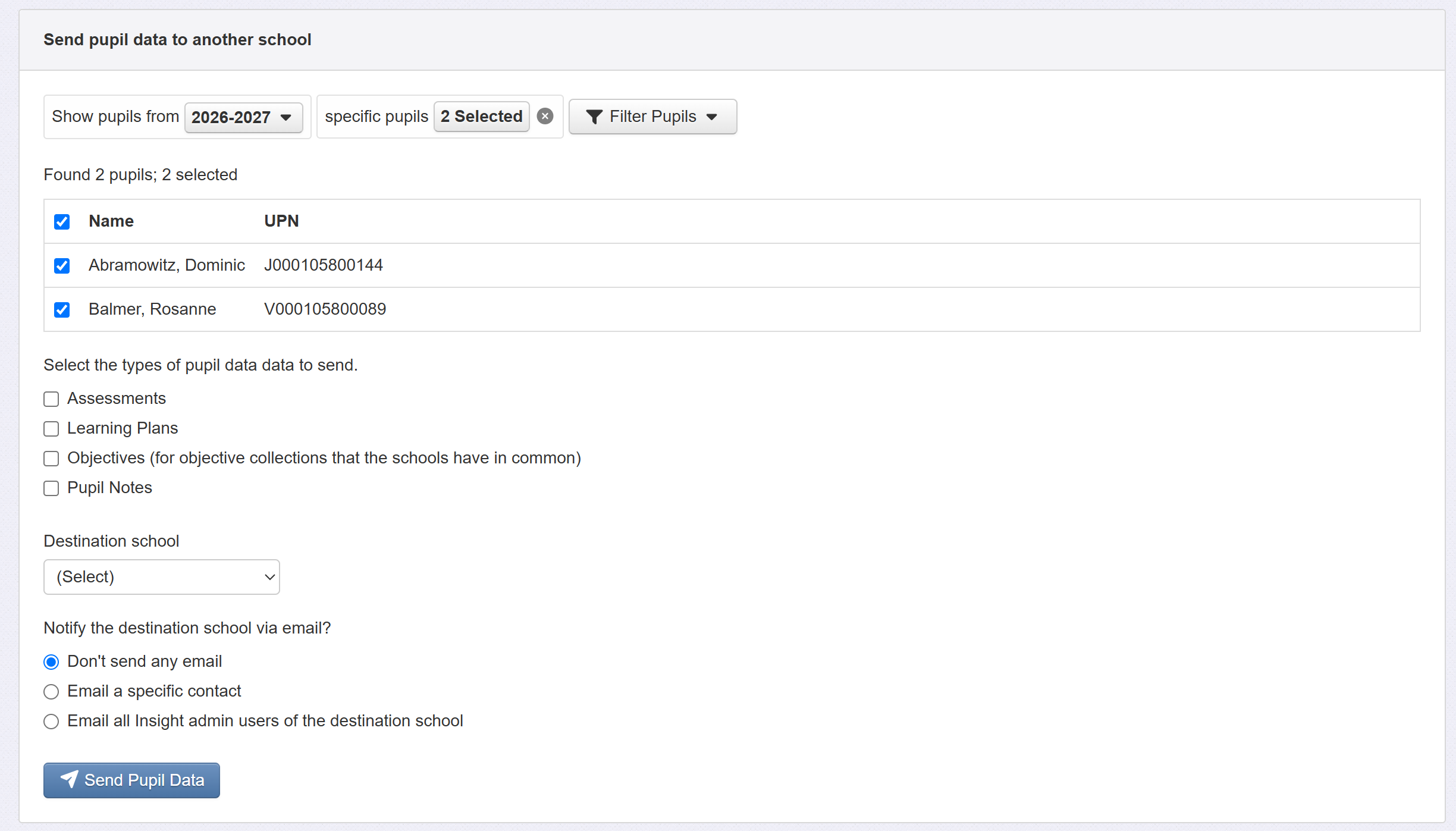
If you want most pupils in a year group you could choose the Year Group filter option. This will list all the pupils and you can then untick any that you don't want to send data for.
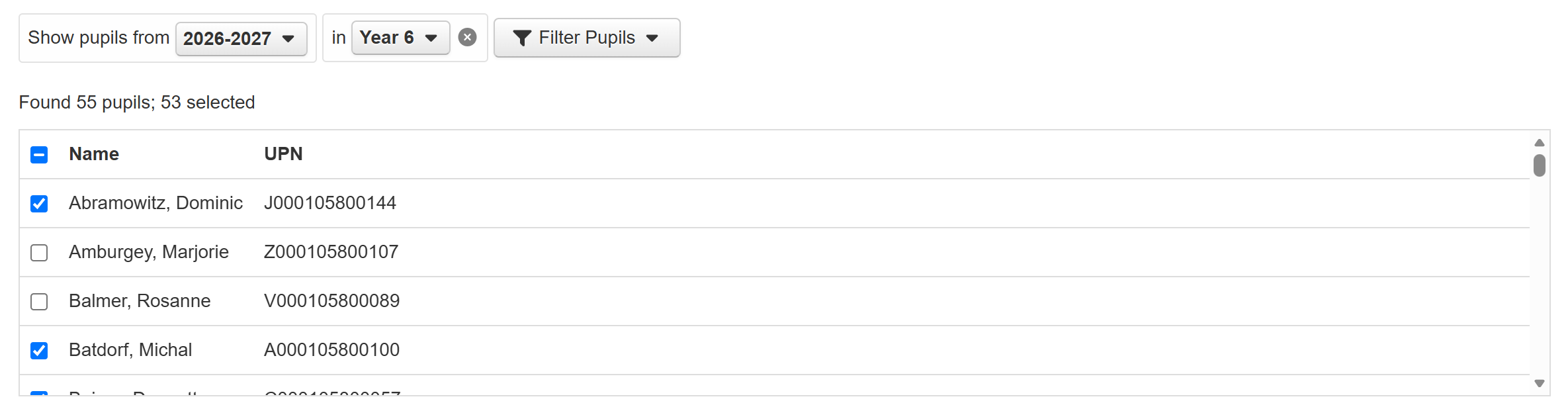
Once you have selected the correct pupils, tick the required boxes for the data types you want to send.

Insight will allow you to choose types of data even if your selected pupils have no data for that category. If you're sending data for multiple pupils, it is possible that some will have data for certain categories but not others.
Choose the destination school
Next, you need to click the menu to select the school the data will be sent to.
If your school is not part of a Trust you'll need to enter the destination school's LA and establishment number. (Similar to sending a CTF to another school from your MIS).

If your school is part of a Trust, the other Trust schools will be listed for selection.
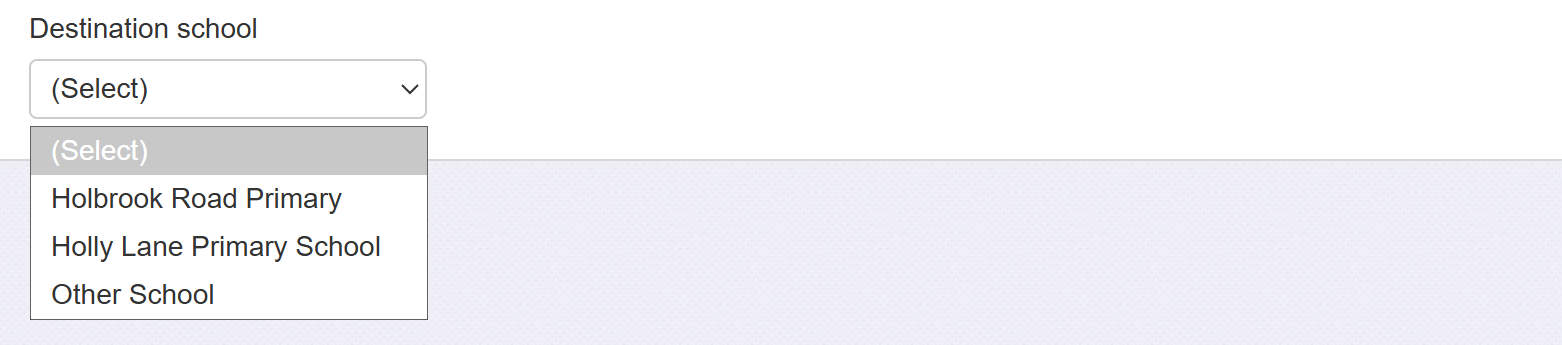
If you're sending the data to a school that is not in your Trust, choose Other School.
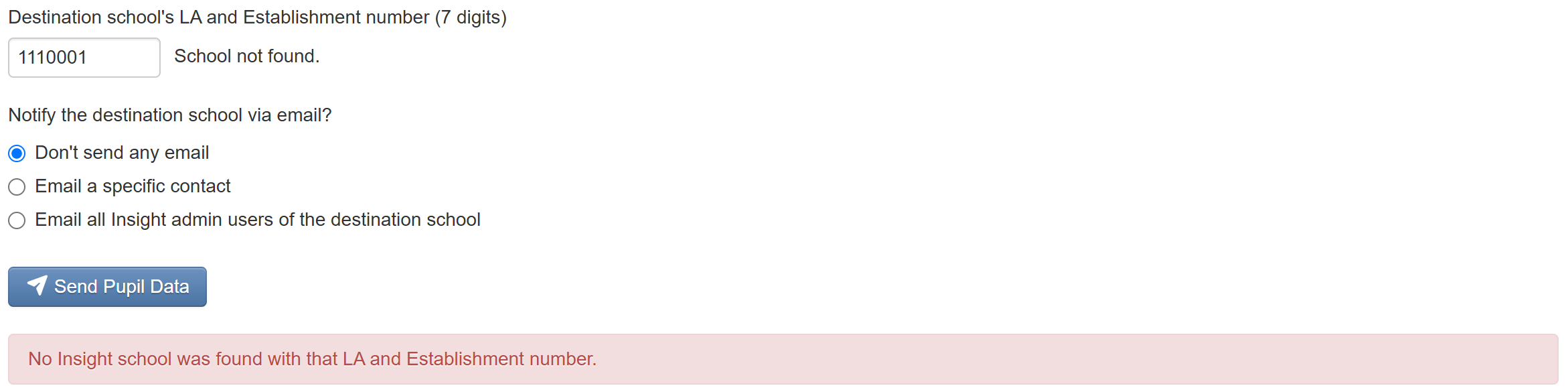
When you enter a destination school number, Insight will display its name if found. This is a useful check to ensure you're sending data to the right place.
If the school is not found, you'll be unable to send data to that school.
Once you have selected a school you're ready to send the data.
Sending the pupil data to the destination school
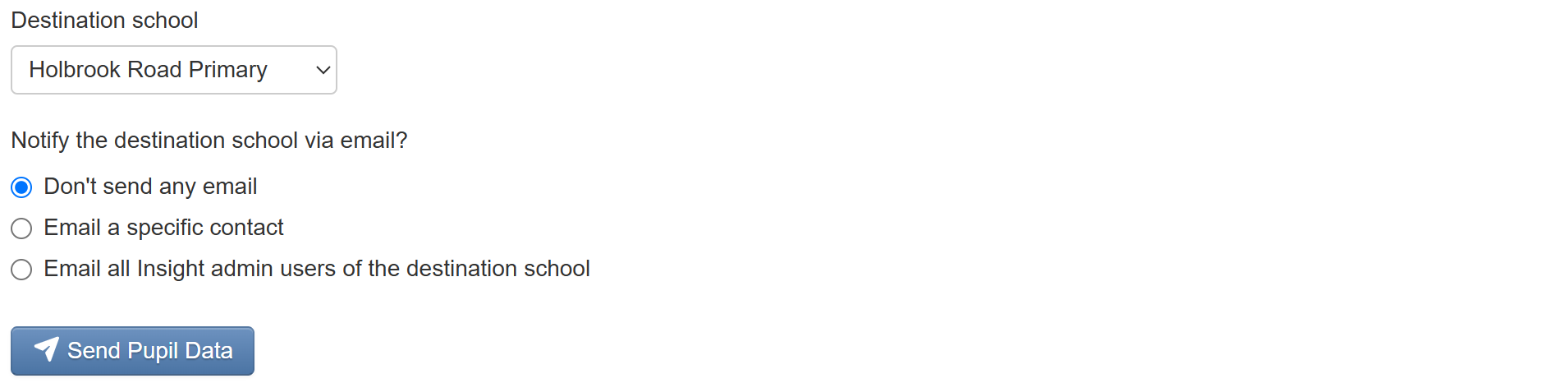
With a school selected you now have the option to email the destination school to inform them that they have some received pupil data to review.
If you choose not to send an email the receiving school will still see that they have received pupil data pending review in their admin page.
Choose Email a specific contact to type the email address of the person you want to send the email to.
Choose Email all Insight admin users of the destination school to send an email to anyone with Admin user status in the receiving Insight school.
When you click Send Pupil Data the data will be sent with accompanying emails if selected.
Sending pupil data makes a copy available for the receiving school to review and accept. It does not remove data from your school, or mark the pupil as off roll.
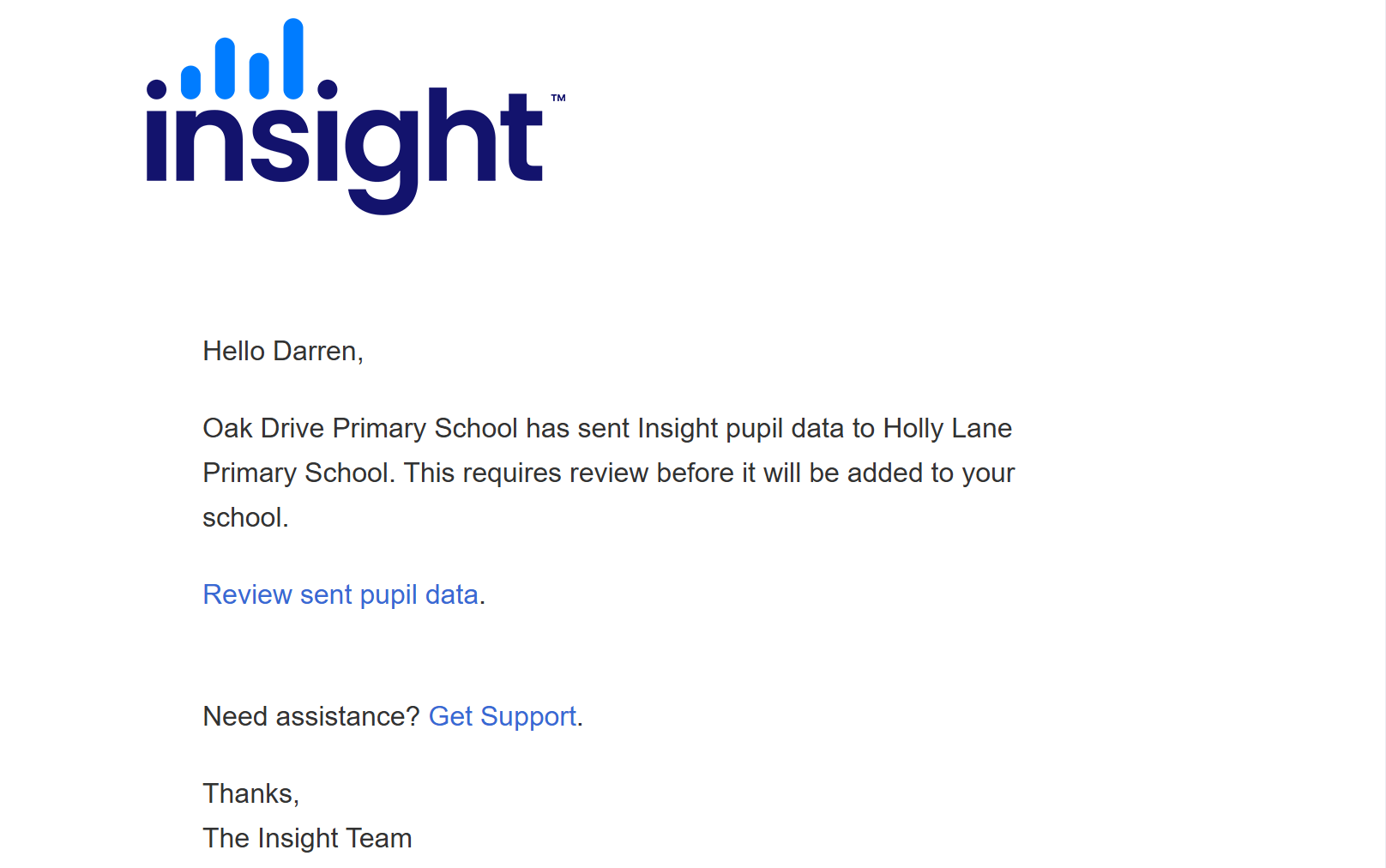
The emails will appear similar to this example below:
View sent data
Once you send, you'll be taken to the Sent data page.
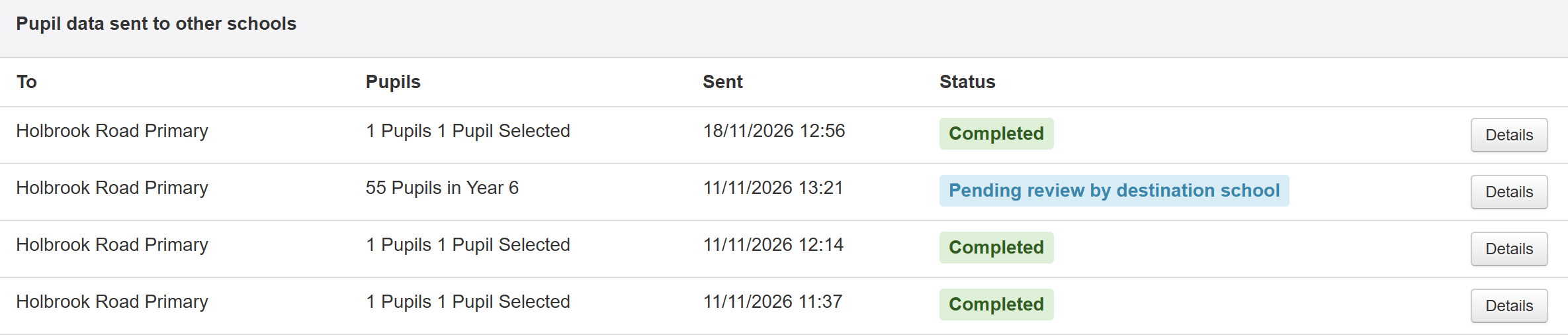
Here you can see all the schools you've sent data to, the number of pupils and when it happened.
Click Details to see more information about what was sent, including the pupil names and which data types were selected to send.
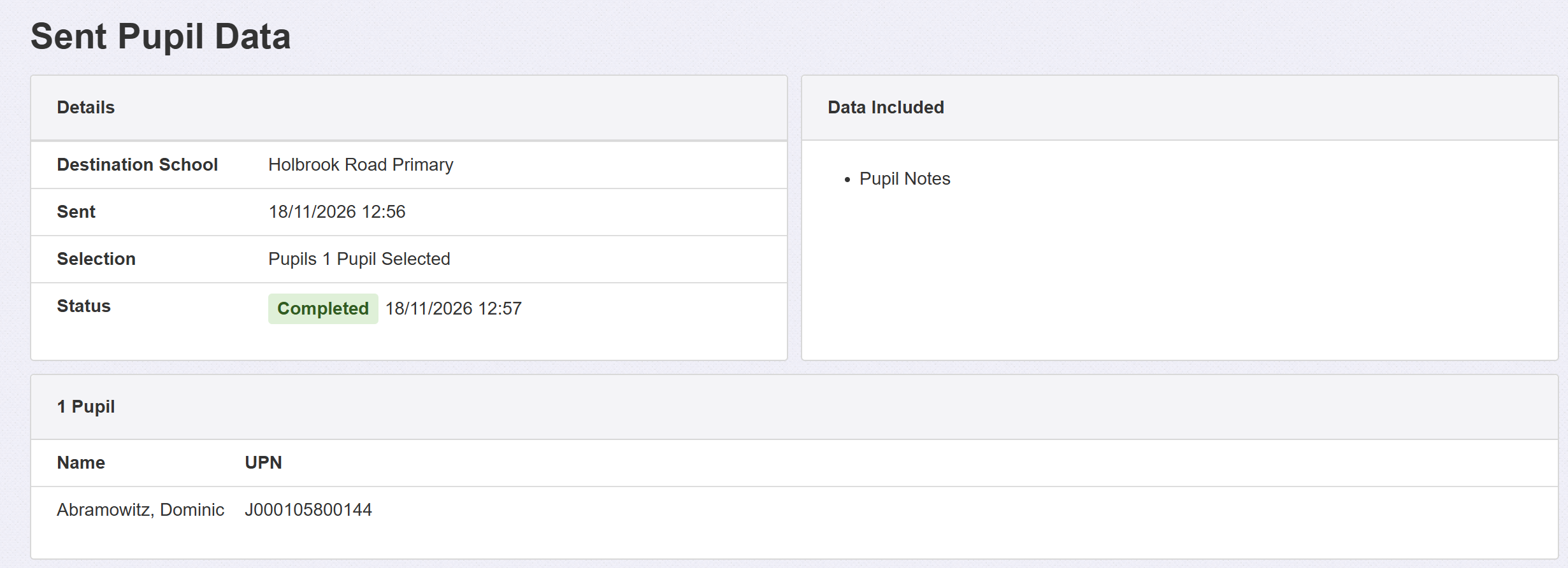
The option to Cancel is available until the point the data is accepted by the receiving school and the status changes to Completed. It is not possible to cancel or withdraw the send after this point.
Receiving pupil data from another school using Insight
When you receive pupil data from another Insight school you may receive an email notification, with a link to review it.
Alternatively open the Admin page via the Account menu, in the top right of the screen.
Click Send and receive pupil data in the Pupils section.

If you have any received data pending review this will be indicated in brackets on the Receive data from another school link.
Click the link to see more details.
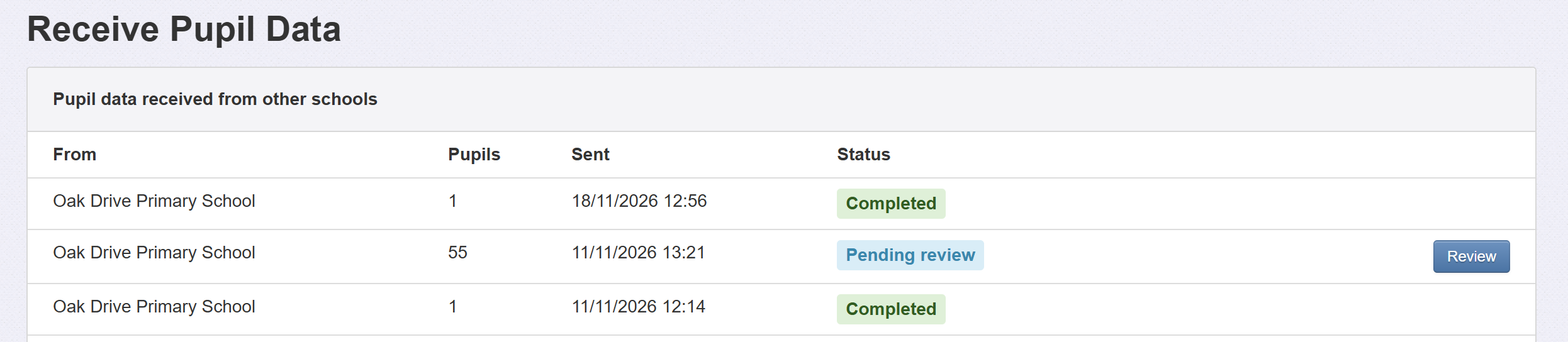
The summary will show the name of the school sending you pupil data, the number of pupils and when it was sent.
Click Review to see the pupil names and their UPNs.
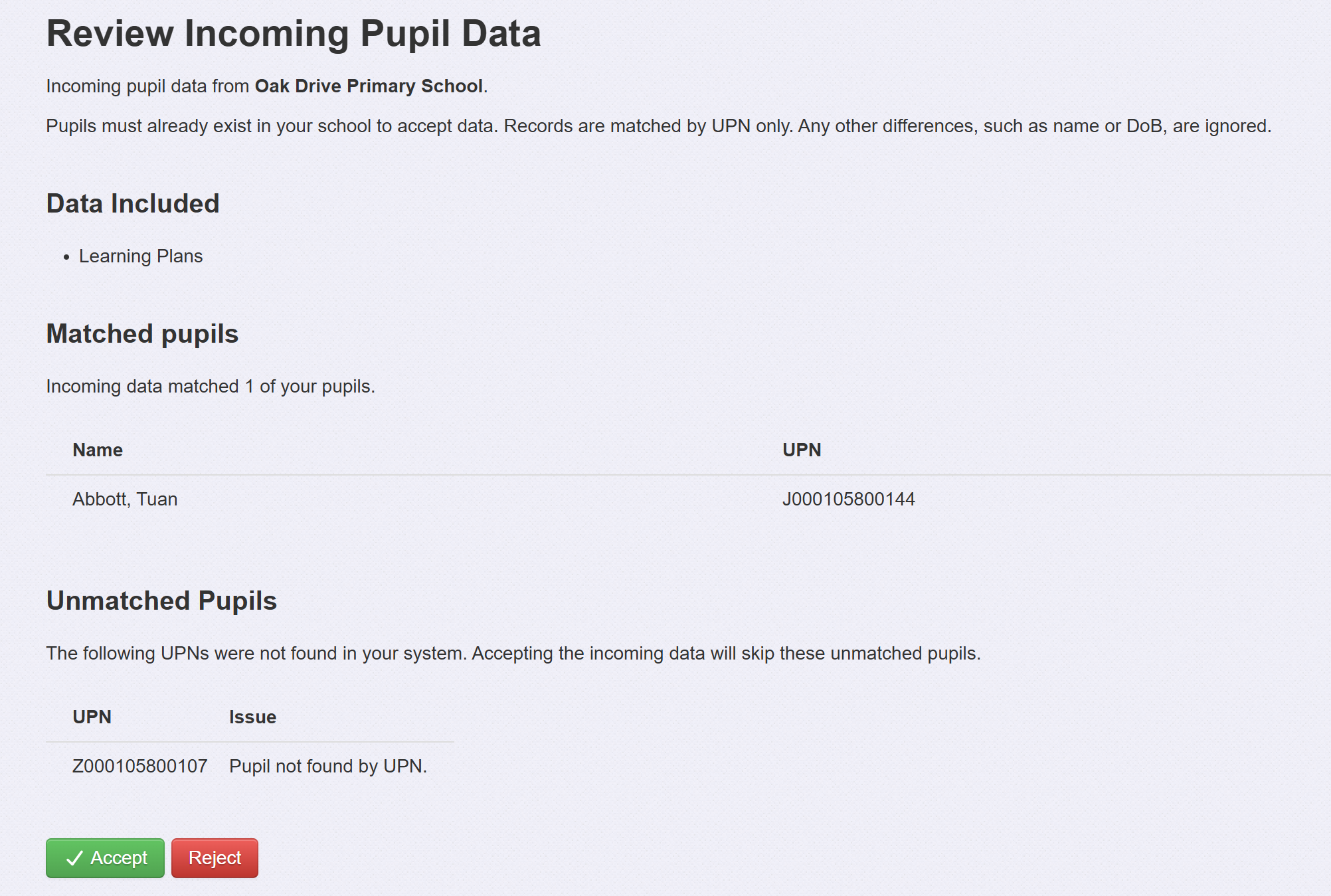
Records are matched by UPN only. Any other differences, such as name or date of birth, are ignored.
Click Accept to begin importing the sent data into your Insight data.

This might take a little while during busy times and will say Completed once the data is available in Insight for you to view.

All the sent pupils must also exist in your Insight data for you to accept their data. If a school sends you data for multiple pupils you can accept the data for the matched pupils, only. This will skip any unmatched pupils. If you believe any unmatched pupils should exist in your Insight data you should not accept the data before checking and, if appropriate, adding any unmatched pupils (you may need to check they're in your MIS and have synced with Insight). Once added you can return to this page and accept the data.
If you accept data including any unmatched pupils you will not be able to return and accept their data later. In this case, you will need to request the sending school to re-send their data.
What does received data look like?
When a school accepts data it is integrated as follows:
Assessments
All assessments for sent pupils will be added to the destination school, including statutory assessments. If any sent assessments don't have compatible mark schemes they will still be integrated, but they will just show the text of the assessment mark and any evaluation colour (some reporting tools may not work with these reduced function assessments.
If the destination school already has any matching assessments they will not be overwritten by sent data.
Learning Plans
Received learning plans will be automatically archived. When the Learning Plans tab in Pupils or the Learning Plans report is viewed they will list the school they were received from in the Plan name.
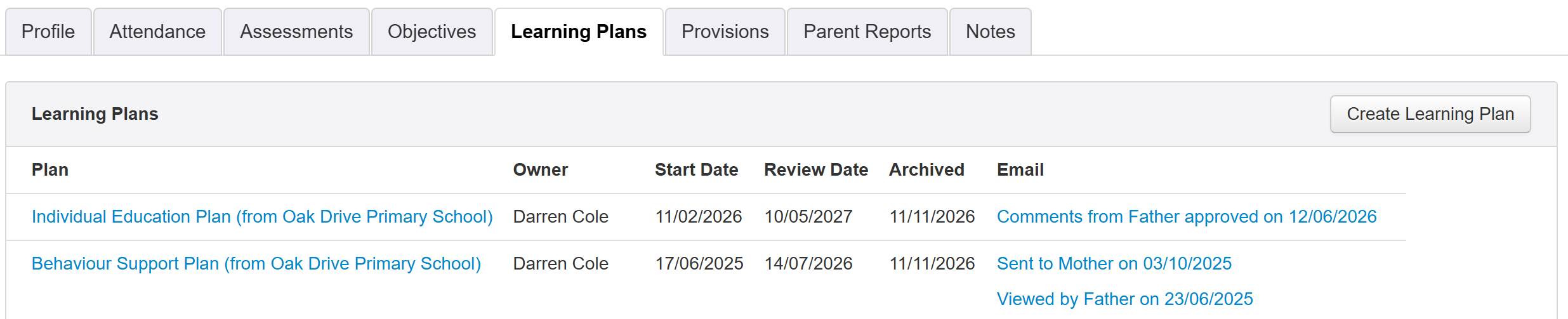
Any content, such as a pupil photo, class name etc, will be as it was in the sending school. If the sending school includes any Objectives as targets or Provision Groups these will be included as plain text (rather than links) as they don't exist in the receiving school.
Received learning plans can be used to create a new plan, just as with other learning plans. The original template used by the sending school will not be available in the receiving school, however.
Objectives
Any objective assessments will be integrated for any objective collections that both the sending and destination schools have in common.
Pupil Notes
Any notes will appear as standard notes but the name of the school that sent the note will be given, rather than the name of the person that added the note in the previous school.

Other considerations
The year groups for pupil data being sent should match. If they do not match (for example if the receiving school indicates a pupil is being taught in a different year group or repeats a year) the assessments that do not match will not be integrated in the destination school.
