Updating FSM Ever 6 for SIMS schools
 Updated
Insight is unable to use the Ever 6 FSM status from SIMS MIS. This is important as Ever 6 is used to infer both Disadvantaged and Pupil Premium status.
SIMS appear to be including pupils who are Expanded FSM as Ever 6 FSM pupils. As the DfE guidance states that these pupils should not be Ever 6 (unless due to previous FSM eligibility) we're unable to use this SIMS characteristic.
For this reason, Insight is not syncing the Ever 6 FSM status from SIMS via Wonde meaning it will not automatically update.
In order to accurately discern the Ever 6 status, Insight needs to know the full FSM history of a pupil. We are unable to sync this from SIMS using Wonde but it can be included in a CTF (Common Transfer File) exported from SIMS and then imported into Insight.
This guide explains how SIMS users can use a CTF import to ensure the Ever 6 FSM status is correct, in Insight. This will then ensure that both Disadvantaged and Pupil Premium status is correct.
Import a CTF from SIMS with FSM History
You'll need to be an Admin user, in Insight to complete this process.
Export a CTF from SIMS
Export a CTF from SIMS containing the pupils you want to update (usually all pupils on roll).
Ensure that FSM History is included. Without FSM History Insight will be unable to discern the genuine Ever 6 FSM status.
Import the CTF into Insight
In Insight, open the Admin page via the Account Menu (in the top right of the screen).
Then click Import CTF, in the Pupils section.
Click the Choose file button. Find the SIMS CTF and click Open.
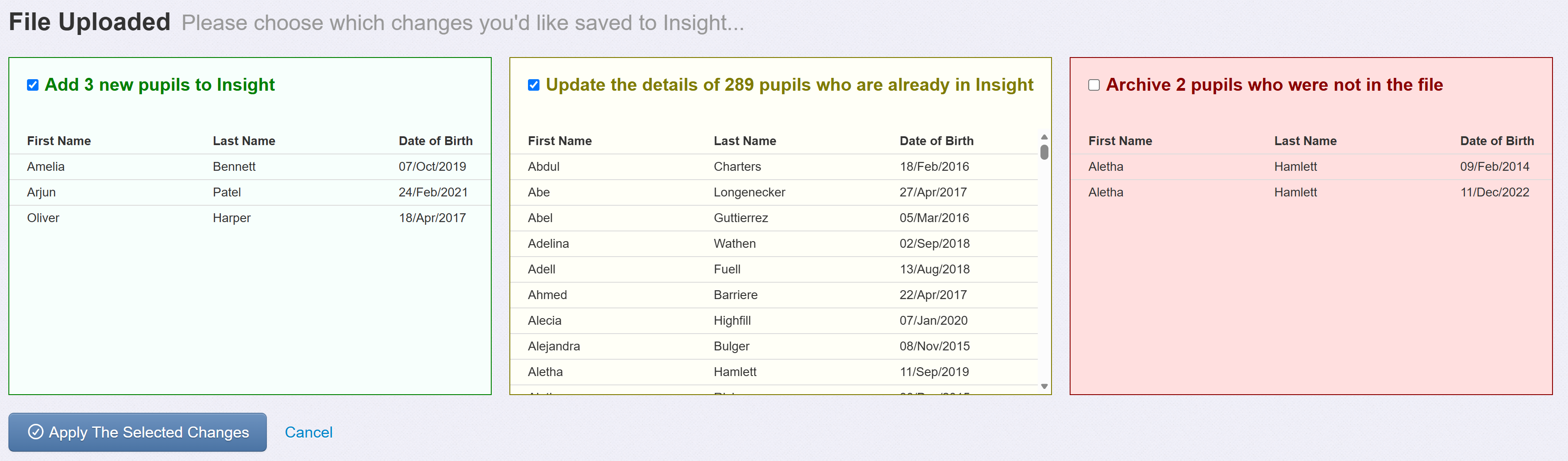
Insight will read and check the file, then give you the opportunity to review the changes that will be made.
Given our focus here is to ensure all existing pupils have their FSM history updated ensure you leave Update the details... ticked.
If you do have any new pupils in the Add box this may simply be because they have not yet synced via Wonde so it's fine to leave it ticked.
Leave the Archive box unticked if you have any pupils here. It's preferable to allow this to happen via the Wonde sync.
Then click Apply The Selected Changes.
The pupils will be updated and pupils will now be recorded as Ever 6 FSM correctly. This will be reflected in reports such as the Demographics report.
