Objective Collection Settings
 Updated
This guide follows on from Managing your Objective Collections.
Objective collections allow a number of settings to be changed. The associated summative subject, the actual marks available for teachers to use and any summative assessments you want to make available on the Objectives entry grid may all be altered.
To access the settings, access the Admin page and choose Objectives. Then click to choose the collection you want to amend.

Click the Settings button to see the available options.
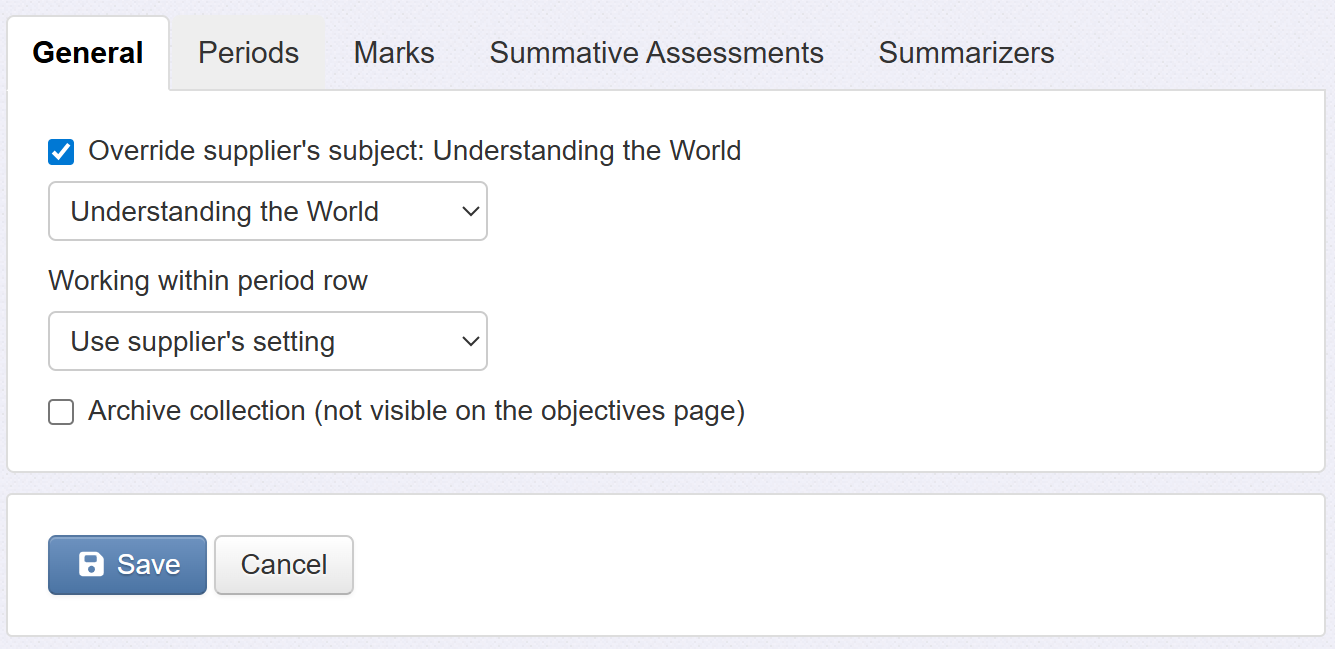
The following details each tab in turn.
General
Linked summative subject
Depending on the supplier, an objective collection may have a suggested linked subject by default. Usually this should be appropriate, but there could be occasions where an objective collection might suggest a linked name (such as Design & Technology) but you use a slightly different name (such as D&T).
Any default linked subject will be in brackets. Click the box to override it and choose your preferred linked subject.
Working within
Working Within refers to the objective period / year band a pupil is currently assessed against. It's determined automatically by the system based on the latest dated assessment for each pupil.
The Working Within value may be shown, as a row, on the Objectives entry grid.
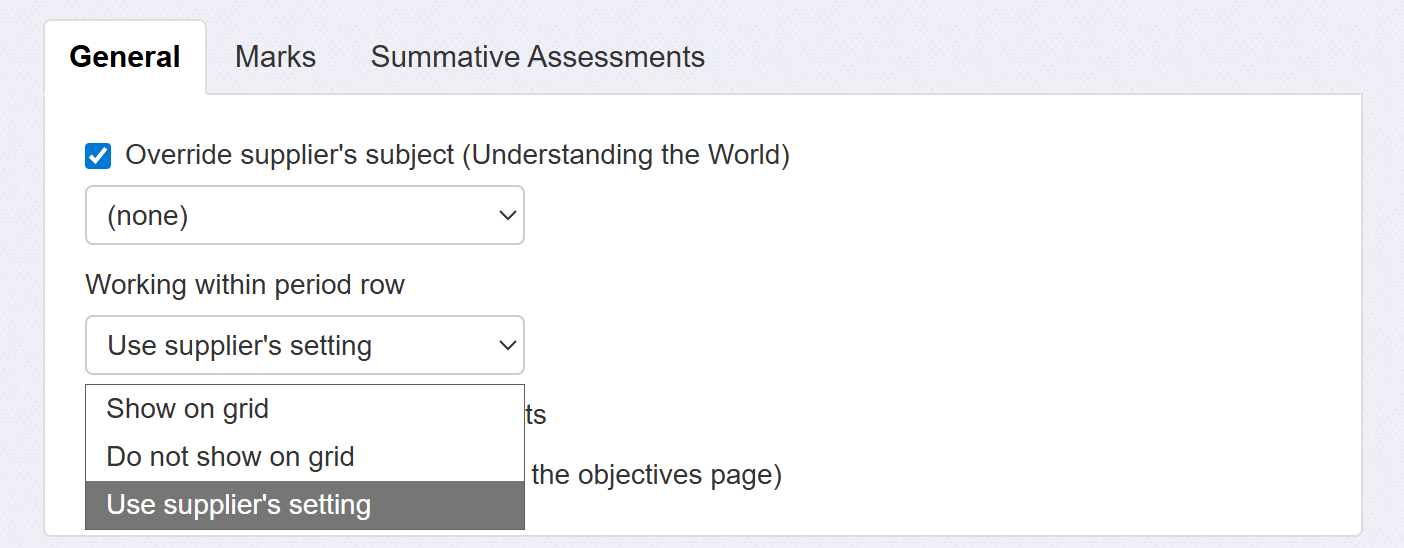
Display of this row may be defined at the supplier level, but can be overridden using the menu options.
Changing the Periods
The Periods are the bands in which the objectives are placed. These are often year groups, but could be combined year groups, for example, band names or anything else.
For supplier collections, this tab will not be available.
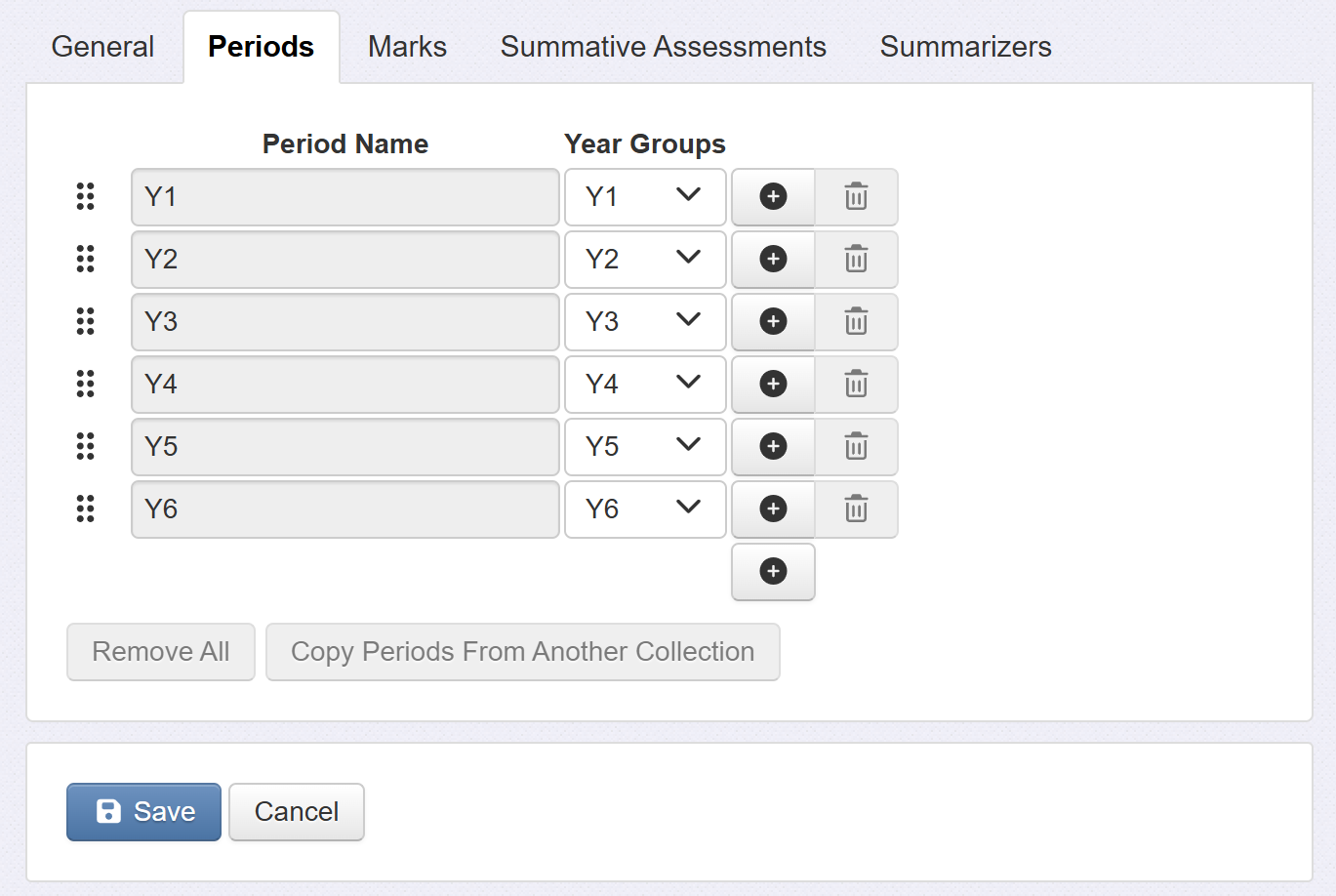
Period name
The period name may only be edited or removed if it is not already in use in your school. This includes the Remove All and Copy Periods options. Otherwise, click to make any changes.
Year Groups
These are the year groups the periods relate to. For example, you could have a period called Y3-4 which contains objectives related to years 3 and 4.
You can select multiple year groups, per period, or choose none if there is no correlation.
The practical impact is that the Objective grid will automatically open the correct period for the filtered year group when you load this collection.
Changing the available objective marks
The available objective marks have a default value for a school (or Trust) which are used for any objective collections.
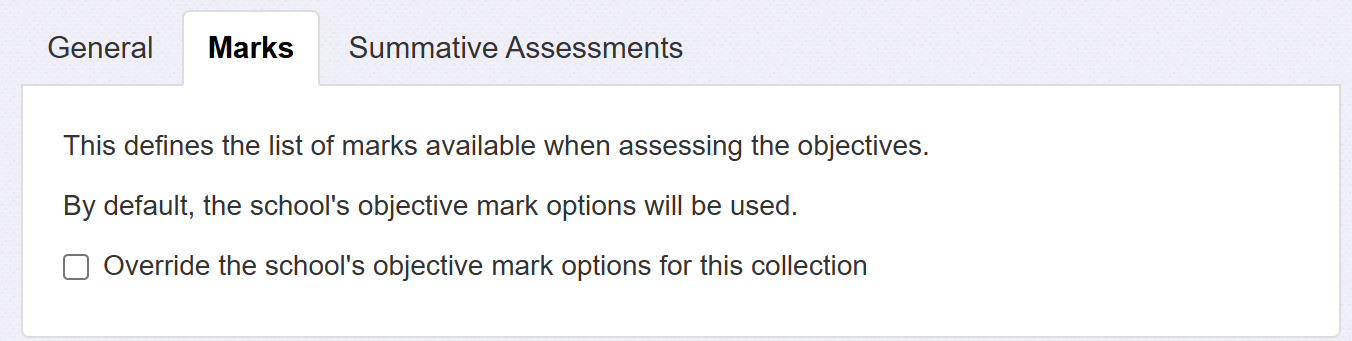
Usually, this is the desired behaviour, but there may be occasions when you want a different set of available marks for particular collections. For example, you may want fewer options for non-core subjects or collections with a SEND focus.
Click the Override box to customise the marks.
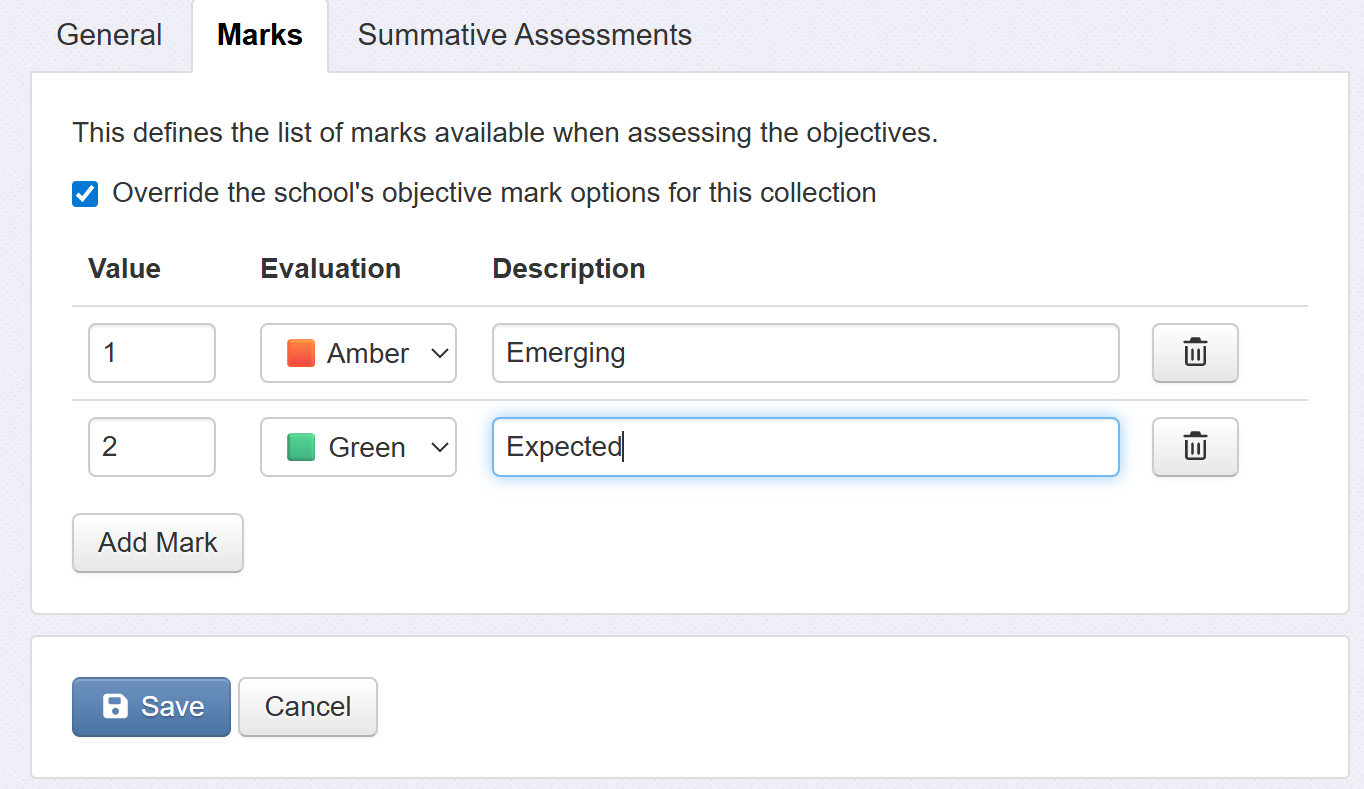
A value from 0-4 is required, an evaluation colour and the text to associate with the assessment. These will all be used in the Objectives entry grid and applicable reports.
Click Save when complete
Linking Objectives to summative assessments
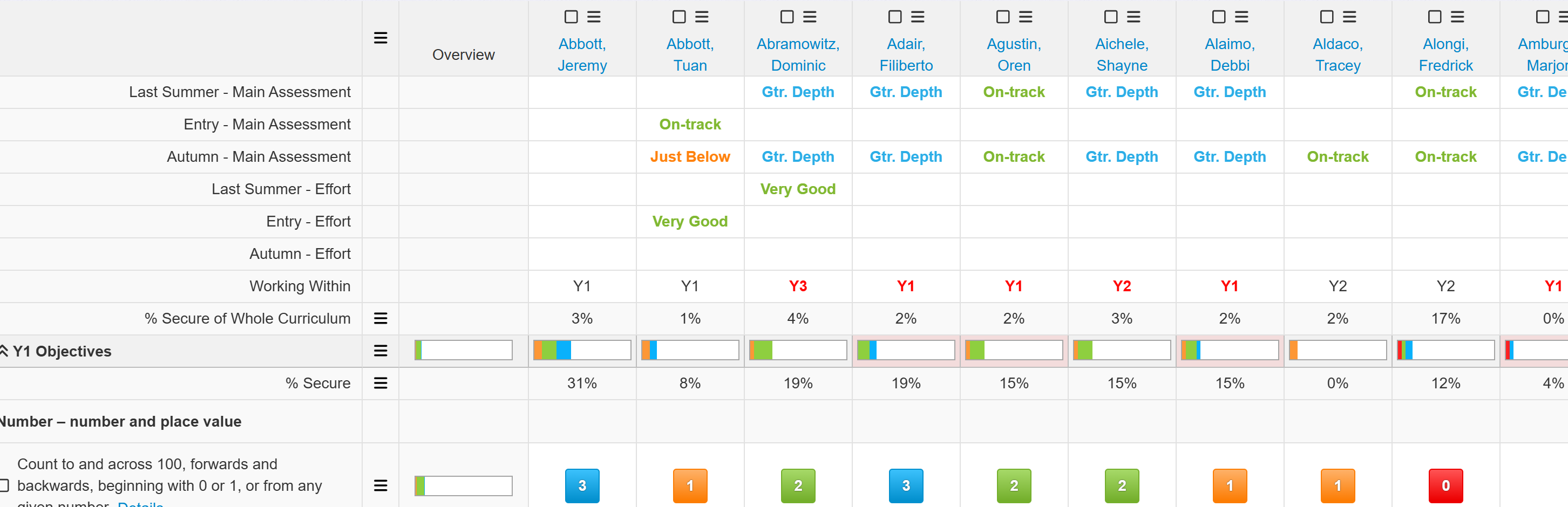
It is possible to see, and enter, summative assessments alongside formative ones in the Objectives entry grid. This can be a really useful way to inform and sense check teacher assessments.
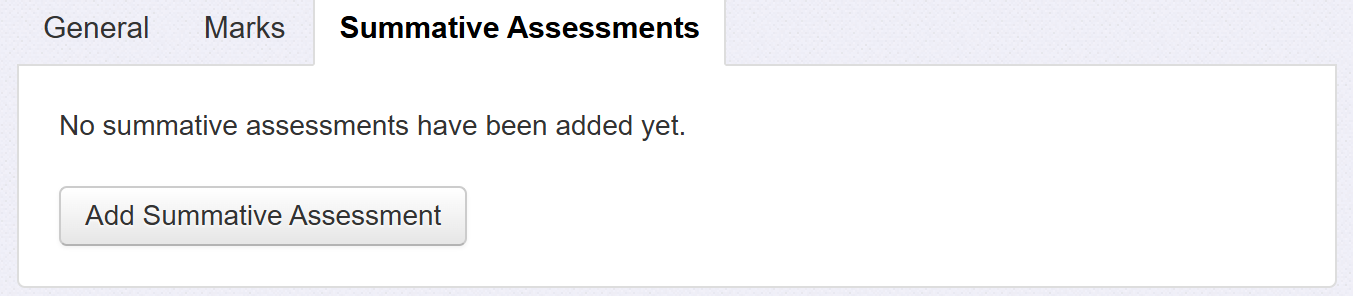
The Summative Assessments section allows you to choose any summative assessments you want to be displayed, for data entry, at the top of the main Objectives grid.
Click Add Summative Assessment to choose from your available assessment names and mark schemes.
It is possible to add multiple assessments if you wish. For example, the main assessment and an effort grade.
Click Save when complete.
Setting the Summarizers
Summarizers are optional rows that appear in the Objective entry grid. As the name suggests, they attempt to summarise the entered data for each pupil.
Summarizers may be set by the supplier of an objective collection. If so, you'll have the option to override this setting.
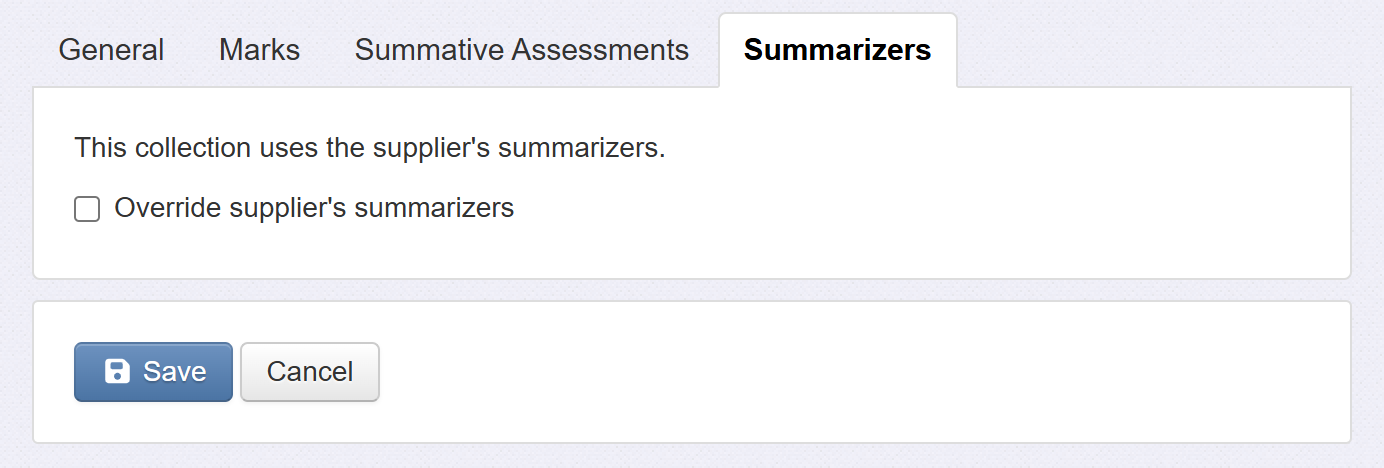
Summarizers may be added one by one or copied from another collection, useful if you know you want the same settings.
