Adding Supplier Objective Collections
 Updated
This guide follows on from Managing your Objective Collections.
Many objective collections have a Supplier. These are third-party suppliers such as the DfE or a commercial supplier, who are the creators of the collection and own the copyright. Insight works with various suppliers and these collections may be added to your account without having to retype or copy their content.
Suppliers of free-to-use objectives, such as the DfE, allow schools to use them freely under an open government or creative commons licence. Commercial providers require an agreement and a valid external purchase or subscription to use in Insight.
This guide details how to browse and add Supplier collections to Insight.
Objective collections may be added at Trust level (for all schools in the Trust) or school level. Admin access is required to manage objectives.
Viewing available Supplier collections
To view your existing collections, choose Objectives from the Admin page.
To add a new objective set, click Add Collections.
Then click View Suppliers to see the current available list on the objective Suppliers page.
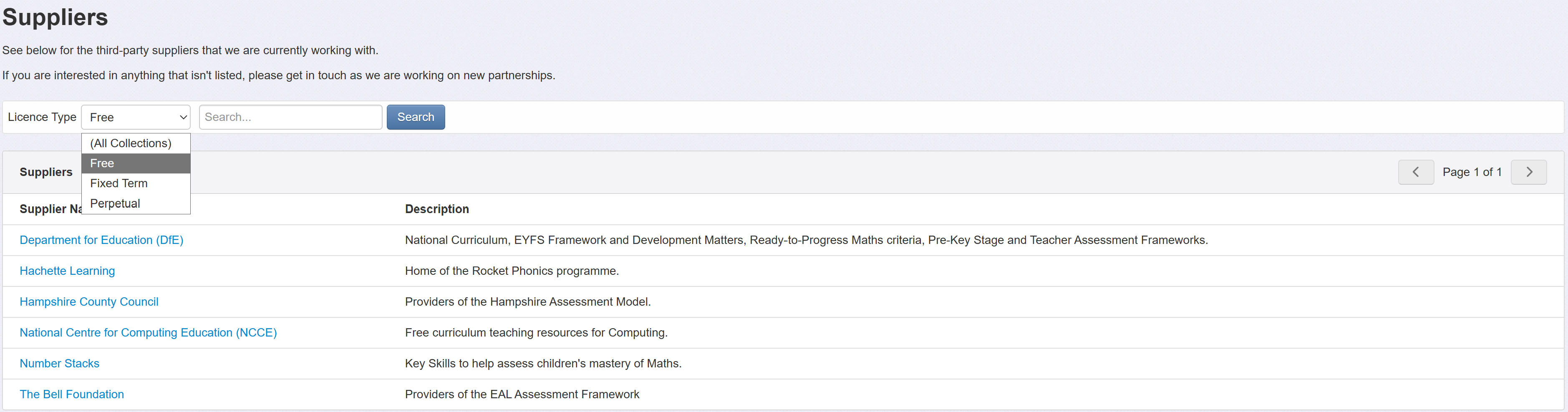
You can now browse the list of available suppliers. The Description details the collection type and subject(s) for each supplier.
If you know the name of the supplier you're interested in just type the first few letters of the name, in the Search box, and click Search.
It can also be useful to filter against the licence type.
There are three different licences for objective collections:
- Free - These are free to use in Insight, and require no additional agreement or subscription
- Fixed Term - These are collections that require an external subscription with the supplier, to use in Insight. The subscription is over a fixed term (usually yearly) and you require a current subscription to use them in Insight
- Perpetual - These are also commercial objective collections, but these only require a one-off payment, to the supplier, to use them in Insight. They require no additional ongoing payment to the supplier, beyond the initial one, and you can continue to use them for as long as you wish
The process to add these collections to Insight differs depending on whether they're free to use or require a commercial agreement licence with the supplier.
Adding Free Supplier collections
Click the name of the supplier with the free objective collection you want to add, for example, Department for Education (DfE).
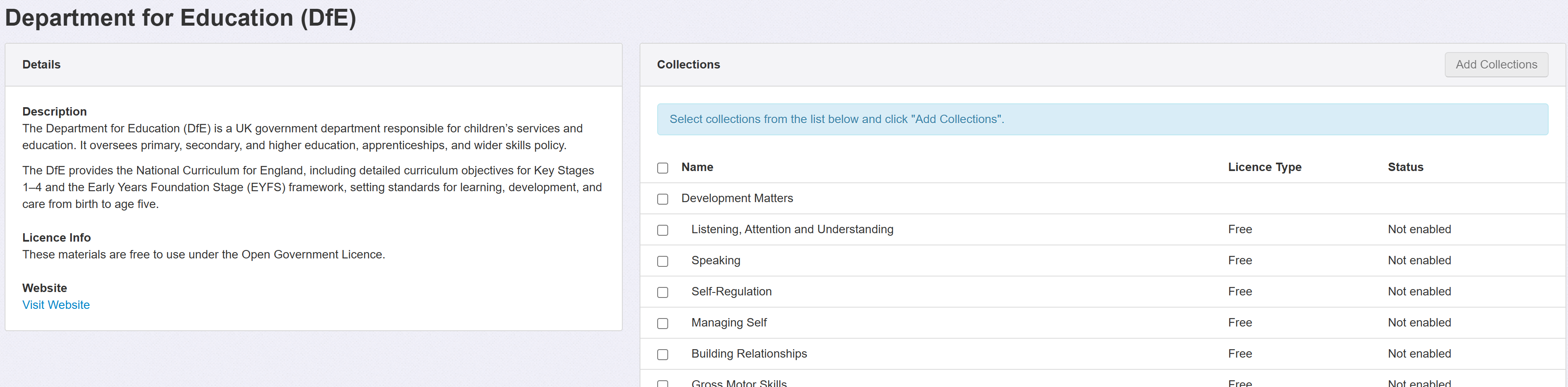
Some suppliers might have a large number of collections. Some of these (such as Development Matters) may be best added together. To select a whole group of collections, tick the box next to the heading to tick all collections in that group. You can also click any individual collections you'd like to add.
Once at least one collection is ticked, the Add Collections button will become available at the top of the page.
A confirmation message will appear, detailing your selection. Check that it reflects your expectations, then click Add Collections.
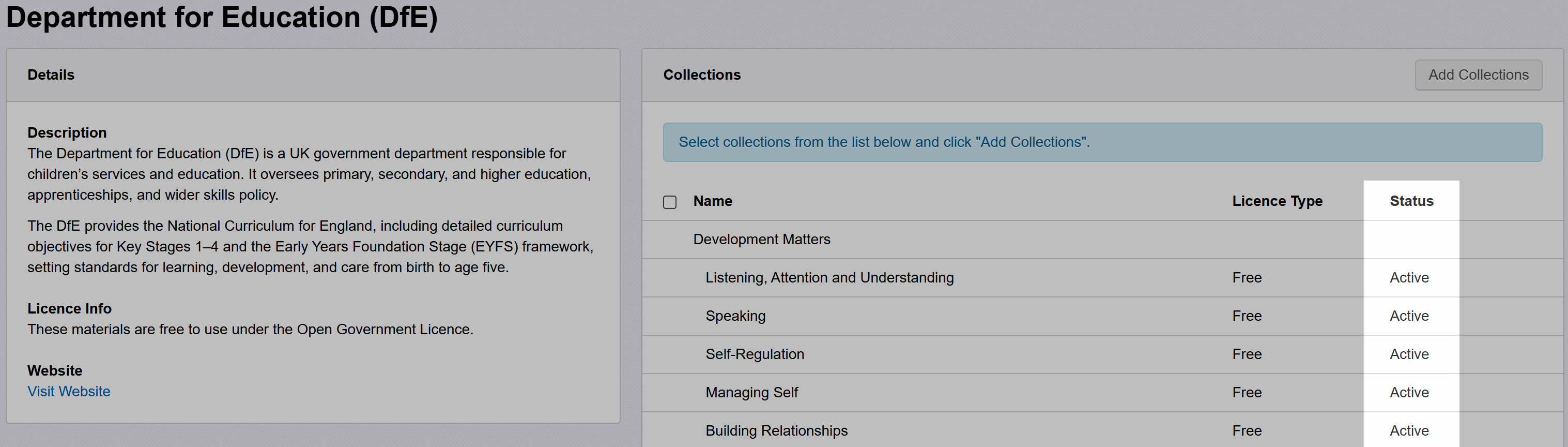
The Status will now change from Not enabled to Active.
The collections will now be available to select and assess in the Objectives grid.
Adding Licensed Supplier collections
Click the name of the supplier with the licensed objective collection you want to add.
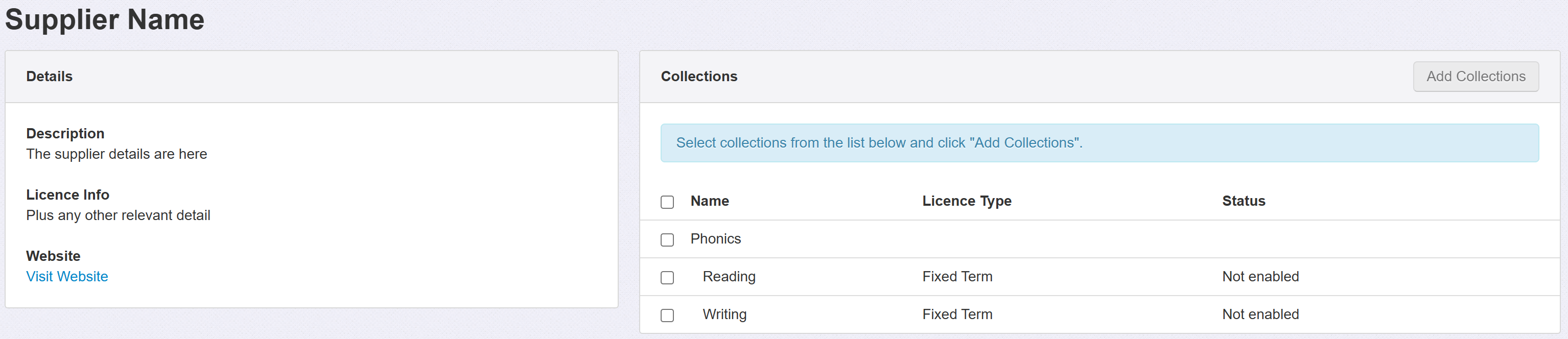
Tick the box next to any collections you want to add.
Once at least one collection is ticked, the Add Collections button will become available at the top of the page.
A confirmation message will appear, detailing your selection. Check that it reflects your expectations, then click Request Access.
The Insight team will check with the supplier that your school has purchased, or is otherwise eligible to access, their material before approving your request. This might take a few days.
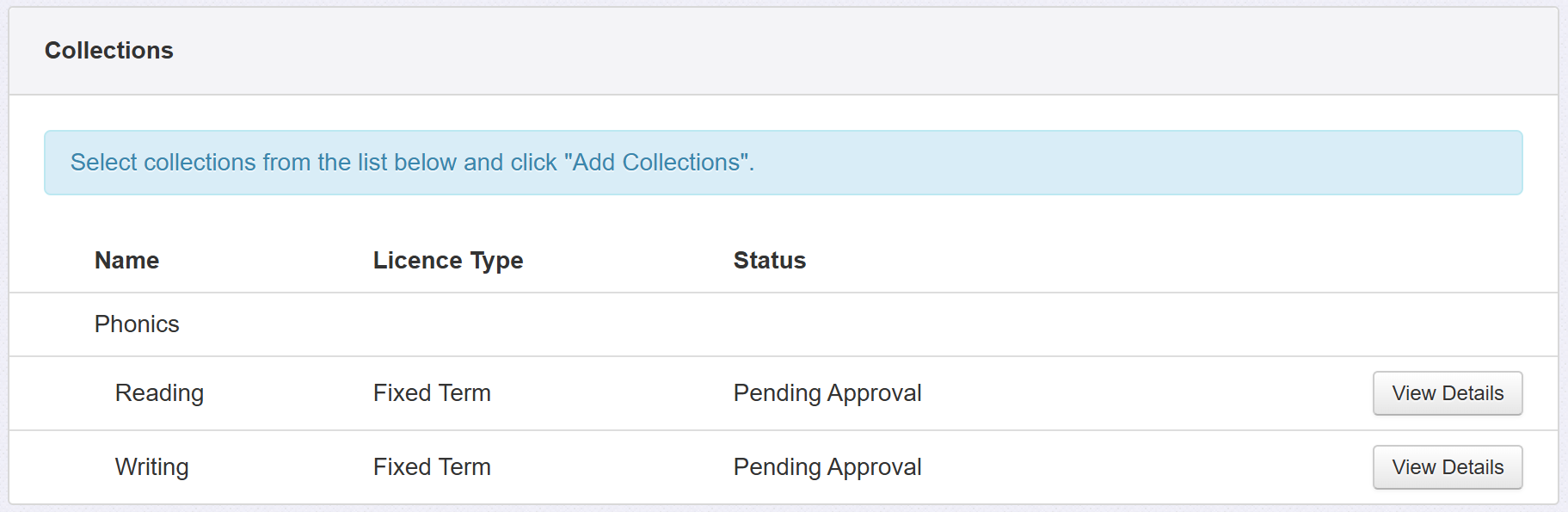
During this time, the Status will update to Pending Approval.
Once checked and approved, Insight will email the user who requested access.
The Status will then update to Active and the collections will now be available to select and assess in the Objectives grid.
If a request is rejected. Insight will also email the user who requested access, including the reason. This will also be shown on the supplier page. The Status will show as Rejected.

You can click to View Details. At this point you can delete the request and, if you wish, it will now be available to add again and begin the approval process. Please ensure that any issues with your licence have been addressed before adding again.
