Table report - Entering assessments
 Updated
It is possible to enter assessment data directly in the Table report.
This can be a great way to enter data as you can contextualise it. Adding other related and associated data columns can provide a useful validation to your teacher assessment decisions in particular.
On occasion, you may spot missing or anomalous assessment entries when analysing data in a Table report. The ability to quickly fill a gap or tweak an existing assessment in situ can be a real time saver.
This help-guide details how to use a Table to enter your assessments.
Setting up a Table for assessment entry
Any Table with assessment columns may be used to enter assessments. And this is fine if you're only using it to fill gaps or fix the occasional errors.
If you want to use a Table as your main tool for assessment entry it might be good to choose the appropriate columns, including any supporting or contextual data you might benefit from having on view.
Then you can save the Table so you can easily return to it another time without having to rebuild it from scratch.
For example, here's a Table that might be suitable for Year 5 assessment entry.
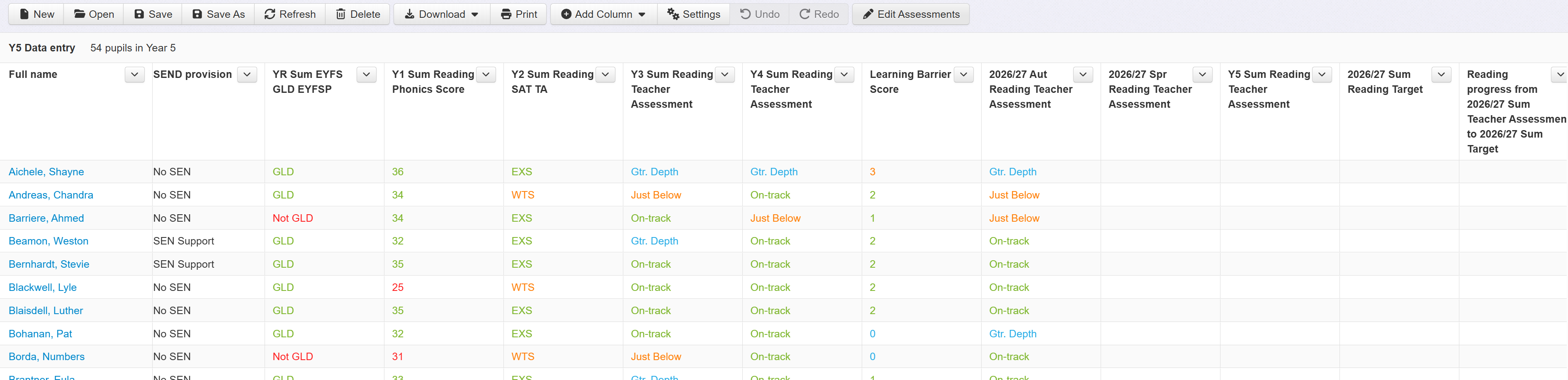
It includes relevant assessment history with EYFS GLD and end of year assessments for previous years. It also includes some contextual information such as SEND provision and Learning Barrier score. Columns like these are useful for analysis action decisions but are also useful to help firm up certain teacher assessment decisions, particularly where a pupil is on the cusp of different grade decisions.
Given this Table is for Year 5, we've got a column for each end of term assessment, and end of year target and a column to provide instant analysis feedback on pupil performance against those targets.
The Tables report allows you to save your custom layouts in folders. You could create a folder specifically for data entry to make it easy for teachers to quickly find the one they need.
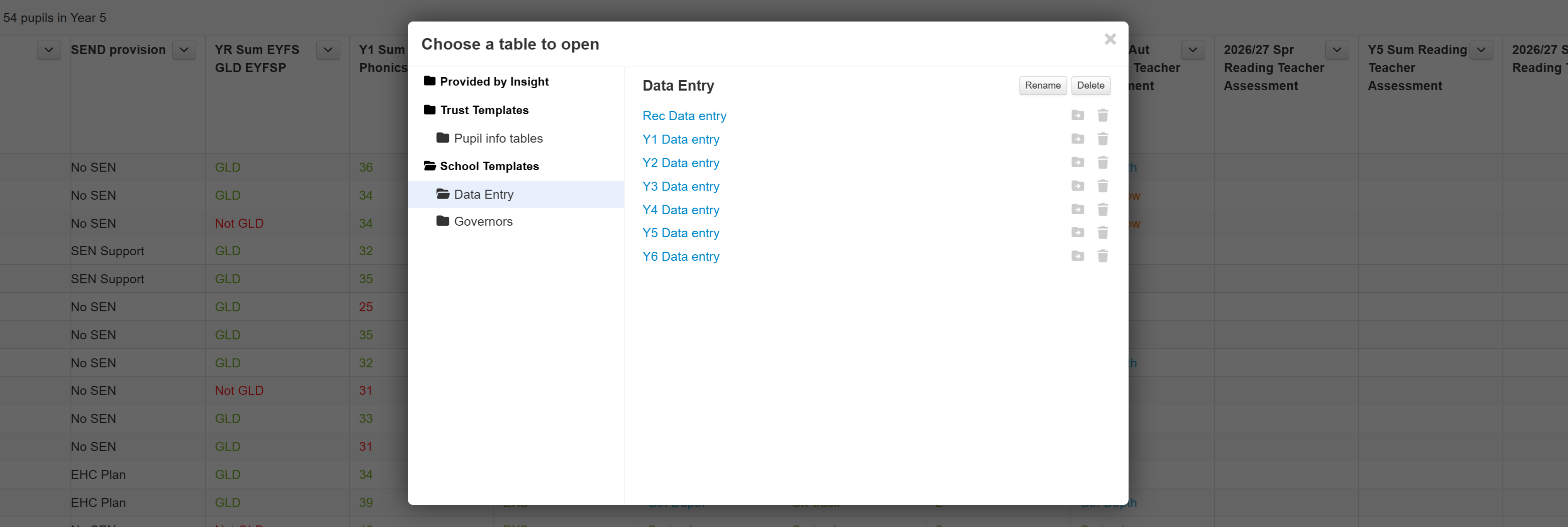
See our Tables introduction help-guide for support with creating and saving your Table for assessment data entry.
Enabling assessment entry in Tables
By default, when Tables are created or opened they are in Edit Table mode. This allows you to add, remove and move columns to suit your need.
If you want to switch mode to allow assessment entry, click the Edit Assessments button.

This mode is only available for saved tables. You must also have no unsaved changes in your table. For example, if you move a column this will need to be saved before you can enter Edit Assessments mode.
In Edit Assessments mode the buttons on the toolbar will be limited to those that are applicable.

For example, the buttons for Save and Undo are removed as assessments can be saved as you enter them in Tables.
In Edit Assessments mode the menus on each column also change to show options applicable to entering assessment data.
Assessments entered via Tables are the same as ones entered via the Enter Data menu. It is fine to mix and match, entering some assessments via Enter Data and others (or tweaks to existing ones) via Tables.
Entering individual assessments in Tables
You can enter assessments in any Table Assessment column. This includes teacher assessments, test scores and any other assessments you have in your setting. It is recommended to use the specific statutory assessments tools for these, as they include applicable additional tools and guidance, but Tables could still be used to tweak them if useful.
Once in Edit Assessments mode in your Table you'll see a small pencil icon when you hover the mouse over any assessment cell.
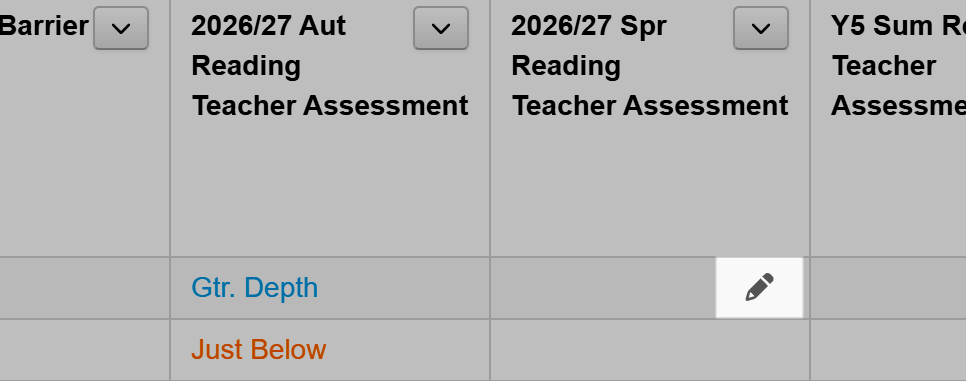
Click this icon in the cell you want to enter data in.
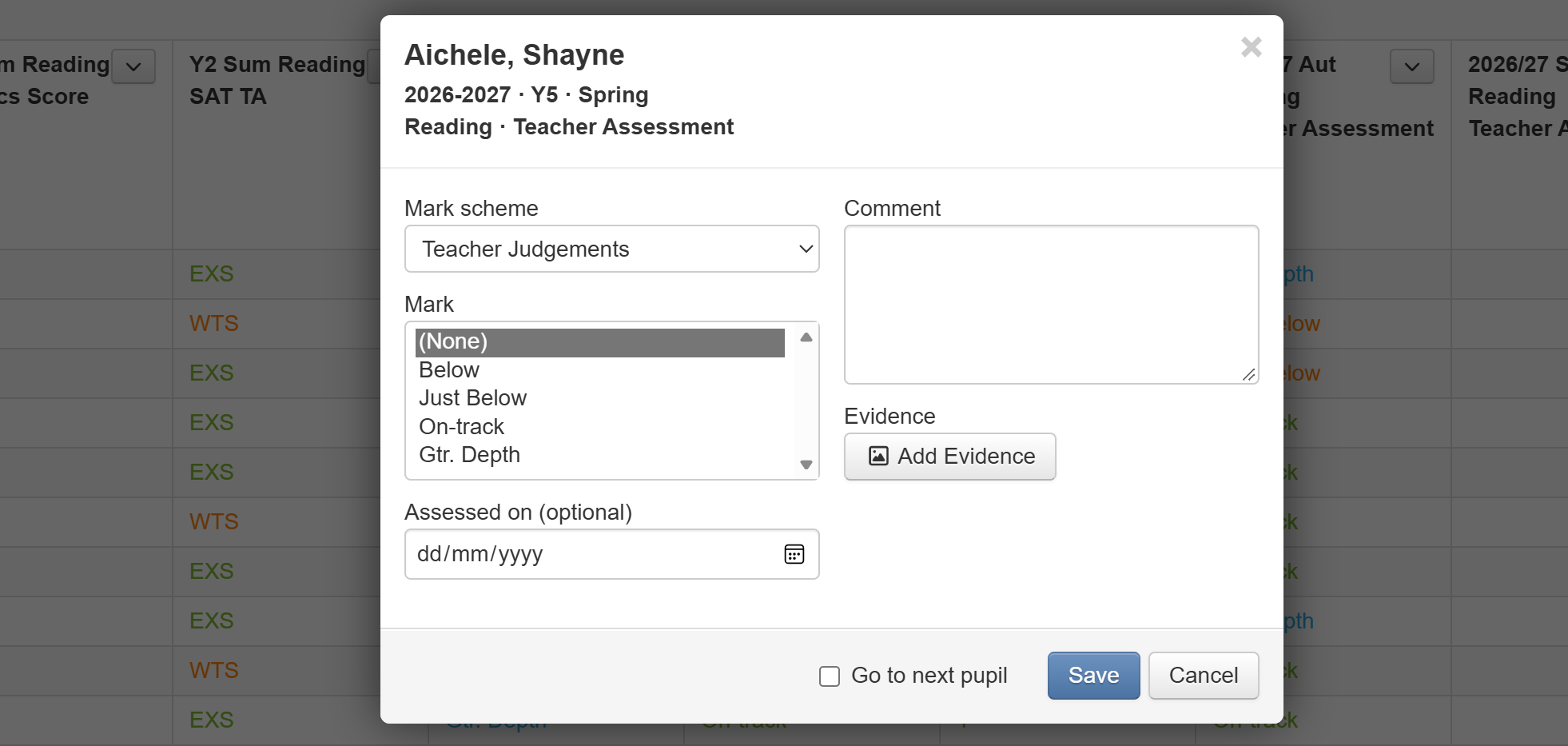
You'll see a window in which you can choose the Mark scheme, if applicable. Then select the mark you want to enter. There's the option to enter a comment, evidence or assessment date if you want to. None of these are necessary.
If you want to make your way down the column, entering an assessment for each pupil in turn, tick the box labelled Go to next pupil. This will move to the next pupil when you click Save.
Bulk entering assessments in Tables
On occasion, it may be quicker to assess all pupils at the same mark.
To do so, click the small arrow on the heading for the assessment column you want to bulk enter data for, and choose Assess All Pupils...
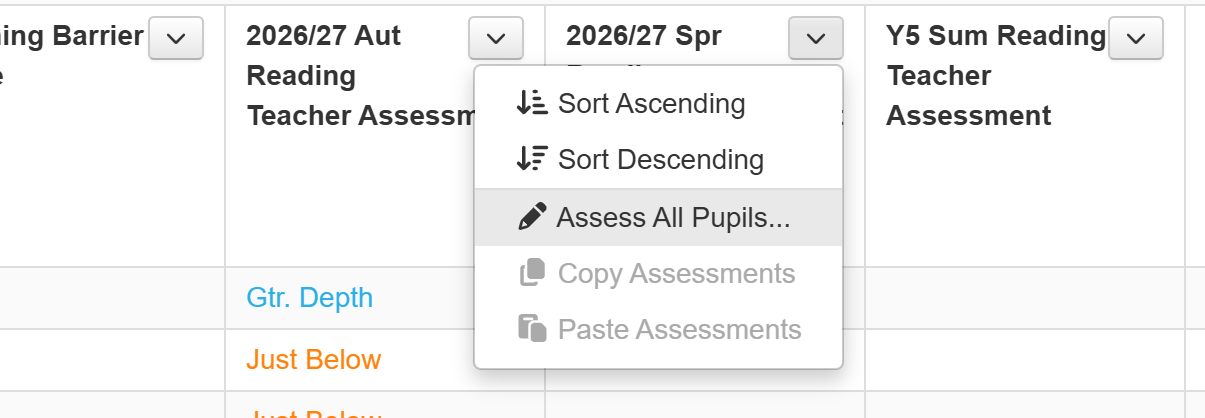
A window will appear in which you can select a Mark scheme, if appropriate and a Mark to enter for all filtered pupils.
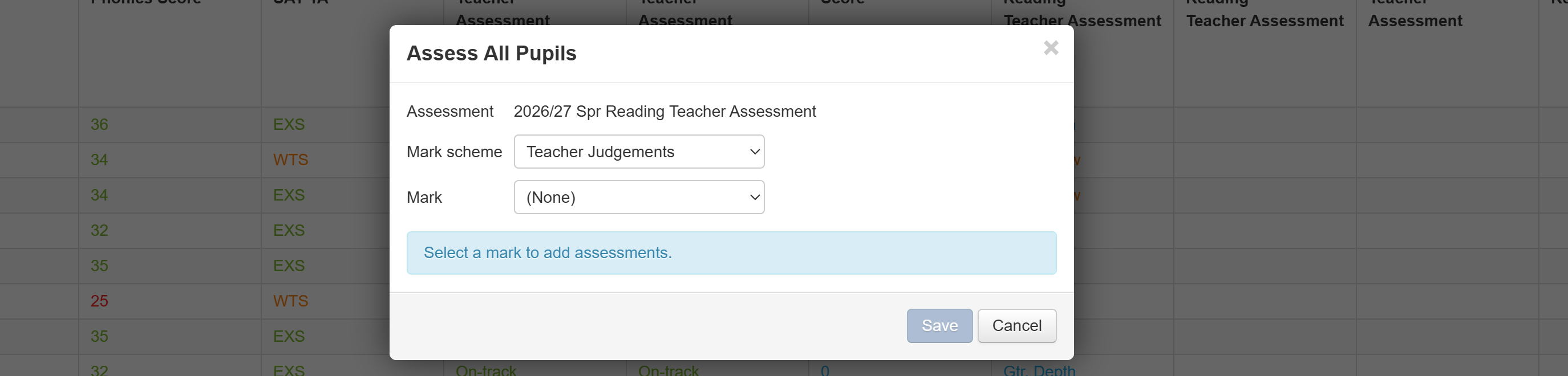
If you have existing assessments for any pupils in the column they will not be overwritten by default. You can tick the box to Replace existing assessments if you do want to overwrite any that are already recorded.
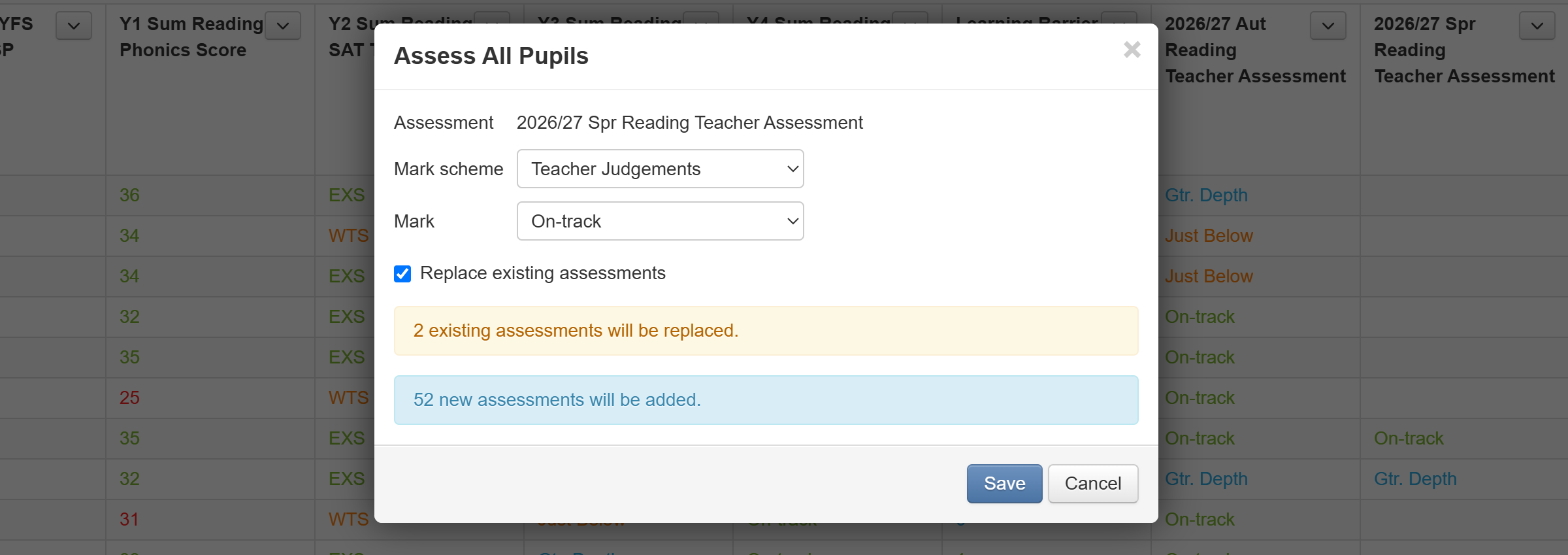
The number of assessments that will be replaced will be displayed. Click Save to add and save your new assessments.
Copying and pasting assessments from one column to another
On occasion, it may be time-saving to copy assessments from one column to another column using the same assessment. For example, if you're entering teacher assessments for Spring they're likely to be similar to Autumn assessments, particularly if you're using point in time assessments.
To achieve this, ensure you're in Edit Assessments mode, then open the menu at the top of the column you want to copy from.
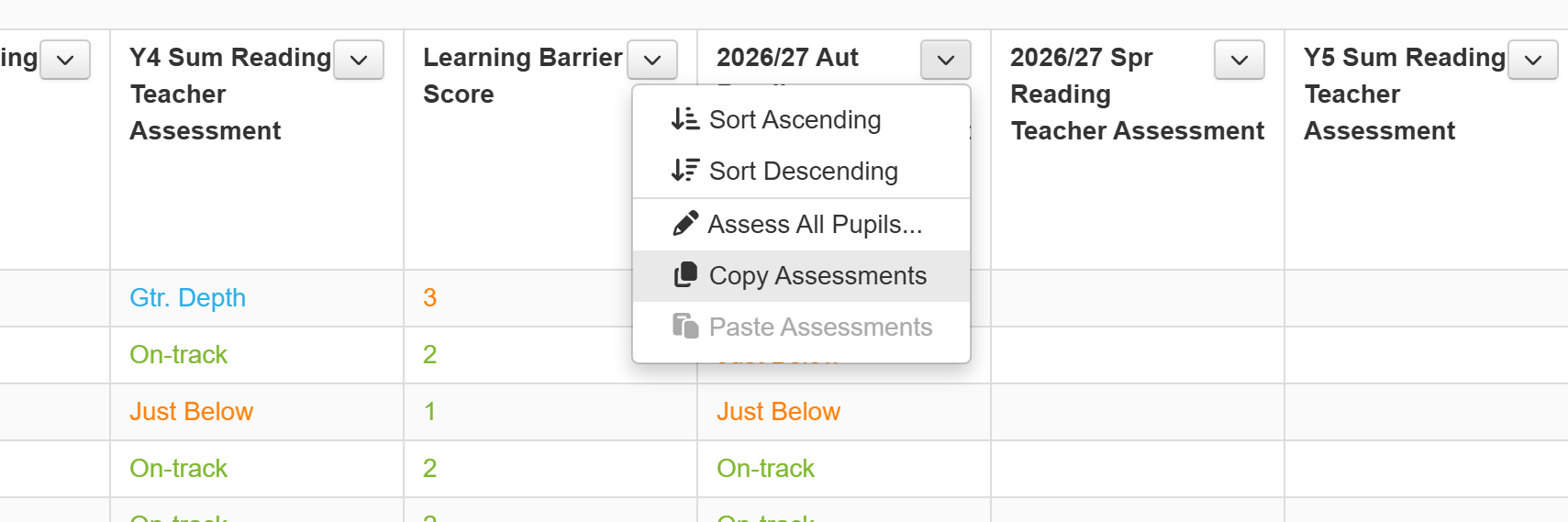
For all columns containing assessments there will be the option to Copy Assessments. Click this.
Then open the menu at the top of the column you want to paste the date to. Again, so long as this column is compatible with the previous one you'll have the option to Paste Assessments. Click this.
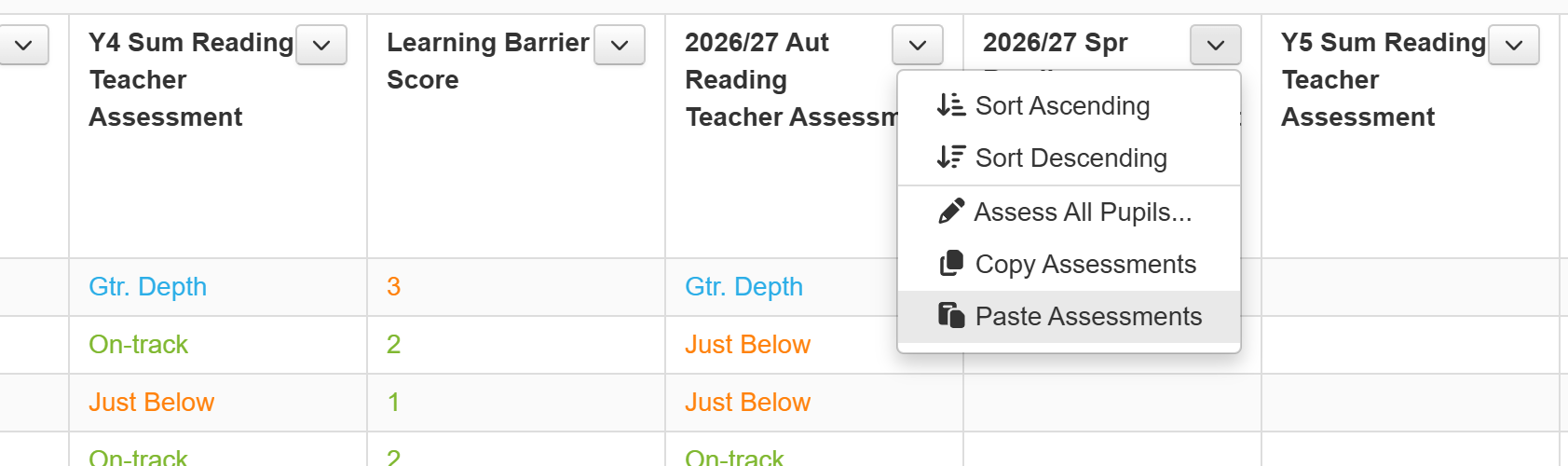
The assessments will all be pasted into the selected column and saved.
If the column has any pre-existing assessments in it (that differ from those you're pasting) you'll be able to select whether you want to replace them or not.
