Two Factor Authentication Recovery Codes
 Updated
When you complete the setup of two-factor authentication (2FA), you are given ten recovery codes. This guide explains what they are, how they should be used and how they should not be used.
What are 2FA recovery codes?
Two-factor authentication adds security as it introduces an extra way to confirm your identity and access your account. Your password is one factor, and is something you know. The second factor is the code generated by your authenticator app (typically) on your phone, and is something you have.
If you lose your phone, you no longer have the second factor. This is where the recovery codes become useful.
The recovery codes step in as a temporary solution if you lose your phone or are unable to produce the usual 2FA code.
How do I get recovery codes?
Recovery codes are presented, only once, at the end of 2FA setup.
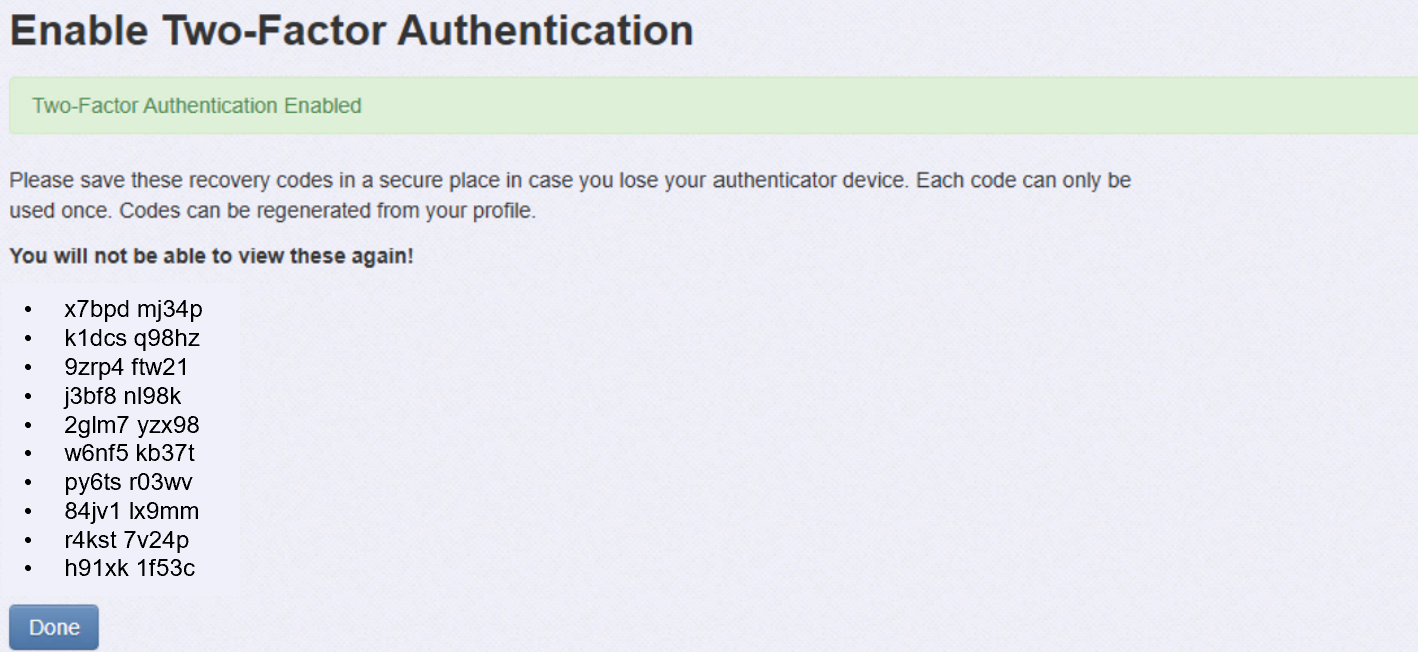
They are only displayed once. Do not click Done until you have recorded them.
If you need more codes, they may be generated later by opening the Account menu, in Insight, then User Profile. As you already have 2FA running you should have a Two-Factor Authentication Settings button at the bottom of the screen. Click this button.
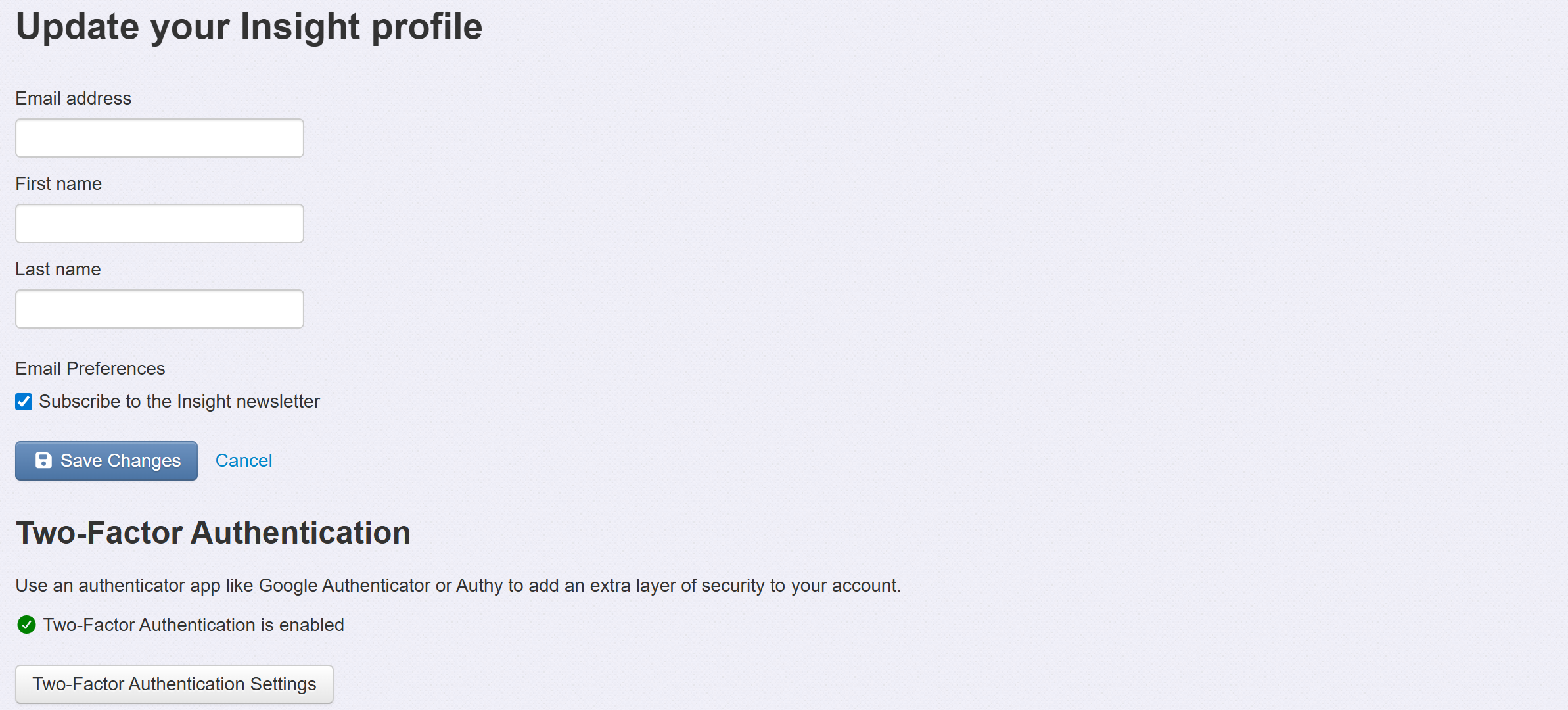
You should now have an option to get new recovery codes.
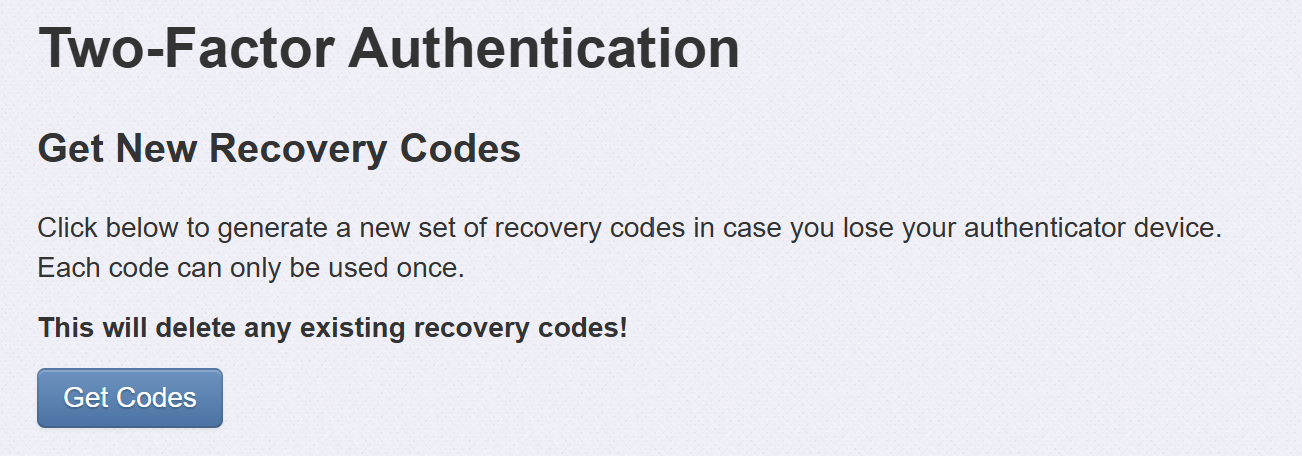
Doing so will replace all of the previous codes. Click Get Codes to see a new set of ten codes.
How should I store the recovery codes?
Your school may have a policy providing guidance on this that you can follow. A couple of suitable options could be a printed copy (stored somewhere safe, such as a locked drawer) or saved as a secure note in a password manager (but make sure this is not only accessible on the same phone as the one you use to generate the 2FA codes).
For security reasons, do not store recovery codes anywhere that could be easily compromised. For example:
- Not in plain text or Word files on your computer
- Not in email drafts or inboxes
- Not in chat messages (such as text messages or WhatsApp)
- Not in screenshots saved to your phone or cloud photo backup
- Not in shared documents or shared drives
How do I use the recovery codes?
When you log in to Insight, enter your username and password, as usual.
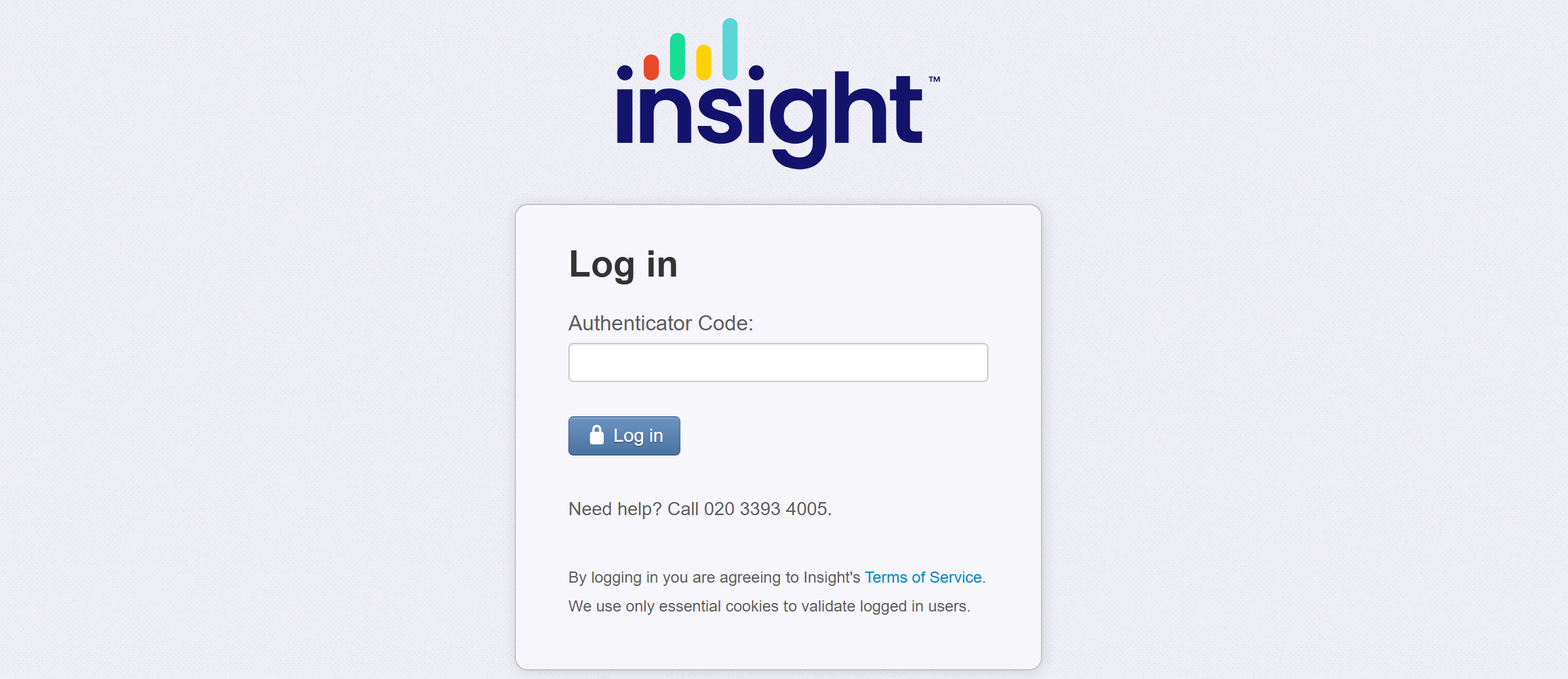
When prompted for the authenticator code, enter one of your recovery codes instead. This should log you in as usual.
Remember, each recovery code may only be used once.
They should not be used in place of the authenticator app and are intended for emergencies only.
See the 2FA Setup guide for account recovery and troubleshooting.
