Parent Reports - Creating reports
 Updated
Before you start entering any comments, you need to create the parent reports for the applicable pupils.
Creating parent reports ahead of time helps ensure teachers know which reports are required, and that comments are entered in the right place and for the right term.
This guide describes how to create parent reports in bulk, for the correct pupils and how to create reports for individual pupils if required.
Creating reports in bulk is likely to be the best approach in most cases. It's quicker, reduces chances of error and ensures clarity over which reports are expected for all pupils.
Creating Parent Reports in Bulk
To begin, select Parent Reports from the Reports menu.
If you currently have no reports already created, for your selected academic year and any applied filters, you'll see a No reports found message.

Otherwise, any existing templates with created reports will be listed.
Click Create Parent Reports to display the selection options.
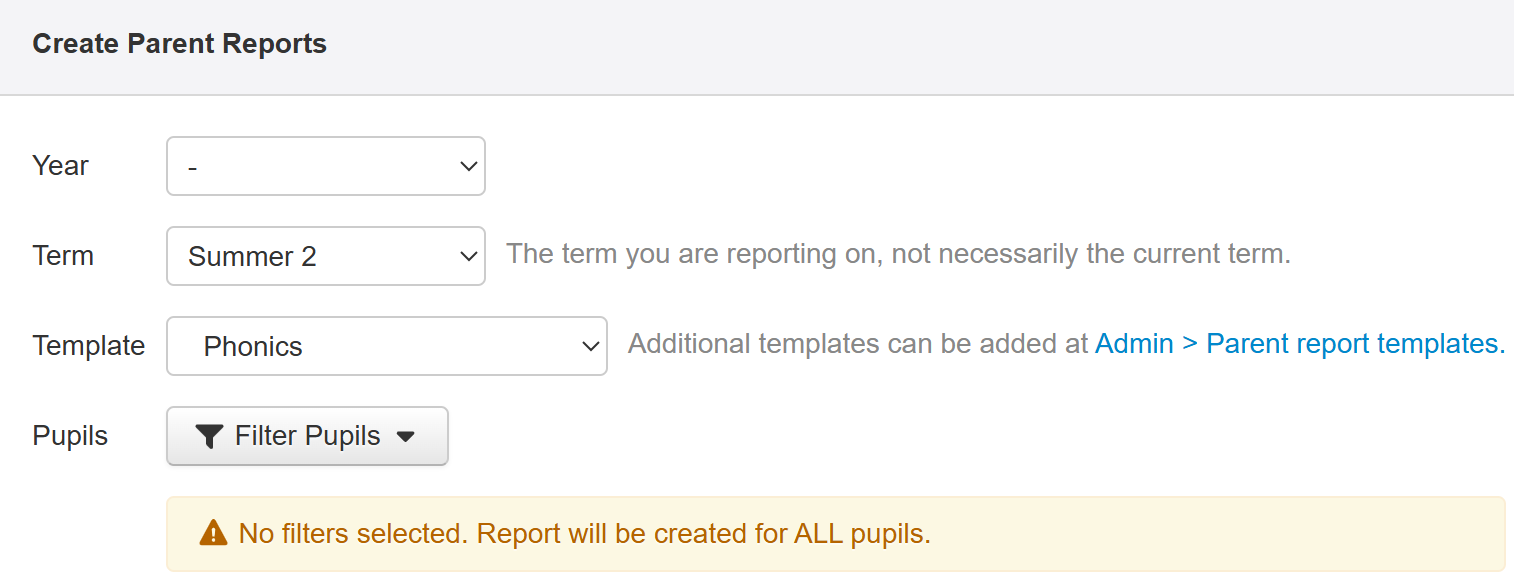
The current academic year will be pre-selected by default and is very likely to be the correct selection.
Choose the Term you're creating the reports for.
Then choose the template you want to use to base all the reports on.
Next, apply any filters to ensure you create the reports for the correct pupils. If you already had any filters applies, these will be reflected here.
As it's likely you'll want to create the reports for a subset of pupils, a warning will display if you have no filter applied.
For example, you may want to create a Phonics report for year one pupils only.
All the pupils you're about to create reports for will be listed. If any filtered pupils already have this specific report created this will be indicated.
Once you're happy with your selection, click the Create Reports button, which will also indicate the number of reports about to be created.
Parent reports will then be created for all the filtered pupils.
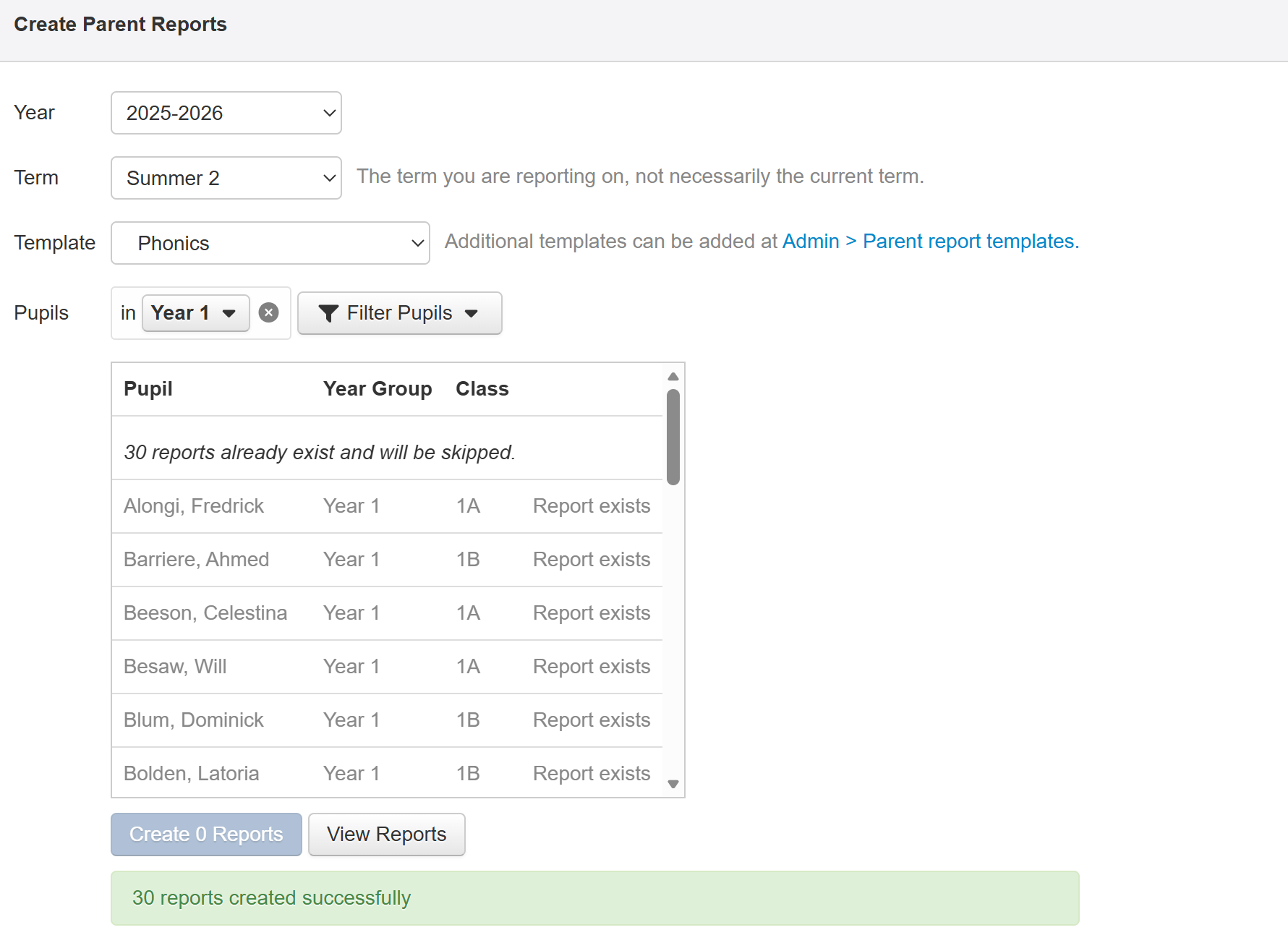
If you want to create further reports, just make the appropriate selections and Create Reports again, or Click View Reports to see all the pupils with this report listed.
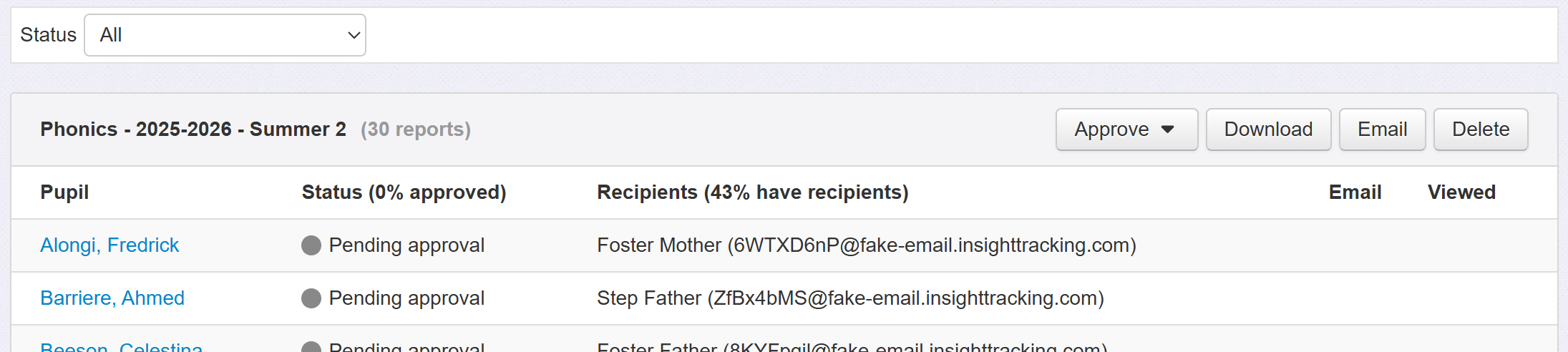
Click the Parent Reports link, in the top left, to return to the main report view.

If you want to create more parent reports in bulk, click Create Parent Reports and repeat the above steps.
This method should enable you to create all the reports you need in advance, ready for teachers to enter comments.
See the Emailing to Parents guide for more on how you can use the Parent Reports report.
See the Entering Comments and Approving guide for more on how to see which reports a pupil has, and enter comments for them.
Creating Parent Reports for individual pupils
To begin, click Pupils, choose a pupil and select the Parent Reports tab.
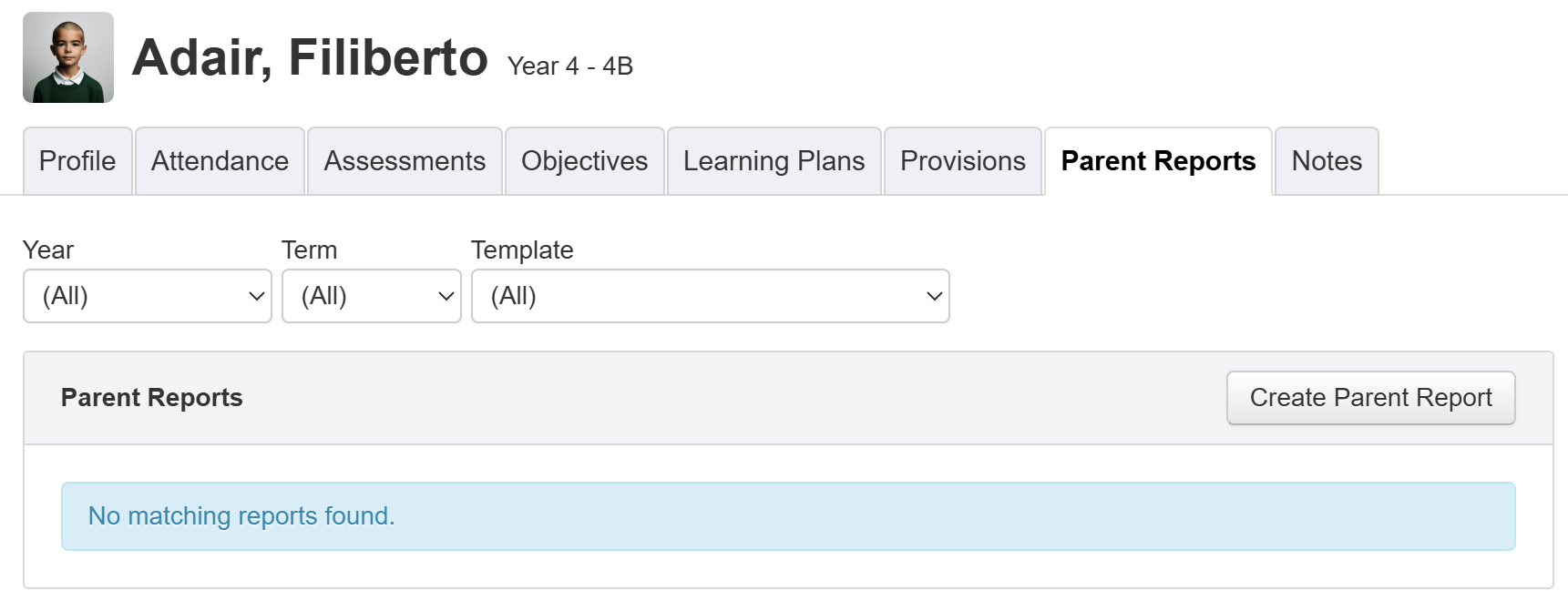
If you currently have no reports already created, for your selected pupil, you'll see a No matching reports found message.
To create a report, click Create Parent Report.
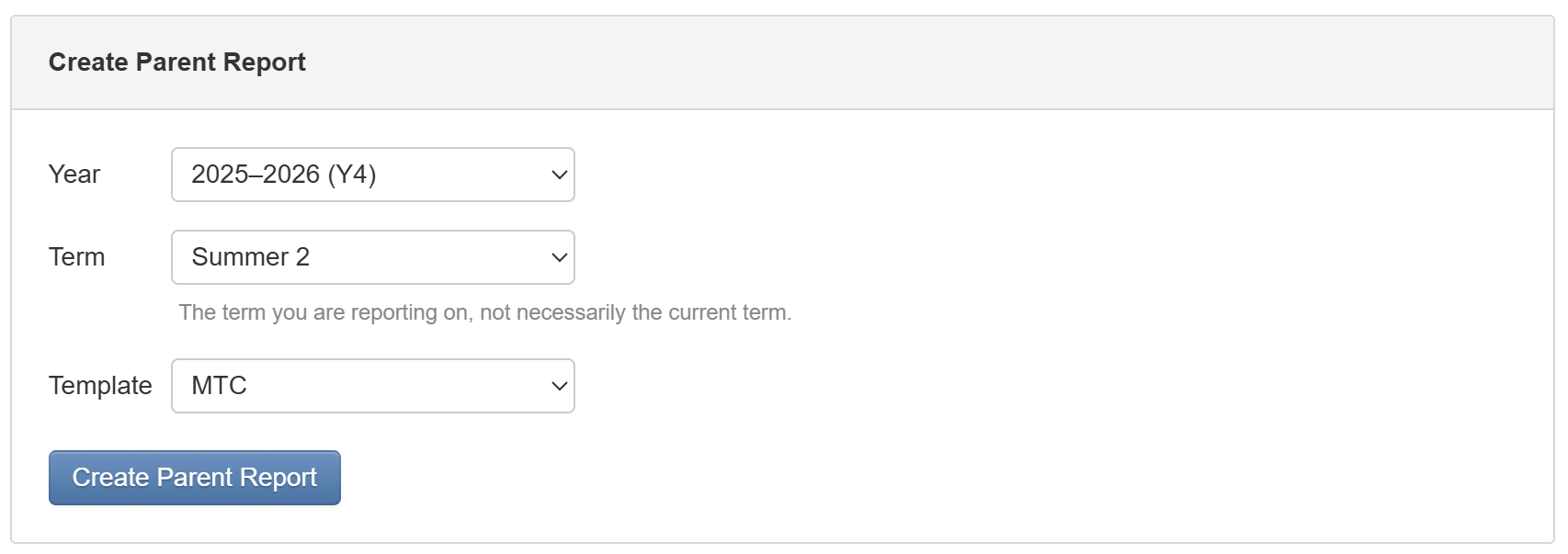
You're now required to specify the year, term and template you want to create the report for.
Click Create Parent Report when you're happy with your selection.
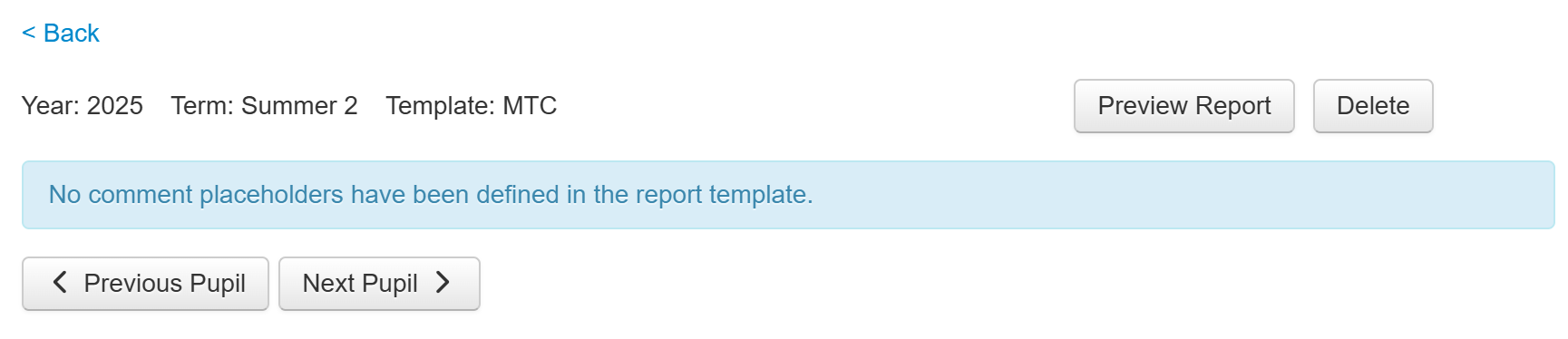
The report will be created, and you'll see any comment boxes if they exist for this report.
Click the Back link to return to the main pupil view.
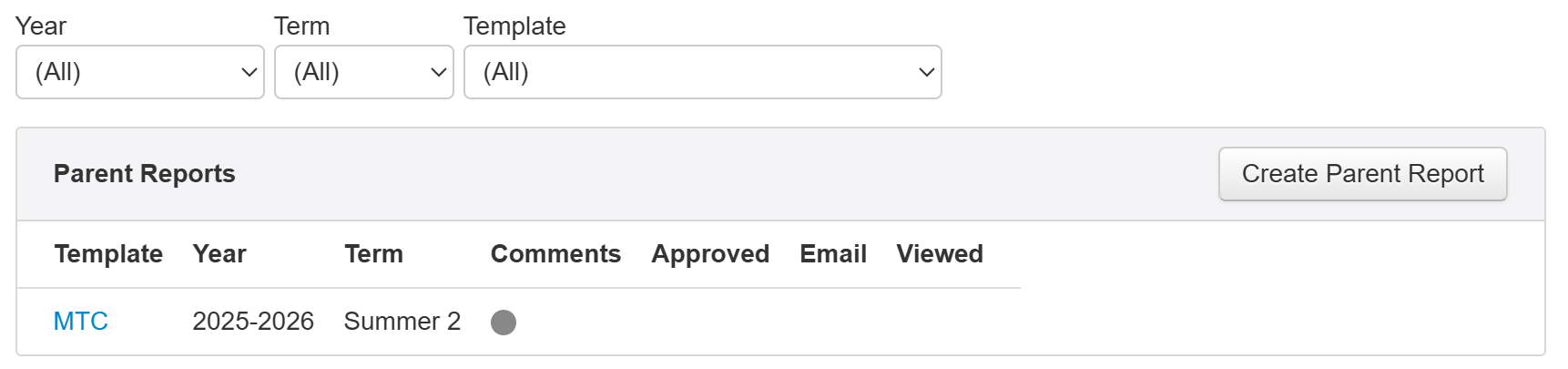
You'll now see your newly created report listed.
If you want to create more parent reports for this pupil, click Create Parent Report and repeat the above steps.
See the Entering Comments and Approving guide for more on how to see which reports a pupil has, and enter comments for them.
