Parent Reports - Managing Templates
 Updated
Depending on your usage, you can end up with a large number of different parent report templates.
You may have some that are work in progress, so you'd prefer other users were unable to generate parent reports from them.
You may also have other templates that you no longer want to use.
This guide details how you can manage your templates to meet these needs. You'll need Admin access to do so.
To begin, open the Parent Report Templates page in Admin.

You may have no templates added yet. If so, see our guide on Creating and Editing Report Templates.
Using folders for templates
Broad use of the parent reports feature can result in an increasing number of different templates. And these can become difficult to manage when they're all in a single list.
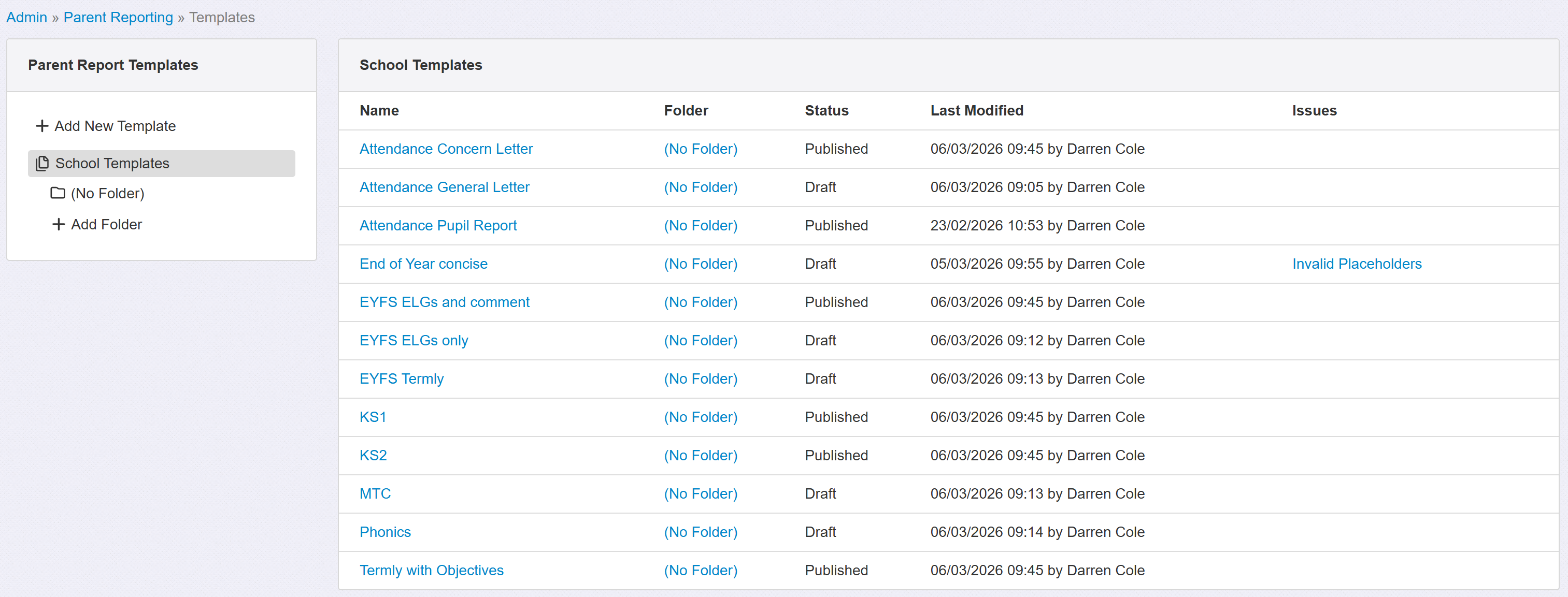
To add a folder, click Add Folder in the left panel.

You'll be prompted for a name. Folder names are easy to edit later if you change your mind.
Simply add your name and click Add Folder.
If you want a range of folders, repeat the process to add them all.
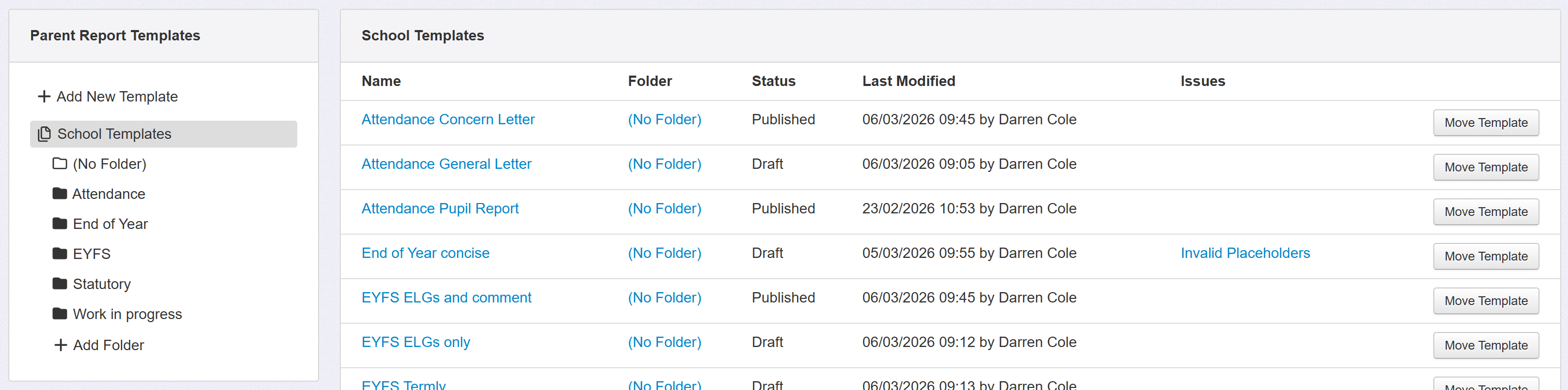
Your folders will now be listed on the left.
Once you have one or more folders, each template will have a Move Template button on the right of the screen.
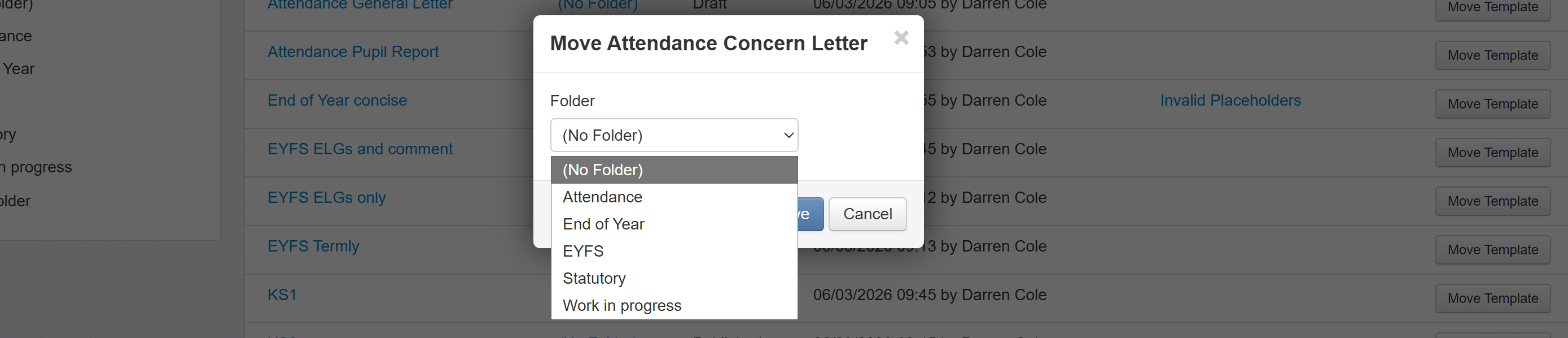
Click the button next to the template you want to move, choose the folder you want to move it to, and click Save.
The template list will update the Folder column to name the folder your template now appears in.

Continue to click Move Template for any other templates to move them into the desired folder.
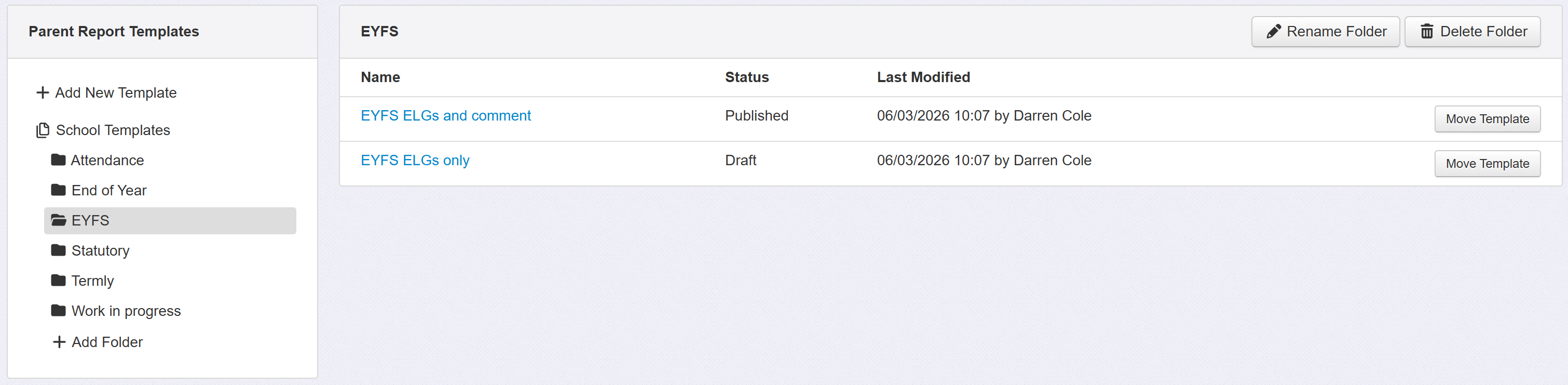
Once completed, you can click any folder name to just see the templates that it contains.
Selecting templates in folders outside of Admin
When selecting templates via Pupils or the Parent Reports report, your folder names will be used to separate and group the templates in the menus.
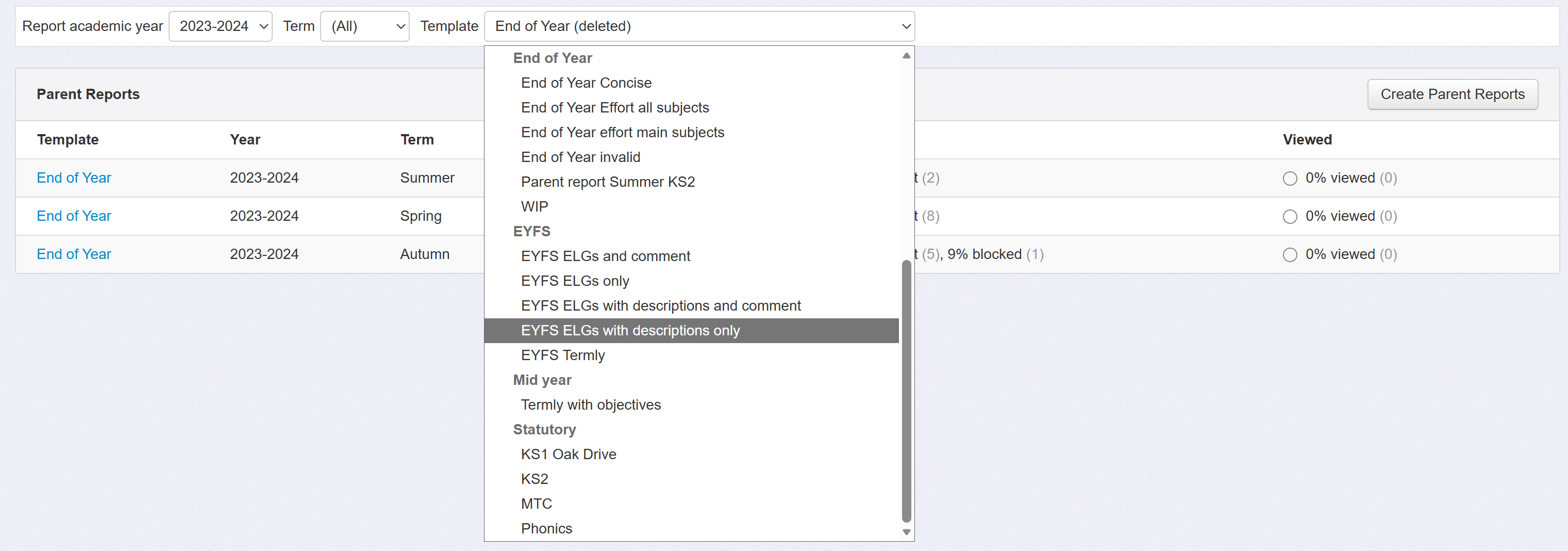
This can help with selection as your groups are maintained.
Draft and Published Status
Templates can be set to Draft. This means they are unavailable outside of Admin for users to create pupil reports from.
This can be very useful if you have a template you're working on, but you don't yet want people to use. Or if you just want to experiment and try some ideas.
Just click a template name and the Publish button becomes available. (or Convert to Draft)

If you want to change a template back to Draft again, just click its name and a Convert to Draft button will be available.

If pupils already have existing reports for a template, converting it to draft will have no impact. The pupil reports will remain available for usage as normal. If a pupil already has a parent report and the template used to generate it is moved to draft, it will also still be possible to create additional parent reports using it.
Deleting Templates
On occasion, you may want to retire a template. Perhaps it has been superseded by a new design, or you decide you no longer want to generate that report.
Templates may be deleted by clicking the Delete button on their page.
Similar to Draft status, deleting a template will not also delete any pupil reports that were created using it. You will still be able to see those reports via Pupils or the Parent Reports report.
