Attainment Overview report
 Updated
The attainment overview is an easy to use and visually engaging report that will bring your data to life, making it accessible to a range of key audiences. If you want a quick summary of learning across your school, this is a great place to start.
For Trust users, there is also an Attainment Overview report showing data for all the schools in the Trust.
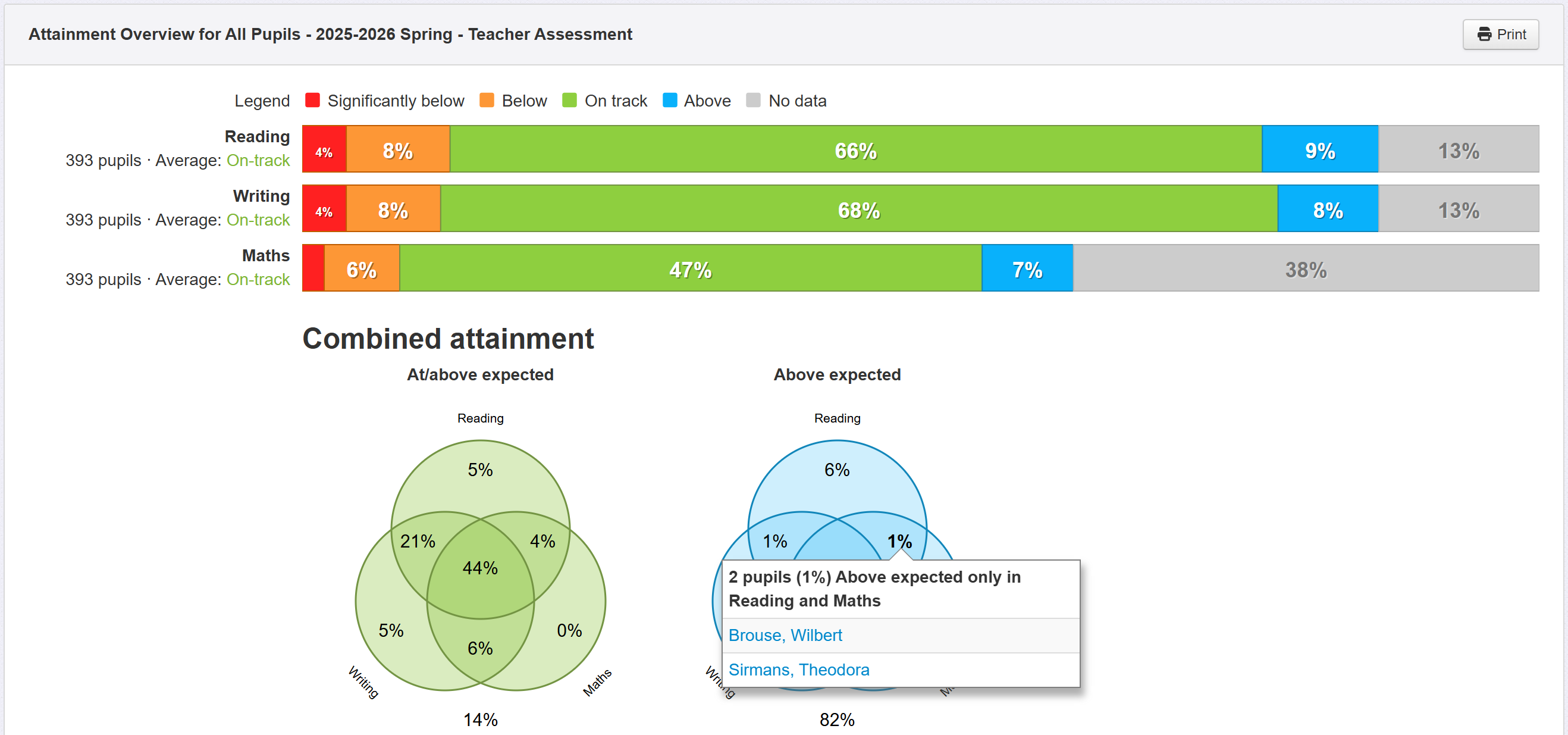
This guide will walk through some examples to show how to:
- Use the report controls to select subjects and different types of assessment data
- Make use of filters and grouping tools to explore the data
- View a Venn diagram showing combined attainment
- Use the Settings to create different views of your data
- Select the whole school and compare year groups
The guide also includes top tips to help simplify the process and get the most from the report.
Creating a report
Click on the Reports menu and select Overviews – Attainment.
This will load the report with any filters you have already applied with Reading, Writing and Maths for your default assessment name (usually Main or Teacher Assessment).
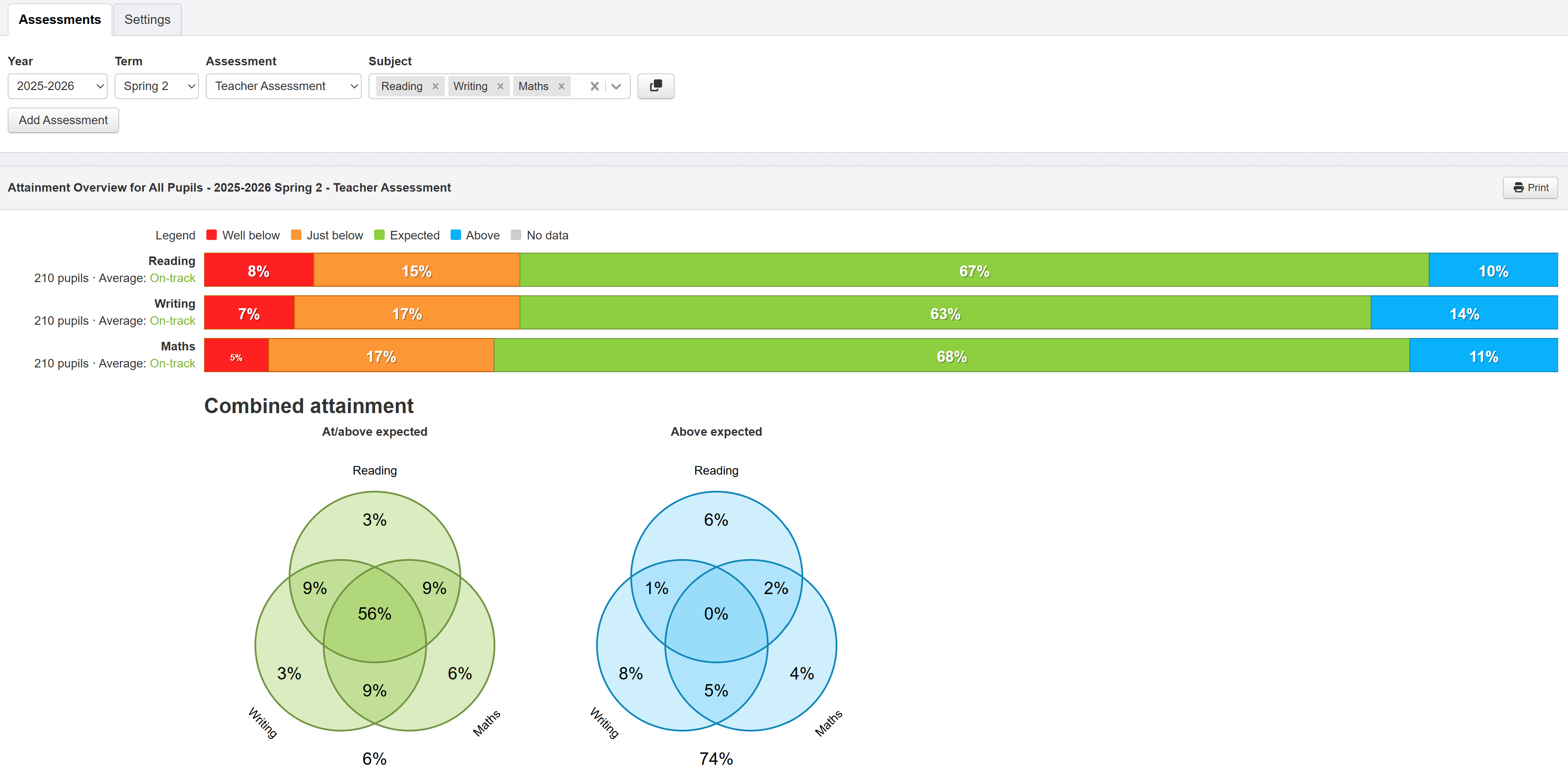
The report options are above the report and split into two tabs:
Assessments
This is where you control which assessments appear in the report. Initially, you'll have a single row with multiple subjects for the same academic year, term and assessment name.
You can change the order of the data bars, and Venn sections, by dragging the subjects into the desired order in the row.
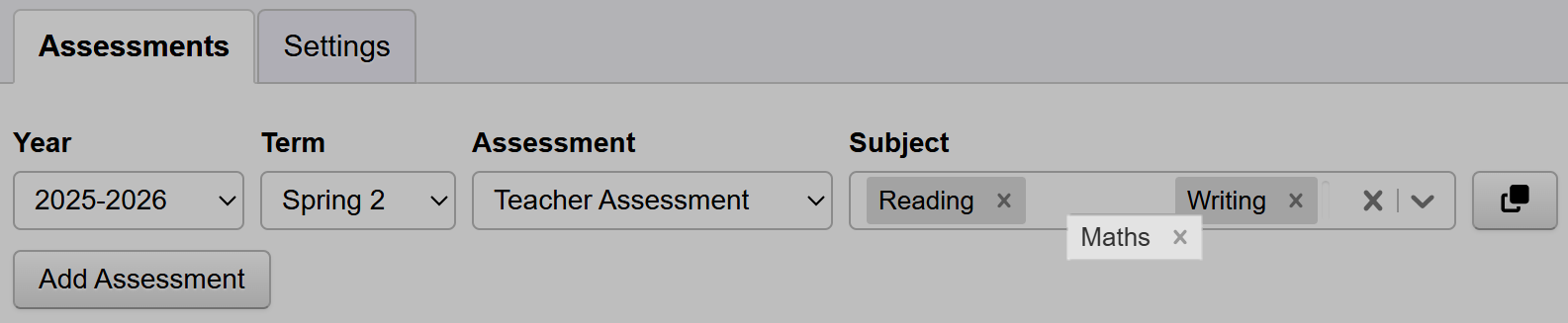
To remove a subject, just click the x next to the subject name. To remove all subjects in a row, click the larger x on the right of the subjects box.
If you want to continue comparing subjects using the same assessment name, year and term, just click the arrow icon in the Subject section to add additional subjects from the menu.
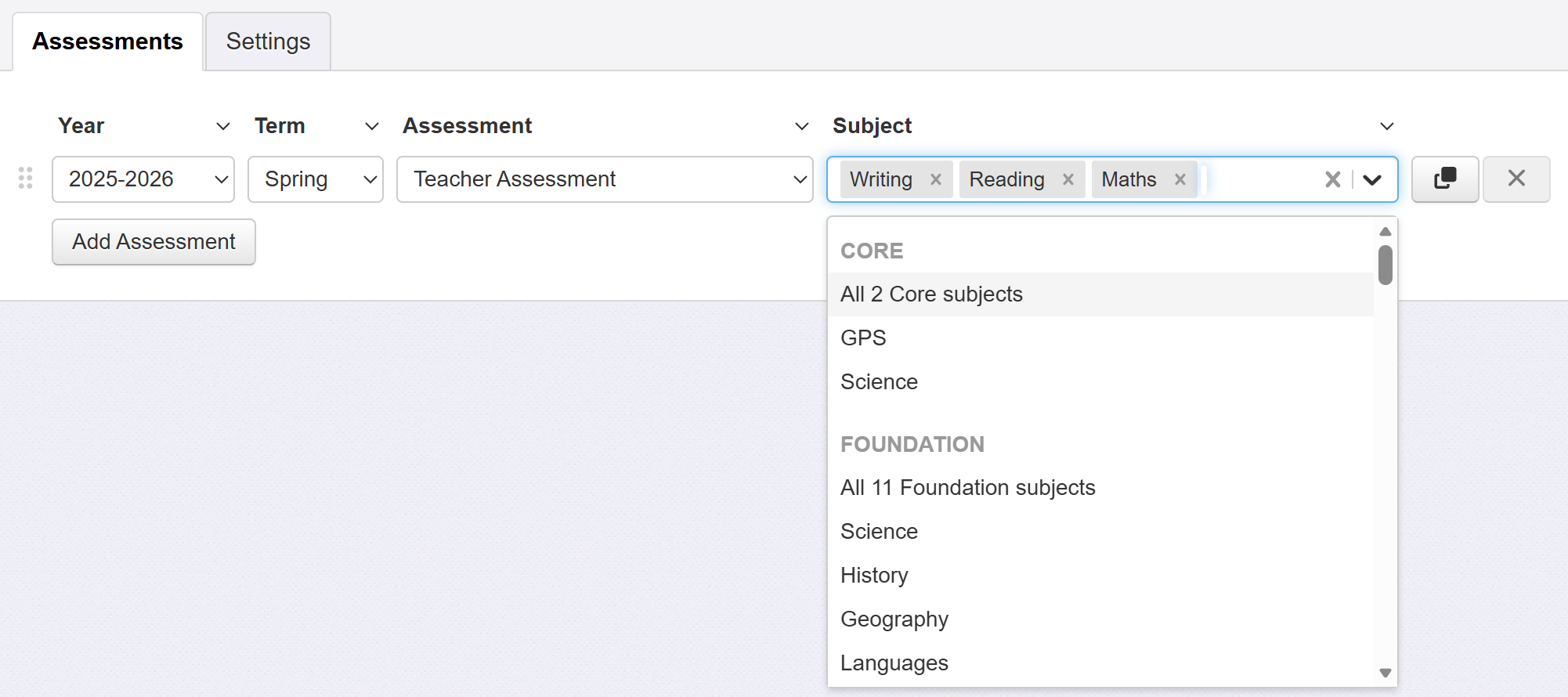
To show KS2 RWM Combined, as a single subject, you'll need to choose the subject called (calculated) at the bottom of the subject list.
If you would like to compare across different assessment names, years or terms, click Add Assessment to insert a new row. Then just choose the details you want to display.
You can also use the Copy icon button, to the right of the row, to make an exact copy then tweak anything you'd like to be slightly different.
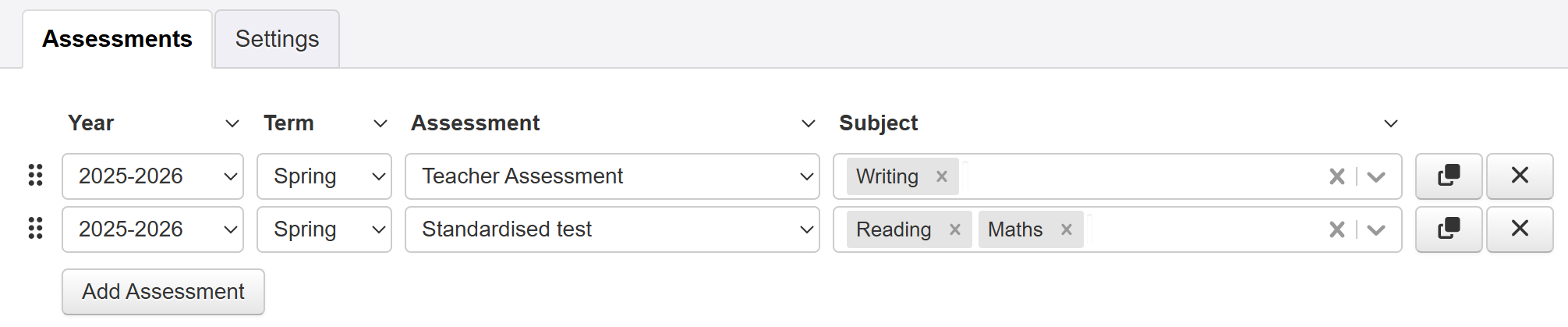
With multiple rows, you can use the drag handle icons, to the left of each row, to change the display order.
If you have multiple rows, it is also possible to change a setting for all rows at once. For example, you might want to change the term for all rows.
The menus attached to the headings allow you to do this. (These menus are only available when you have multiple rows.)
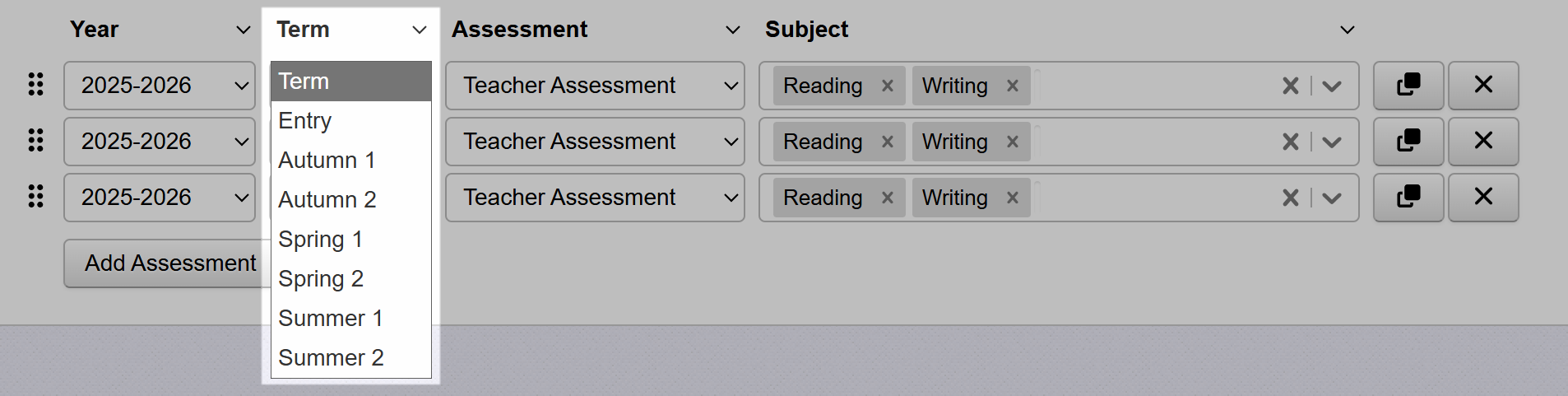
To delete a row entirely (unless you only have one row) click the larger X button at the right end of the row.
Settings
The settings allow you to fine tune the report to display the data in the way to suit your analysis.
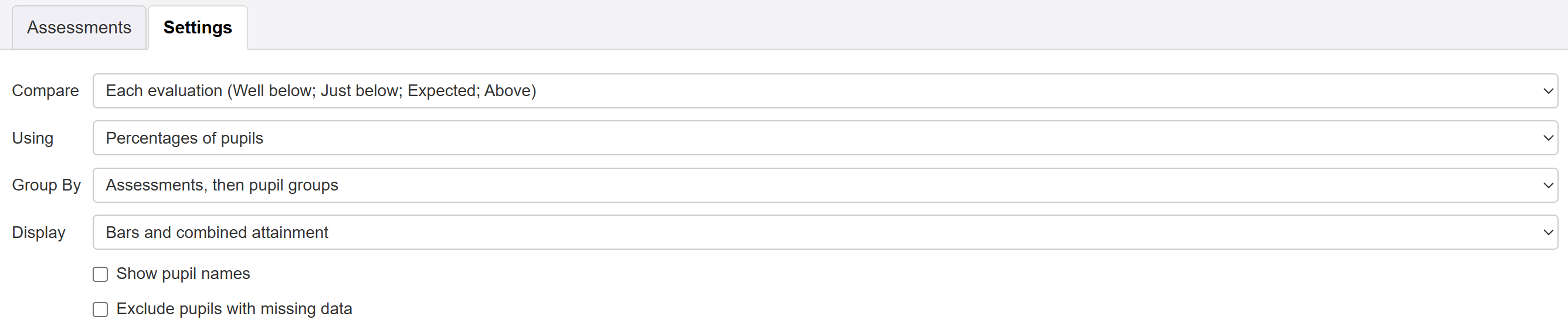
Let's take each option in turn.
Compare

By default, the bars are split into sections to show assessments evaluated as Well below, Just below, Expected and Above.
If you want a simpler view, showing the pupils at or above expected compared to those who are not, choose this option.
Detailed breakdown will separate the sections according to the specific displayed assessments. For example, specific effort grades or your defined thresholds for standardised scores.
Using...
By default, the report will display percentages. Use this option to switch to show pupil numbers instead.
Group By
This option only applies if you're using the Group Pupils option.
By default, the data is displayed in assessment sections (Reading for example) with any selected groups (Boys and Girls for example) within. This is described as Assessments, then pupil groups.
Choose Pupil groups, then assessments to switch this to display in group sections (Boys for example) with any selected assessments (Reading, Writing and Maths for example) within.
Display
By default, the report will display both the data bars and combined attainment (as a Venn diagram if 2-3 assessments displayed). Use this option to show only the data bars or combined display.
Check box options
Tick Show pupil names to list all pupil names on screen, in each section.
Tick Exclude pupils with missing data to remove any displayed data for those pupils without saved data for the selected display.
Exploring the data
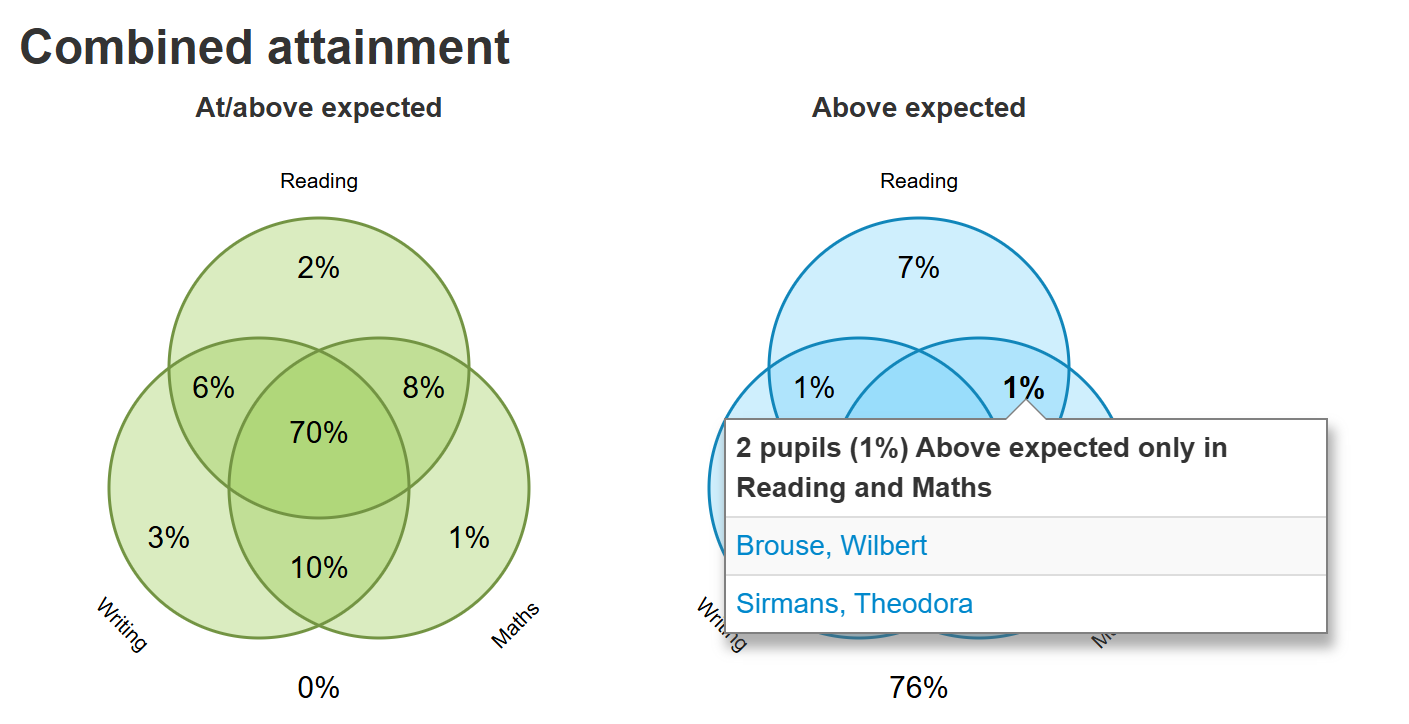
When reviewing data, it is useful to see which pupils are represented by the various sections. Clicking on sections of the bar or Venn diagrams will reveal pupil names.

If you click a name, you'll open the profile page for that pupil; useful if you want to explore any other Insight data for that pupil.
The Venn diagrams compare selected subjects only (not contextual comparisons). They appear if you have two or three subjects selected, only.
Insight's filtering and grouping options allow you to define which pupils you want to include and how you want to compare them. These are accessed via the Filter Pupils and Group Pupils buttons at the top of the screen.
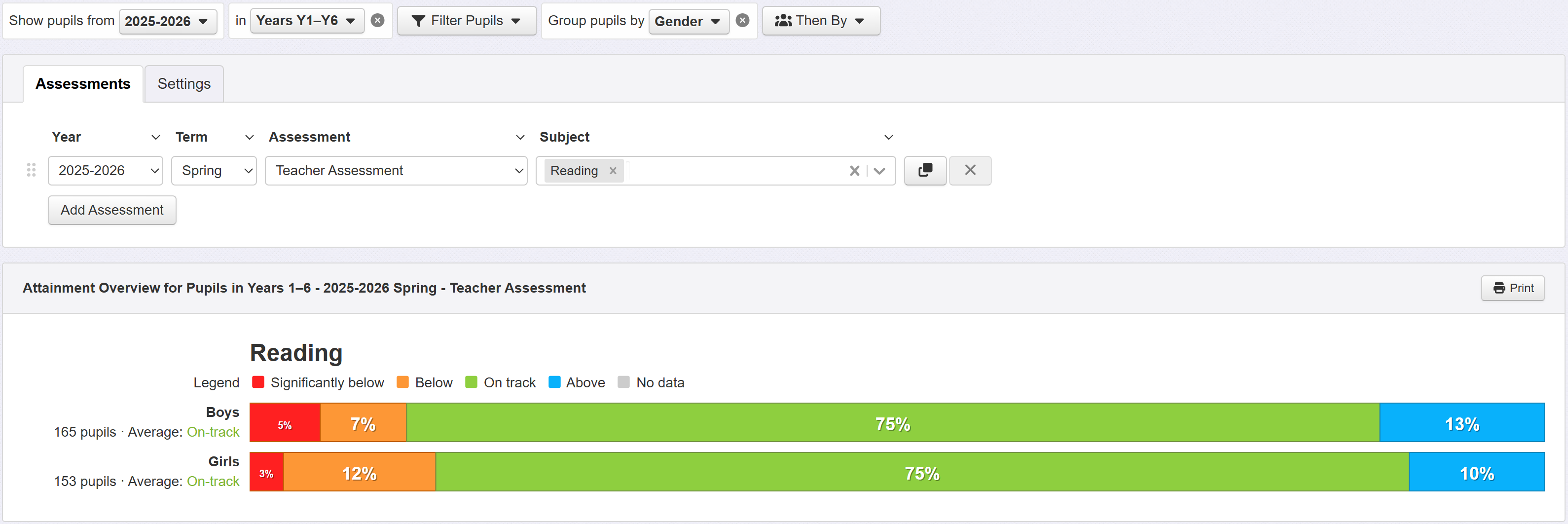
Here’s a simple example, the Gender option has been applied from the Group Pupils menu. We can now compare the attainment of boys to that of girls, with a bar and set of Venn diagrams produced for each group and subject.
If you're using the Trust version of the report, you will have the option to group by School.
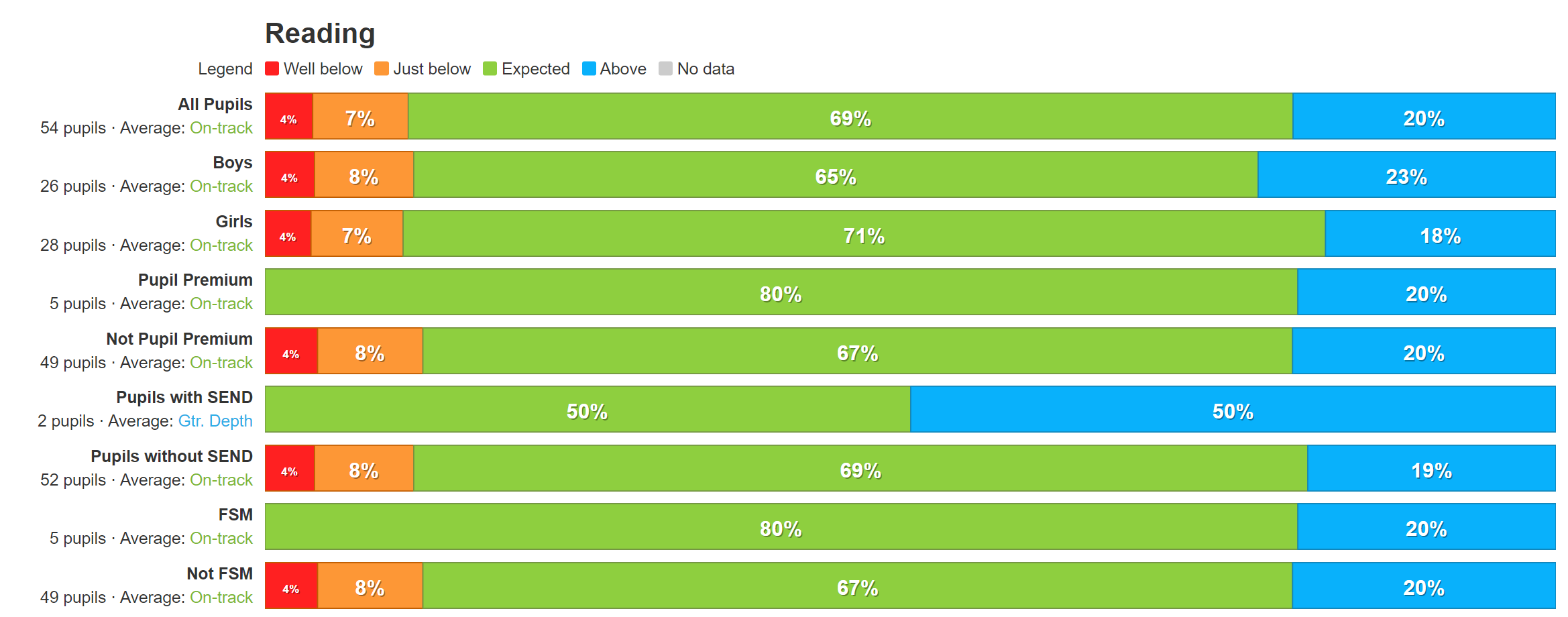
Another useful option is to group by Key Groups. This will break our data down by all main groups of pupils in one go. Again, click the Group Pupils button and select Key Groups from the dropdown menu. Now we can compare the attainment of all the main key groups in one report.
Broaden the scope: multiple year groups
You can use Insight's filters to look at a class or other set of pupils instead (such as all children with SEND across the school). Let's look at a useful example of viewing data for several year groups at once.
If you're following along with your own data, start by clearing any active filters and groups by clicking the ‘x’ against any filters and/or groups you can see. Then click Filter Pupils and choose Year Group.
Click the Year Group selection dropdown and click Multiple selections at the bottom of the list.
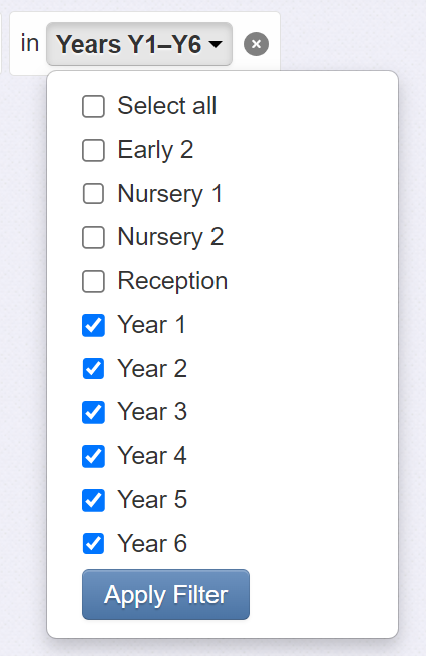
This allows you to select more than one year group. Here, we'll select years 1 to 6, then click Apply Filter.
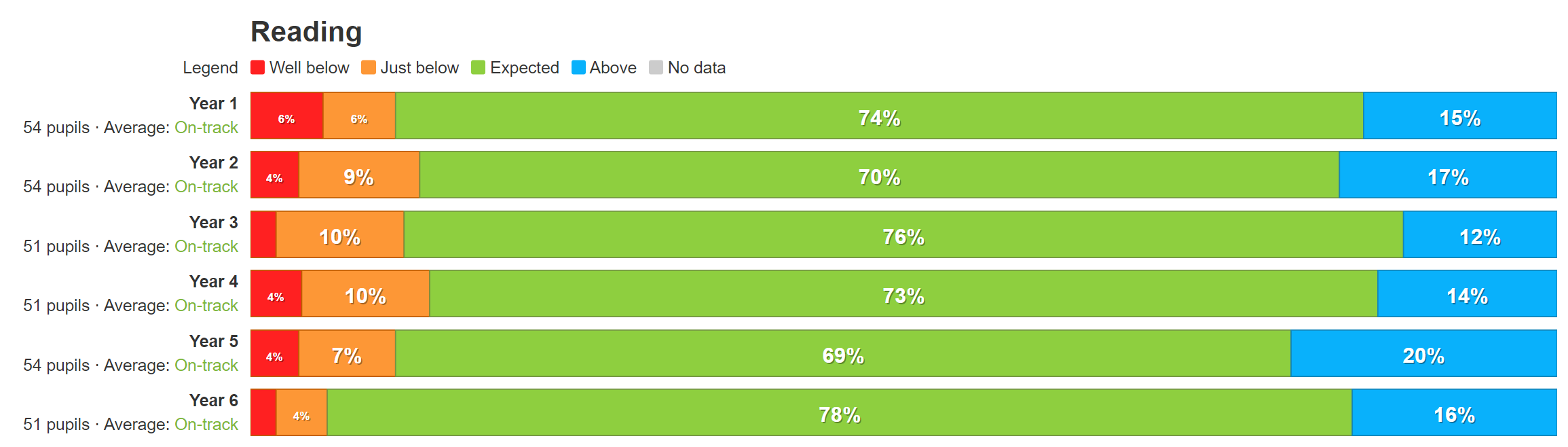
The report is now showing all of key stages one and two (note the number of pupils shown beside each bar). It's often useful at this point to show how each year group compares. To do this, we use the Group Pupils option, selecting the Year Group option from the bottom of the dropdown list. This will take our view and break it down into separate year groups for each subject.
Comparing Early Years with older year groups
The EYFS Aspects are not directly comparable with older key stages, as their focus and curriculum differs. However, it can be useful to see Reception side by side with other year groups.
To enable this for Reading, Writing and Maths Insight will use the following Early Years Aspects:
Reading - Whichever is the lower of Word Reading and Comprehension
Writing - Writing
Maths - Whichever is the lower of Number or Numerical Patterns
(If an early years pupil has standard Reading or Maths assessments, these will be displayed)
Other types of assessment
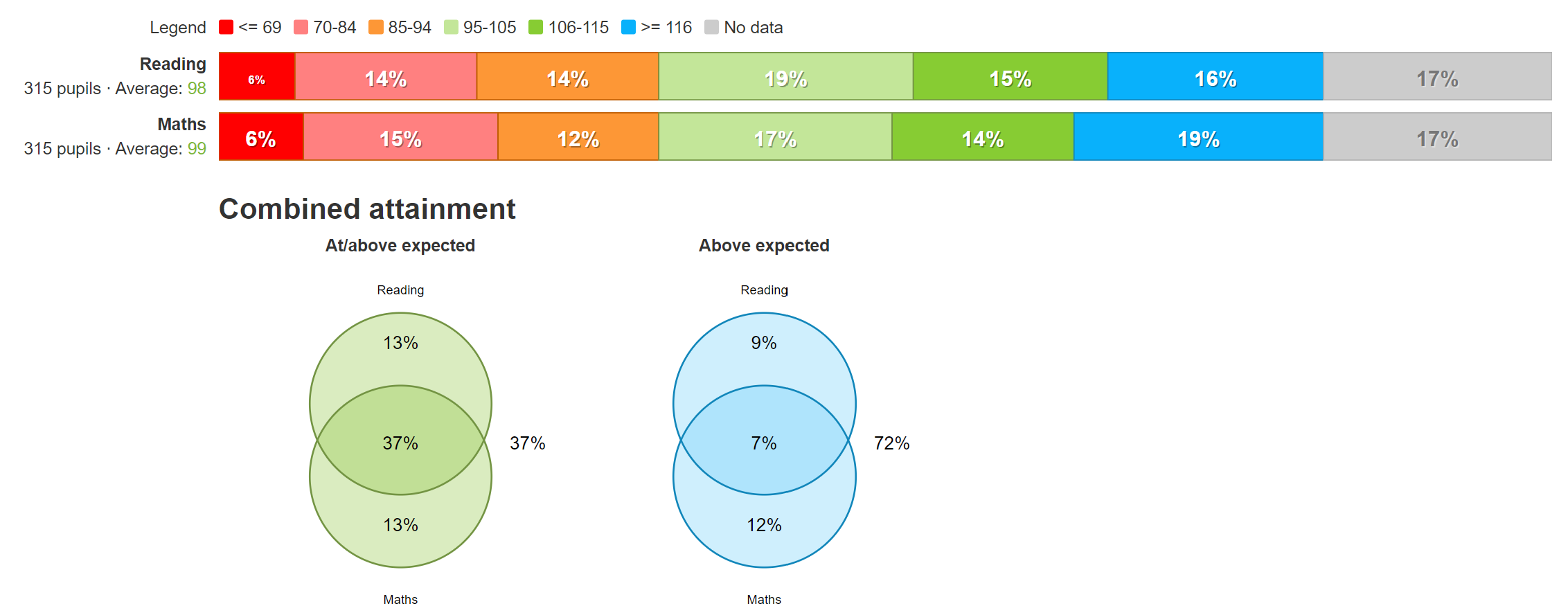
So far, we've been dealing with teacher assessment, but we can use this report to investigate other types of assessment as well. Here's an example of a report summarising year 5's summer attainment in a set of standardised tests.
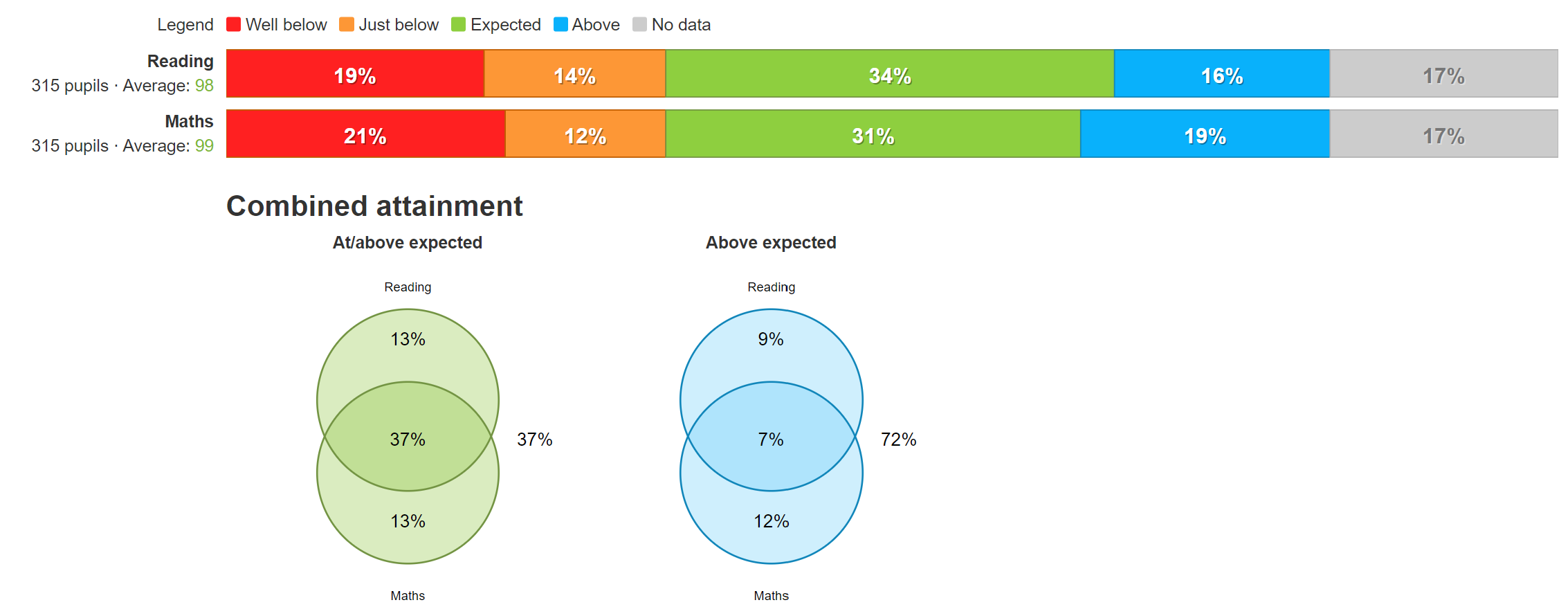
Here we may want to take advantage of the Compare setting and choose Detailed Breakdown. If you have more than four assessment categories, this will provide a more detailed view of your data.
Download and Print
If you want to send the report to someone, you can download it as a pdf. Click the Print button and choose Save as PDF. The latter is recommended for emailing and sharing with governors.
