Adding and managing learning barriers
 Updated
Identifying and reacting to barriers to learning encountered by pupils can be a powerful tool when deciding how best to deploy a finite teaching and support resource.
Ofsted and the DfE are very clear in this regard. For example, the 2025 Ofsted Handbook states that inspections should explore:
leaders’ approach to ensuring that staff are able to identify disadvantaged pupils, those with SEND, those known (or previously known) to social care, and those who face other barriers to their learning and/or well-being, for example young carers; you need to consider this even if leaders have not identified any pupils on roll who fall into these groups – this is to ensure that leaders are identifying and addressing pupils’ needs effectively
Insight includes a tool to enable you to indicate the particular learning barriers that are pertinent to your setting and quickly identify pupils to whom they apply.
Managing Learning Barriers and scores
Learning Barriers may be used at both school and Trust level. Schools that are part of a Trust will inherit any changes to learning barriers made at Trust level, unless the list has been edited at school level.
Choosing your barriers to learning
Learning barriers are managed by Admin users.
Select Learning Barriers from the Pupils section in the Admin screen.
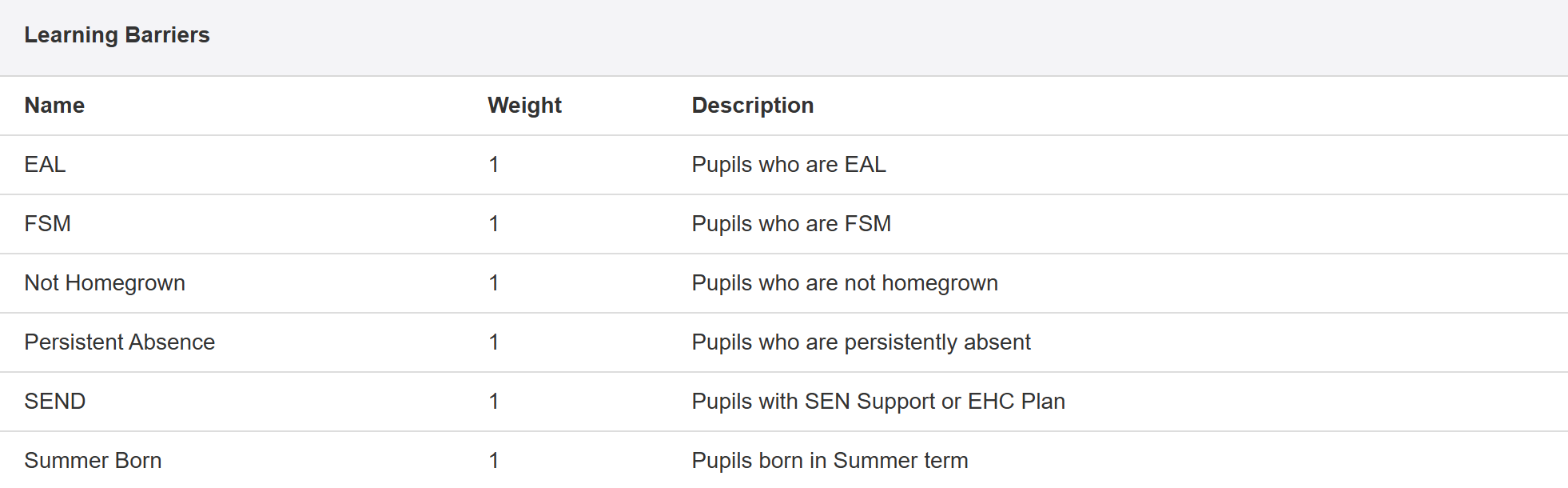
The default list includes a number of common factors that are often considered potential barriers.
These include pupils who are not "homegrown". In other words, any pupils who did not join the school in reception or lower (or Year 3 if a junior school).
Each is given a weighting of 1, meaning a pupil will be given a score of 1 for any of the listed barriers they match. Their total score being the sum of those matches.
Customising Learning Barriers
If you'd like to amend the list, add or remove any items or adjust the weighting; click Customise learning Barriers.
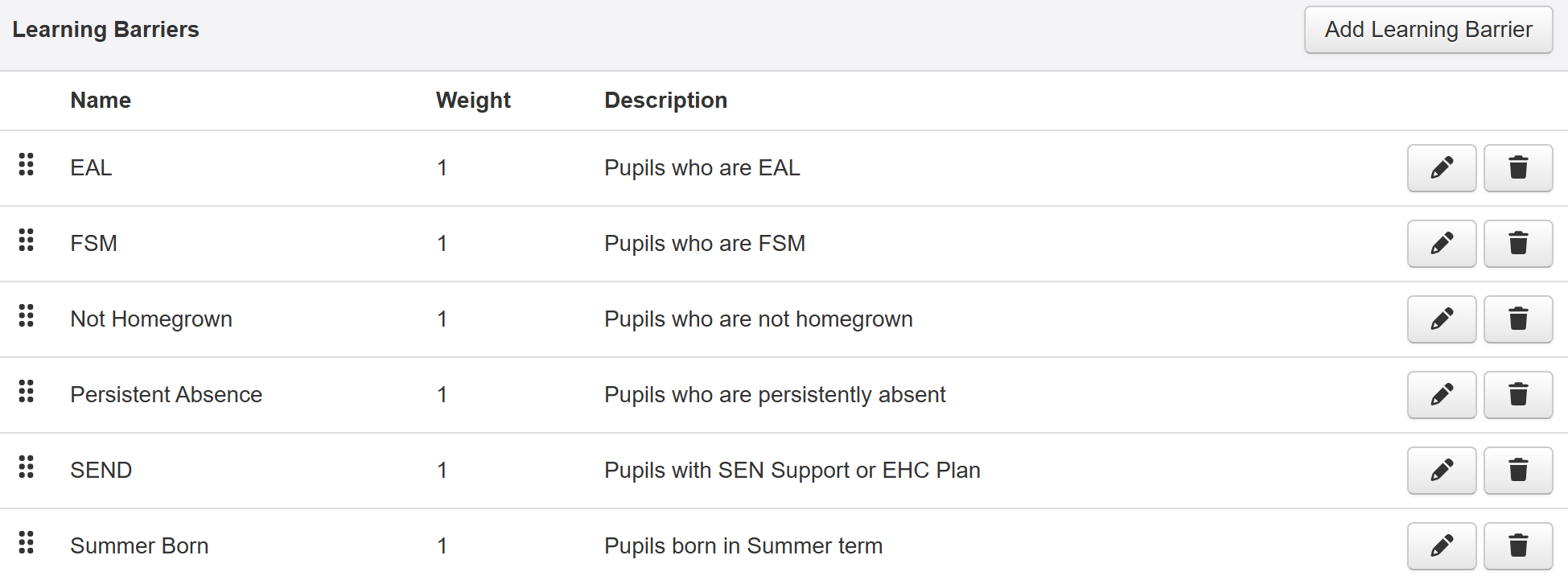
Each existing item will now have a pencil button, to edit it, and a trash icon button to delete it from the list.
You can also reorder the list by dragging and dropping using the icon to the left of each item. This order will also be used if you add learning barrier columns to a Table report.
If you want to add a new barrier to the list, click Add Learning Barrier.
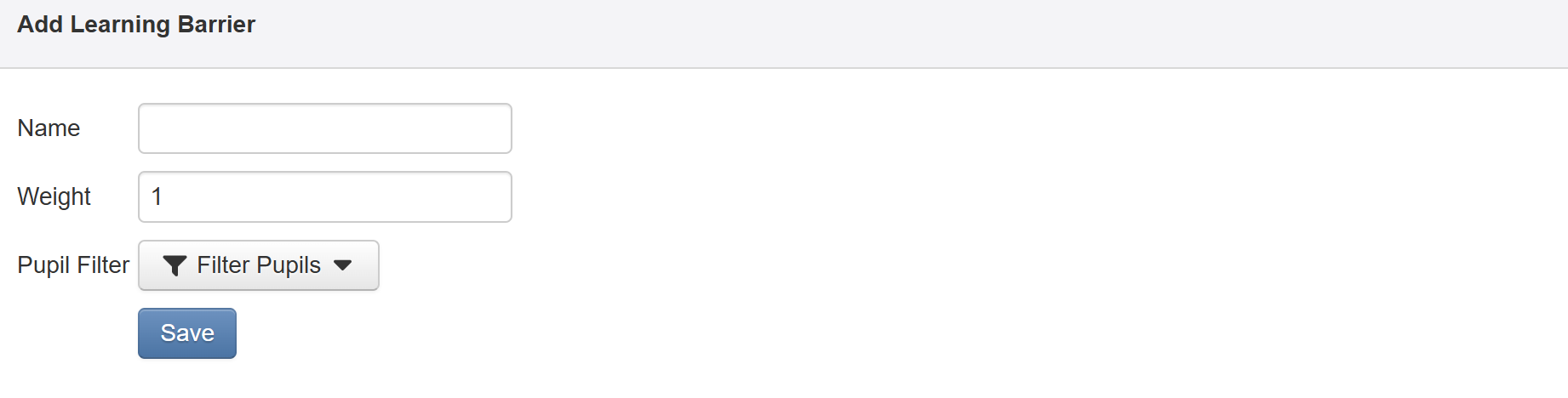
You will be required to give your barrier a name. This is the name that will appear in the list and if you use the learning barrier elsewhere in Insight. In many cases, the name may match a single associated filter, but this gives you the opportunity to use a more descriptive name, especially when adding multiple filters.
Weight allows you to indicate the score that will be added to a pupil matching this item. It is 1 by default.
Click Filter Pupils to choose a category to add for this item. You can choose multiple filters for a single learning barrier item.
Click Save when complete.
Learning Barrier Score Evaluation Ranges
It is possible to filter and group pupils by their learning barrier score. Learning barriers are evaluated as follows by default:
Evaluation | Learning Barrier Score Range |
No learning barriers | 0 |
Minimal learning barriers | 1 to 2 |
Moderate learning barriers | 3 to 4 |
Significant learning barriers | 5 to 6 |
The labels are fixed, but the score ranges (other than 0 for no learning barriers) may be edited to suit your usage.
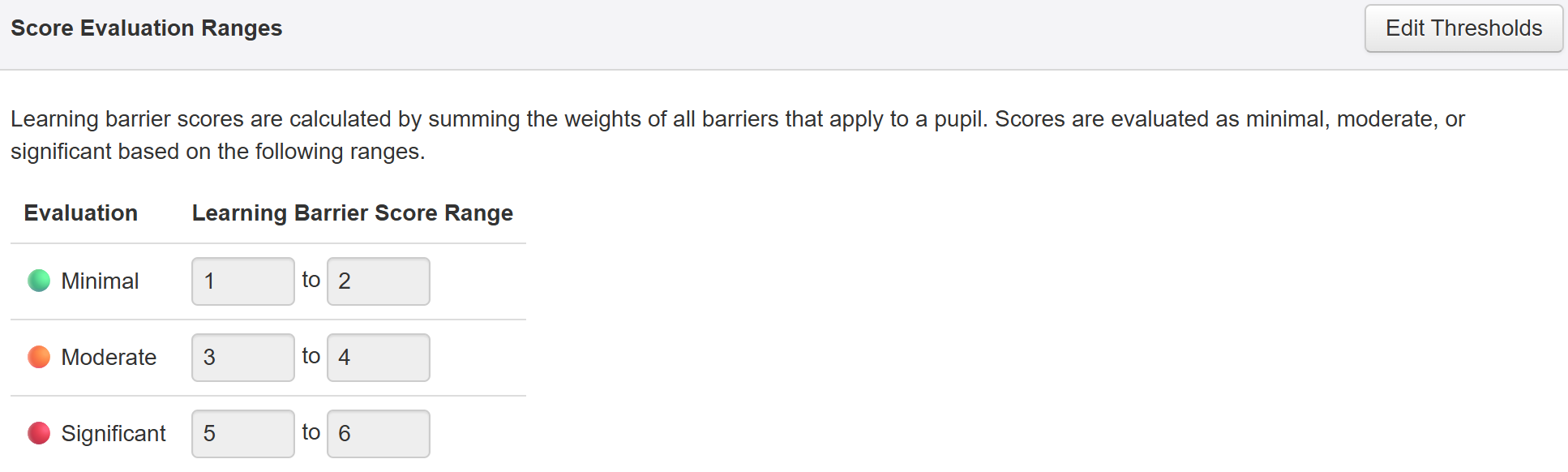
To change these ranges, click Edit Thresholds and change as required. Click Save when complete.
Using Learning Barriers for analysis
Learning barriers may be used alongside other reports and functions within Insight.
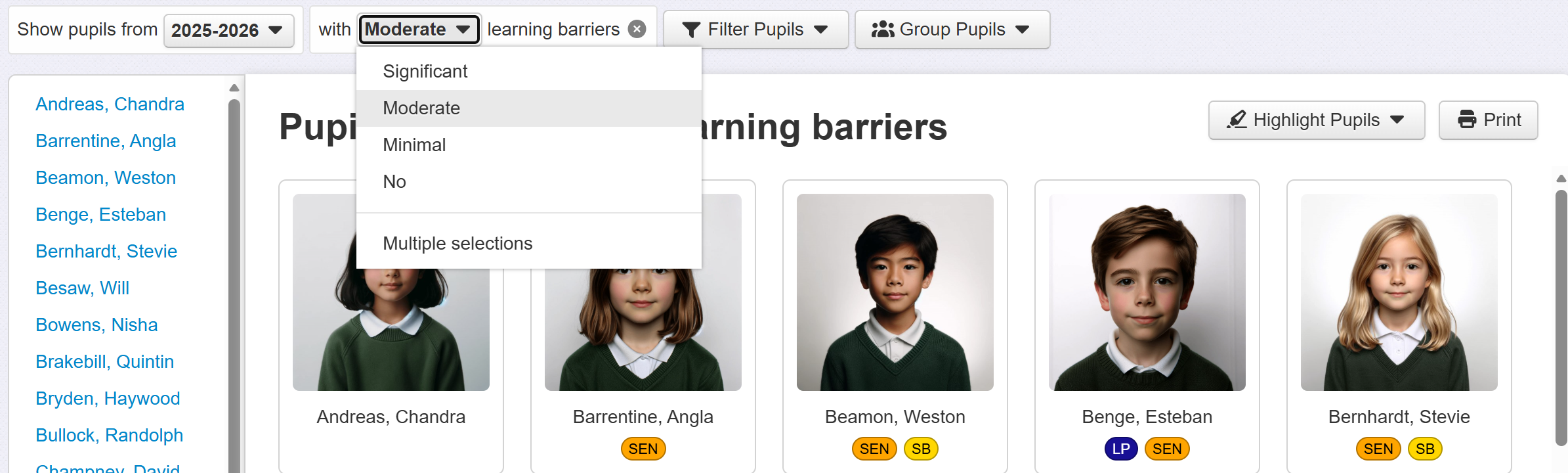
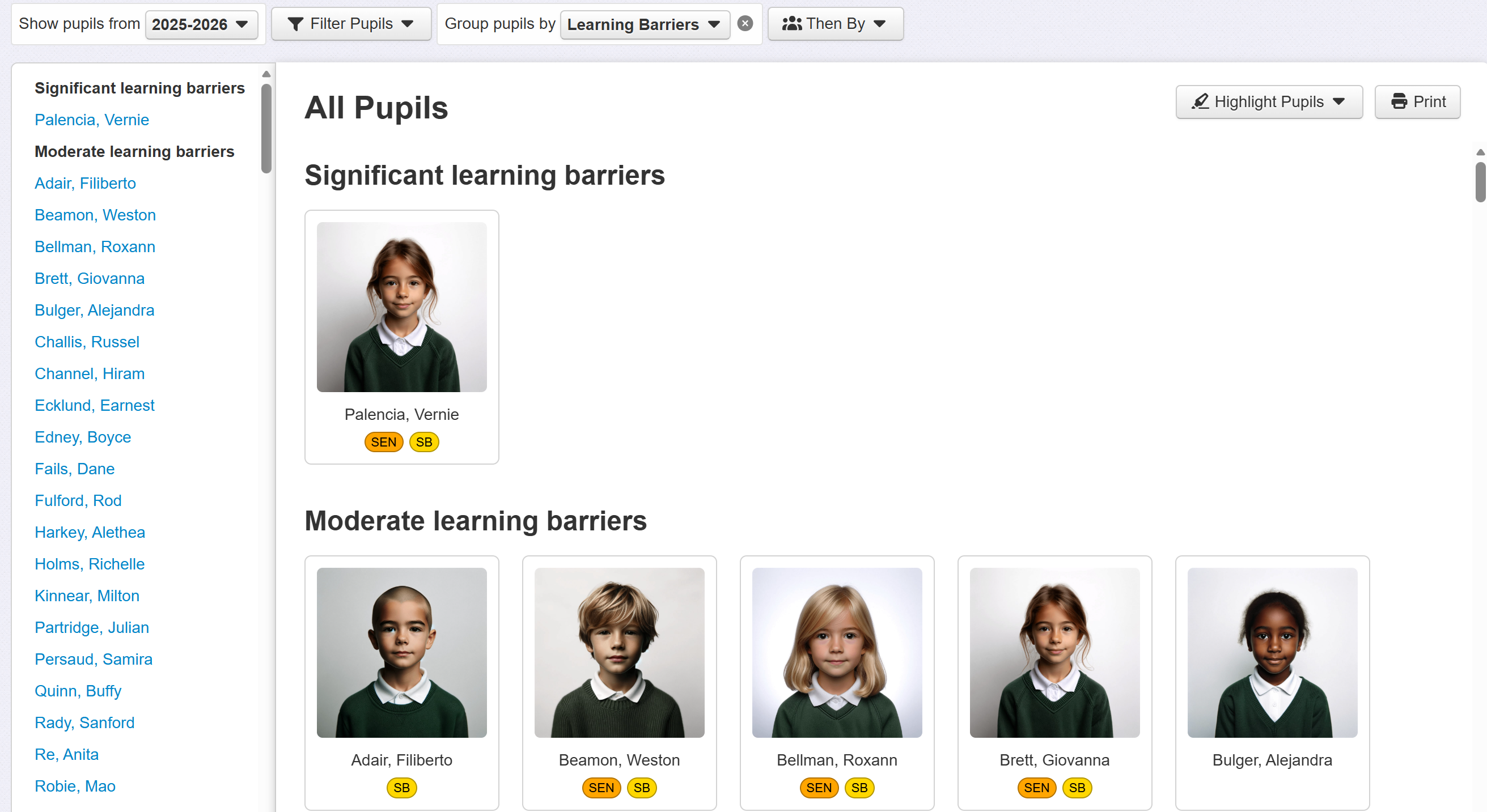
It is possible to filter and group by learning barriers.
Learning barriers may also be added to Table reports. Either just as a score per pupil or to show all the criteria each pupil matches on.

